BI Book Files
Last updated 8 months ago
Contents
About the feature
Prerequisites
Adding a file
Files functionalities
Folders
About
The Files feature in BI Book is highly useful and user-friendly, especially if you need to connect to your own files from BI Book reports. These files can also be easily replaced with updated versions whenever necessary.
Once the files are added to BI Book you can use them as a data source for your reporting solution. Our data analysts will assist you with establishing the connection between your file(s) and your report, ensuring everything runs smoothly.
Prerequisites
Files feature requires activation by BI Book support team. Please contact us at support@bibook.com, and we will enable the feature in your BI Book environment.
You should have sufficient user rights to view, create, update files. If you cannot see the files or buttons for adding or updating file(s), it means that you do not have required permissions. Please contact your environment Admin to request the access.
Adding a file
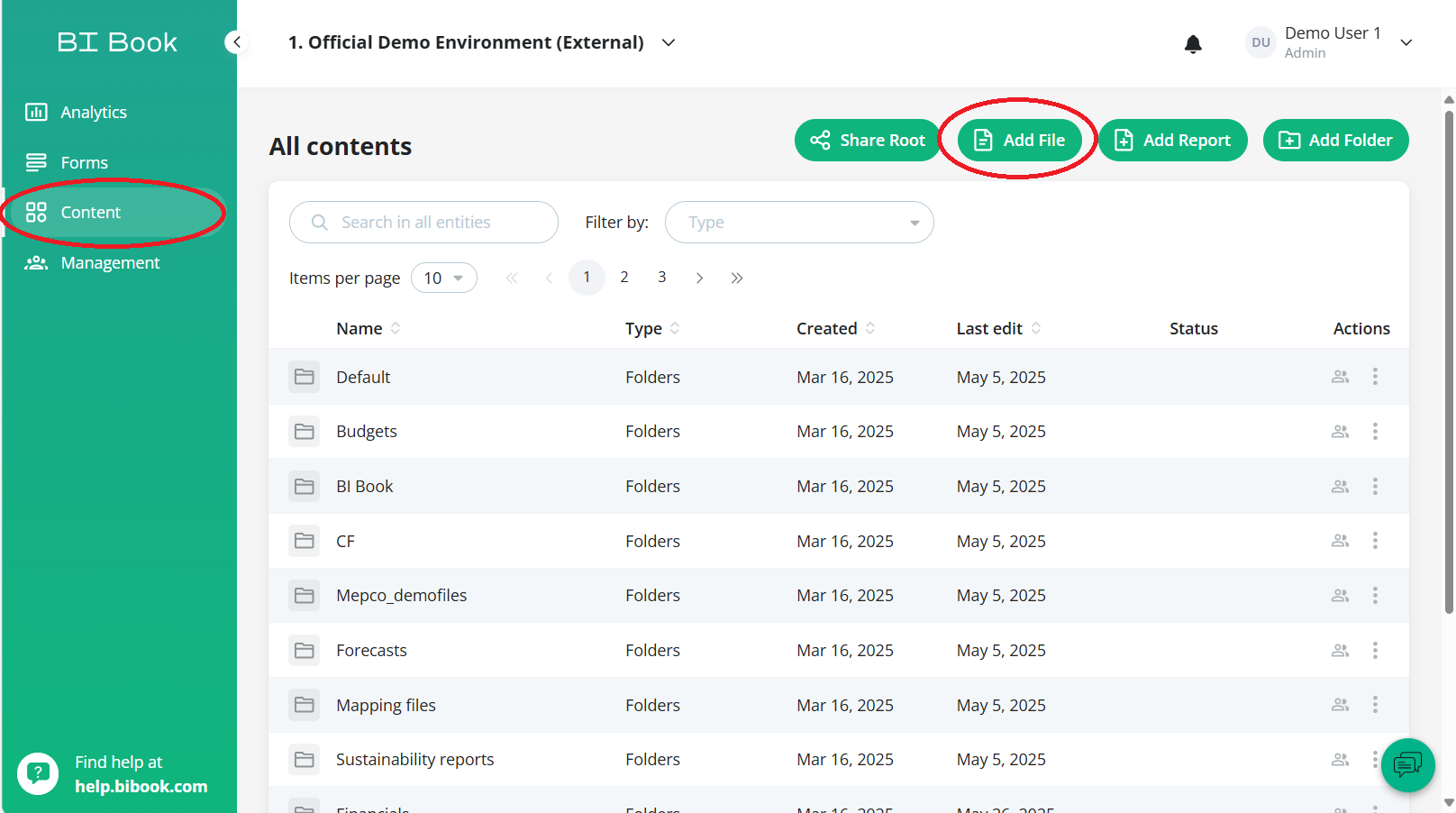
Step 1. You can add the new file by going to Content > and clicking Add file
⚠️If you don't see button "Add file" in the root folder, navigate to one of the subfolders where you might have create rights on files. If you are not sure what permissions you have and where, please contact your environment Admin.
Step 2. Click Upload a file to choose the file you want add. You can also choose multiple files here at once by holding CTRL while clicking files.
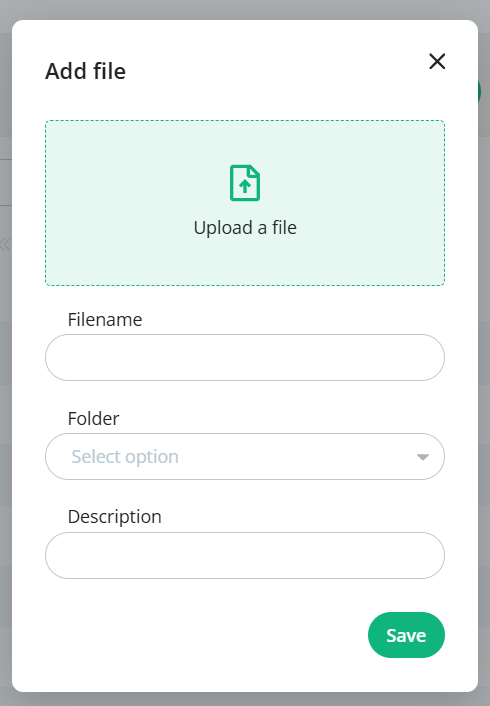
Step 3. Add the name of the file and the folder you want to assign the file to and an optional description.
The default folder is a folder from where you clicked "Add file". You can change the default folder to any other folder you have access to or leave the field empty to save the file(s) to the root.
Step 4. After filling in all the file details, click Save.
You have successfully added a file to BI Book!
Files Functionalities
To view a file uploaded to BI Book, you'll have to download it to your laptop.
On the Content page locate the file you would like to check and click download icon

Perhaps the most useful function for files is the Replace function. You can replace/update old files by using it. Note that the structure of the new file has to be the same as the old one (Do not add new columns or change old column names).
You can replace a file by going to the file you want to replace and click three dots on the right side of it and press replace. Click Upload a file in the window that pops up choose the new file you want to use. Remember to click Save.
You can edit the file's name, the folder it belongs to and its description by clicking Edit. Remember to click Save once you are done editing.
Finally, you can remove a file by clicking Delete.
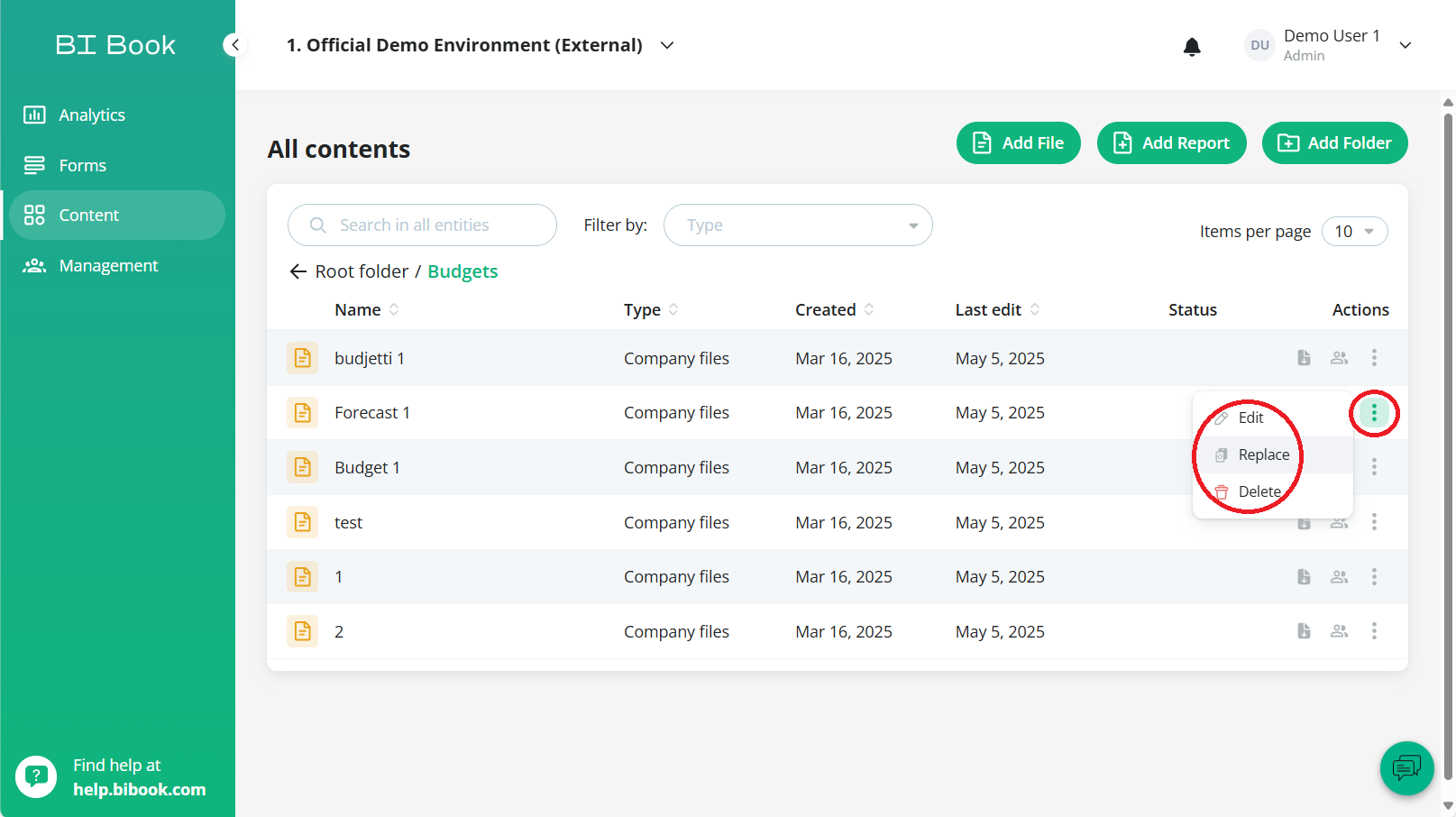
⚠️ Note: If any of the actions described above are not available to you, it means that you do not have sufficient user rights.
💡You might have different permissions on different files/files in folders. For example, you can have edit rights on files in folder "Sales", but not if folder "Financials".
Folders
You can create folders to efficiently store and organize your files, forms, and reports. Each folder can contain multiple items. Folders are useful for managing specific projects or providing access to certain files only to selected users. To add a folder follow these simple steps:
Navigate to Content tab on the left side bar
Click Add Folder button
Write name for the folder and press Save
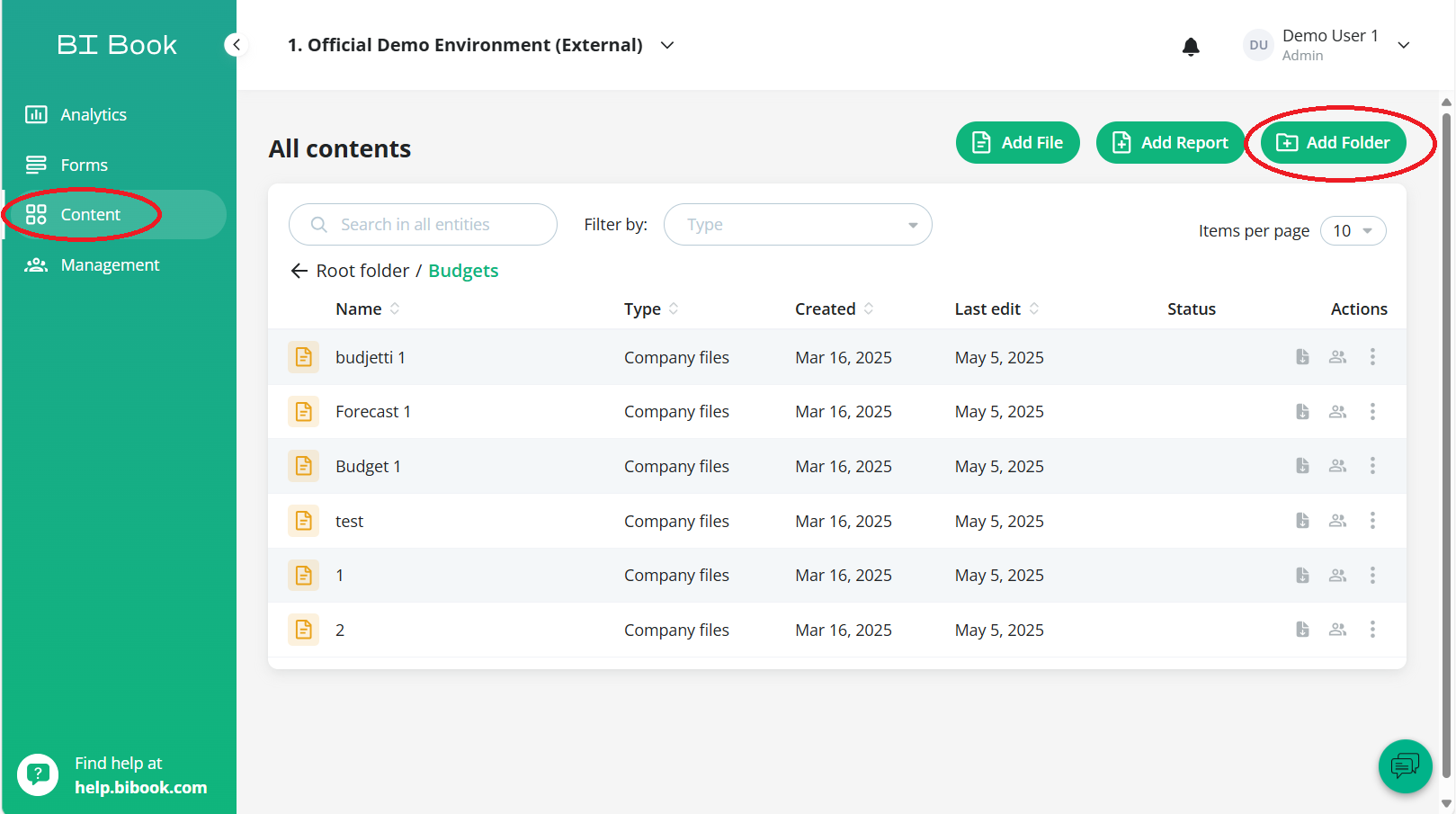
You can move files to your newly created folder by choosing your file's three dots on the right side and press Edit. Refer to Files functionalities earlier in this article.
Was this helpful?
Still need help? Ask the team