Logging in to BI Book
This article explains how to log in to BI Book, which authentication methods your company can use (Microsoft, Google, Basic, SSO, and One-time Password), and how to solve the most common login issues, such as “No access” errors or problems with Google and Microsoft authentication.
Last updated 8 months ago
Content
How to log in
Go to <your-domain>.bibook.com - replace <your-domain> with your company’s BI Book domain.
Log in using one of the authentication methods enabled for your company.
Alternatively, you can navigate to bibook.com/login and it will automatically redirect you to your domain.
Authentication methods available
Each BI Book environment can use one or more of the following authentication methods:
Microsoft Authentication (default)
Google Authentication (default)
Basic Authentication (username and password)
SSO (Single Sign-On) Authentication
*One-time password (OTP)
Available by default in all BI Book environments created after 1 March 2026, unless it has been manually disabled by your company admins.
If your environment was created before March 2026 and you would like to enable OTP login, please contact your Analyst or email us at support@bibook.com.
⚠️If you do not see one of the methods listed above on your login page, it means it is not enabled in your company’s environment
ℹ️ If you need help choosing or setting up an authentication method, please contact your environment admin.
Troubleshooting
Use the sections below to identify and resolve the most common login problems.
1. Common issue: Account does not exist in BI Book
What you might see: you cannot log in, or you see a “No access” message.
Most likely cause: The email account you are using does not exist as a user in your BI Book environment (or has a spelling error).
What to do:
Contact your environment administrator and ask them to:
Confirm that your email address is added to BI Book.
Confirm the exact email address you were added with in BI Book
Check for spelling mistakes (for example, missing letters or extra characters).
2. Issues with Google Authentication
What you might experience:
You received an invitation to your Gmail inbox, but see “No access” when you try to log in with Google.
Example scenario:
Invitation was sent to:
jonhsmith@gmail.comWhen you log in, you see “No access”.
Most likely cause:
Your admin added your email incorrectly in BI Book, for example as john.smith@gmail.com instead of jonhsmith@gmail.com.
Important:
Gmail ignores dots (.) in addresses, so johnsmith@gmail.com and john.smith@gmail.com go to the same inbox. However, BI Book treats them as different accounts. This means you can receive the invitation but still have no access.
What to do:
Ask your environment admin to:
Check the exact email stored for your user in BI Book.
Correct it so it matches the email you use to log in with Google.
3. Issues with Microsoft Authentication
What you might experience:
You previously logged in with Microsoft successfully, but now:
You are redirected to
get.bibook.comrepeatedly, orYou see a “No access” error.
ℹ️ If you are logging in with Microsoft Authentication for the first time and see an “Approval required” message, please check this article.
Most likely cause:
You are signed in with the wrong browser profile or Microsoft account.
Modern browsers (like Microsoft Edge and Google Chrome) support multiple profiles, each with its own Microsoft account. If a different profile becomes active, you might try to log in with the wrong account.
What to do (example in Microsoft Edge):
Click the profile icon in the upper-right corner of the browser.
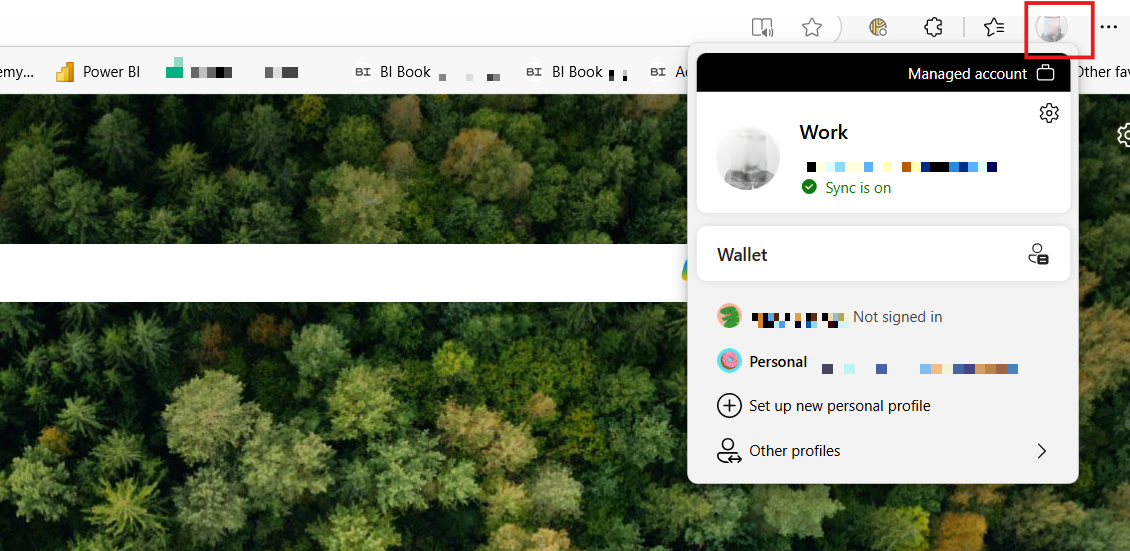
Select the profile that uses your work account (or the account you used previously for BI Book).
Once the correct profile is active, try logging in to BI Book again.
If the problem continues after confirming the correct profile/account, contact support@bibook.com.
What to do (example in Google Chrome):
Your organization may have set up Chrome profiles so you can sign in to the browser with your Microsoft Entra ID account. This allows you to use tools like SharePoint and Excel Online with your work account.
To confirm you are using the correct Microsoft account when signing in to BI Book:
Open Chrome and go to a Microsoft service your organization uses (for example, your company SharePoint site or Outlook on the web).
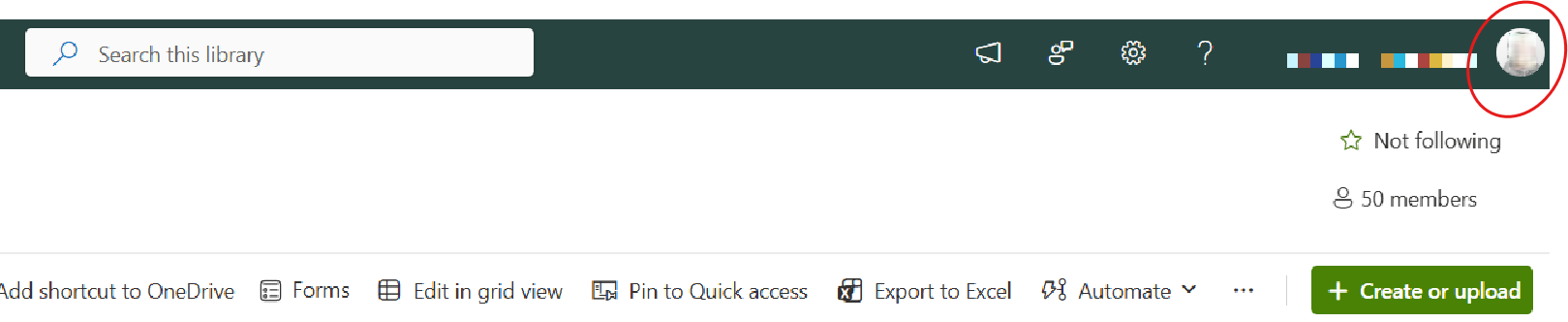
In the upper-right corner of the page, check which Microsoft profile you are signed in with.
Make sure the email shown there is exactly the same as the email address you were added with in BI Book. If it is different, switch to the correct account and try logging in to BI Book again.
4. Other common issues
Cannot see Microsoft login button?
Microsoft Authentication is probably disabled for your environment.
Contact your environment admin to confirm.
Cannot see Google login button?
Google Authentication is probably disabled for your environment.
Contact your environment admin to confirm.
Cannot see Basic Authentication (username + password)?
Basic Authentication is off by default and considered less secure.
Your environment admin must enable it if your company chooses to use it.
5. Getting help
For almost all login issues, your environment admin is your first and best point of contact.
If the issue persists, or your admin cannot resolve it, please contact support@bibook.com and include:
Your BI Book domain (e.g.
your-company.bibook.com)The login method you are trying to use
A short description and the screenshot of the problem
Was this helpful?
Still need help? Ask the team