One-time passcode login
This article explains how to use one-time passcode (OTP) login in BI Book, how to enable it if it is not available, and how to troubleshoot common login issues.
Last updated 8 months ago
One-time passcode login is one of the default ways to access your BI Book environment.
*One-time passcode (OTP)
OTP is available by default in all BI Book environments created on or after 1 March 2026, unless it has been manually disabled by your company admins.
If your environment was created before March 2026 and you would like to enable OTP login, please contact your Analyst or email us at support@bibook.com.
How to login with a one-time passcode
Go to your company’s BI Book subdomain, for example
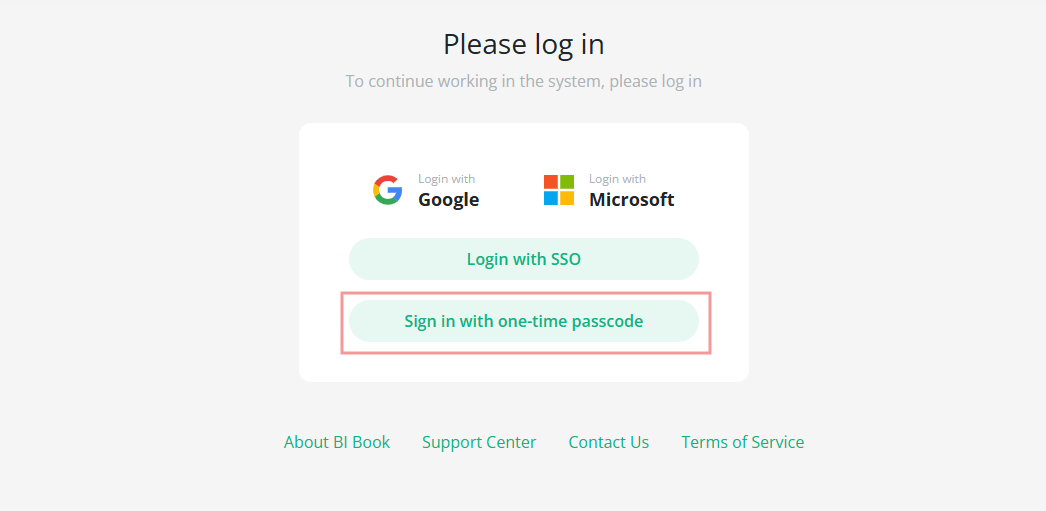
https://<your-domain>.bibook.comIf OTP login is enabled, you will see the button “Sign in with one-time passcode”. Click it.
Enter the email address that was used to add you to BI Book.
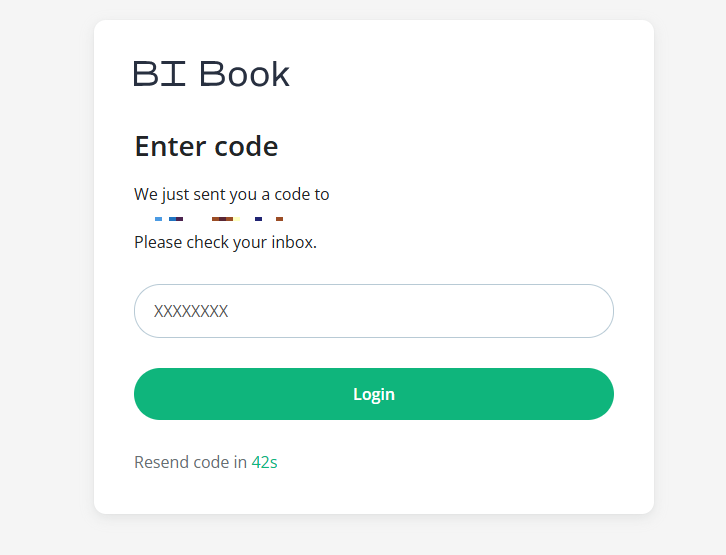
If your email is registered, you will receive a one-time passcode to that address.
Enter the passcode and click “Login”.
Troubleshooting
Common error messages
“That code didn't work. Check the code and try again.”
Possible reasons:
You are not using the exact passcode that was sent to you.
The passcode has already been used or has expired.
What to do:
Carefully copy the passcode from the email and try again.
If it still does not work, request a new passcode and use the latest one.
“Exceed limit per email: Too many requests. Please try again later”
Reason:
For security, there is a limit to how many login requests can be made per email address per hour.
What to do:
Wait 1 hour and then try to log in again.
“Exceed limit per ip address: Too many requests. Please try again later”
Reason:
There is also a limit to how many login requests can be made from the same IP address per hour.
What to do:
Wait 1 hour and try again, or
Contact us at support@bibook.com if you need the limit adjusted.
Not receiving the one-time passcode email
If you requested a passcode but did not receive the email:
Check your junk/spam folder.
If your organization uses security tools (such as Email Quarantine in Microsoft Defender), check there and release the email if needed.
If you are unsure how to proceed or still cannot find the email, contact us at support@bibook.com and we will guide you through the next steps.
Was this helpful?
Still need help? Ask the team