System Banners
Last updated 8 months ago
In BI Book we have global system banners and company-specific system banners.
Global system banners are used for notifying all BI Book users about important system updates, new BI Book features, etc. Global system banners can be created and managed only by Global Admins and are out of scope of this article.
Company-specific system banners (system banners) are an effective way to inform all users within the BI Book environment about important updates, such as newly published report pages or data flow errors.
Follow the steps described below to create a system banner tailored to your needs.
How to
Step 1. Log in to BI Book as a user with admin rights
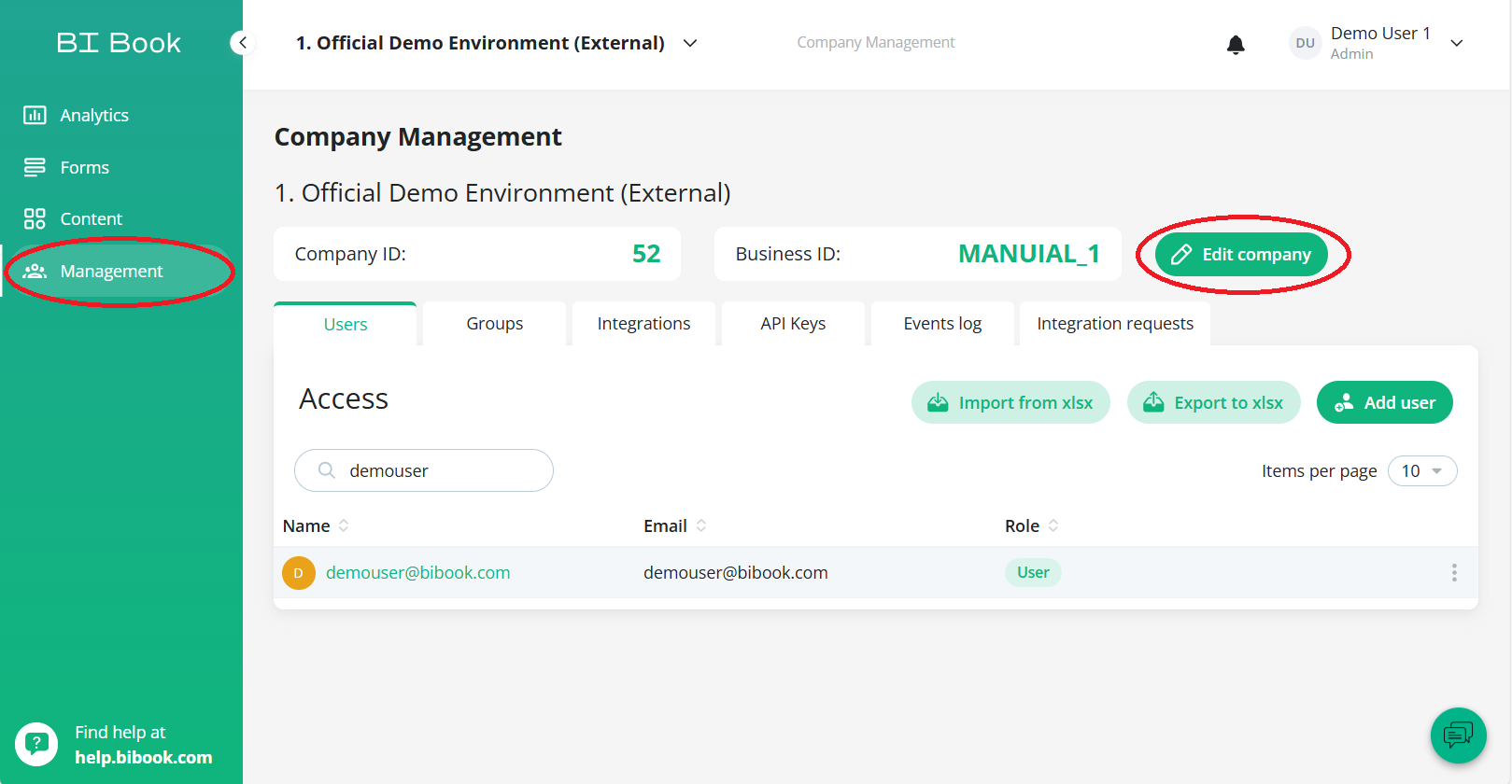
Step 2. Navigate to Management tab from left side bar and click the Edit Company button
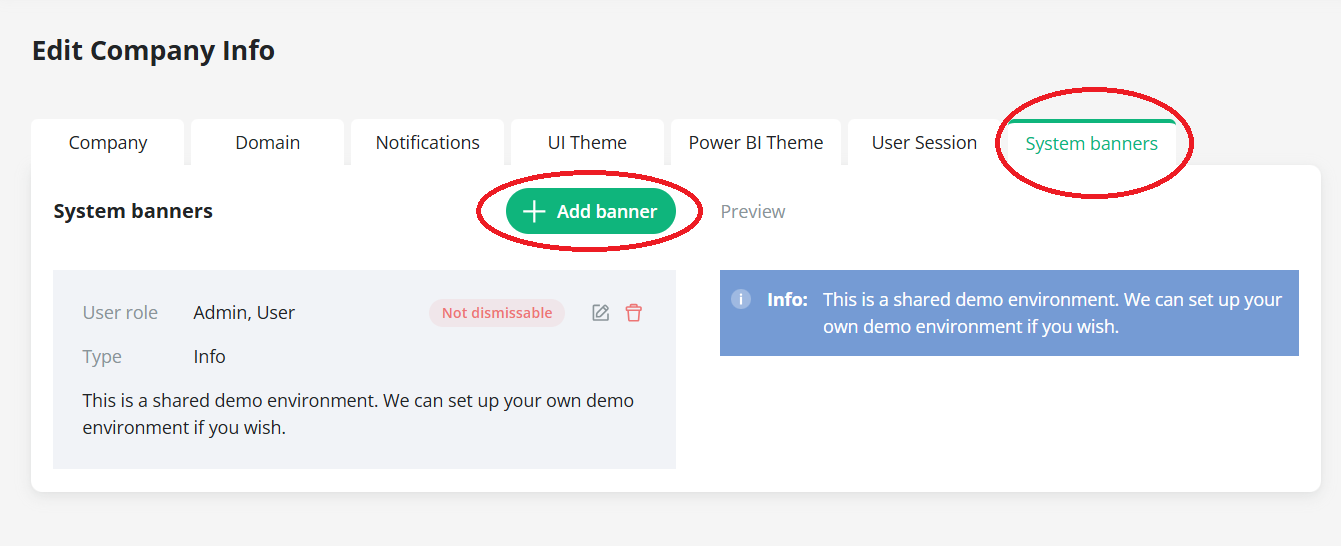
Step 3. Navigate to System banners tab and click Add banner
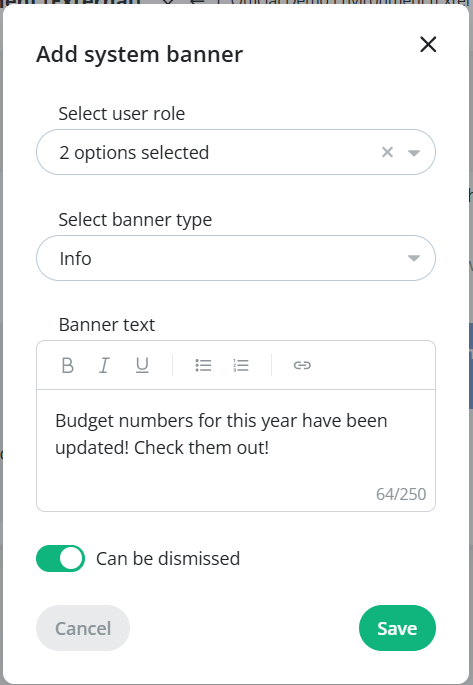
Step 4. A pop-up window will appear, offering you options for system banner:
Select user role option is used to specify which user roles will see the banner. Users with roles such as users, admins, or both can be granted access to view the banner, depending on your selection.
Select banner type option allows you to specify the kind of banner you want to display. You can choose between two banner types:
Info (Blue background of the banner)
Warning (Yellow background of the banner)
Can be dismissed option can be toggled to choose if user can dismiss the message or not.
Banner text can be customized according to your needs. For example, if the budget numbers have been updated and you want to notify all report viewers, you can create a banner message similar to the example shown below:
Step 5. Once you have configured all the options to your liking click Save.
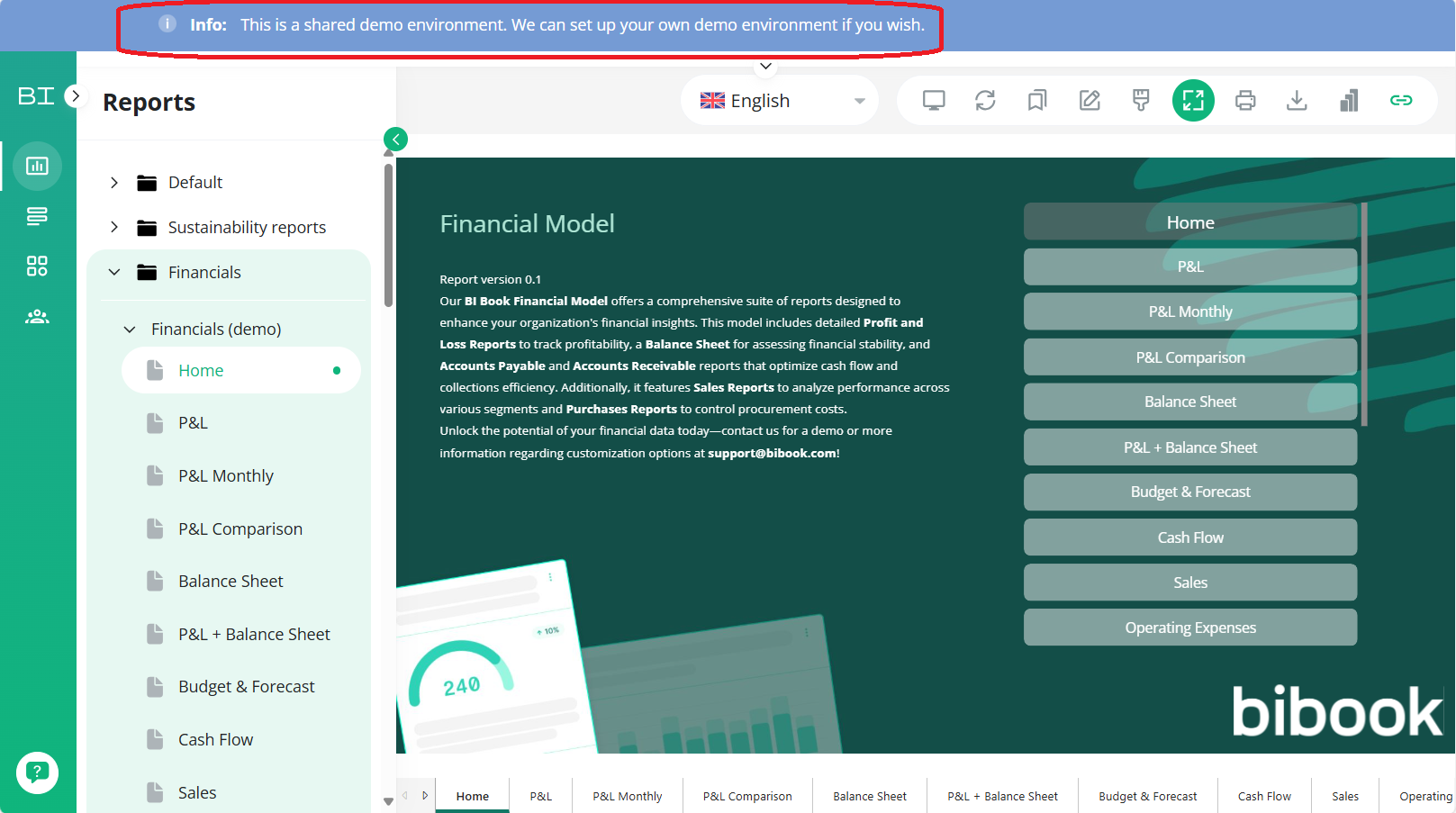
You are all set! The system banner has now been created and can be seen by users at the top of BI Book, as shown in the example below:
Was this helpful?
Still need help? Ask the team