How to edit company environment
Last updated 8 months ago
As an admin, you have the ability to customize your company's BI Book environment from the Edit Company page. Follow this guide learn what options are available and how to make changes.
Content overview
How to access
Company
Domain
Notifications
UI Theme
Power BI Theme
User Session
System banners
How to access
Step 1. Navigate to Management page on the sidebar and click Edit company button
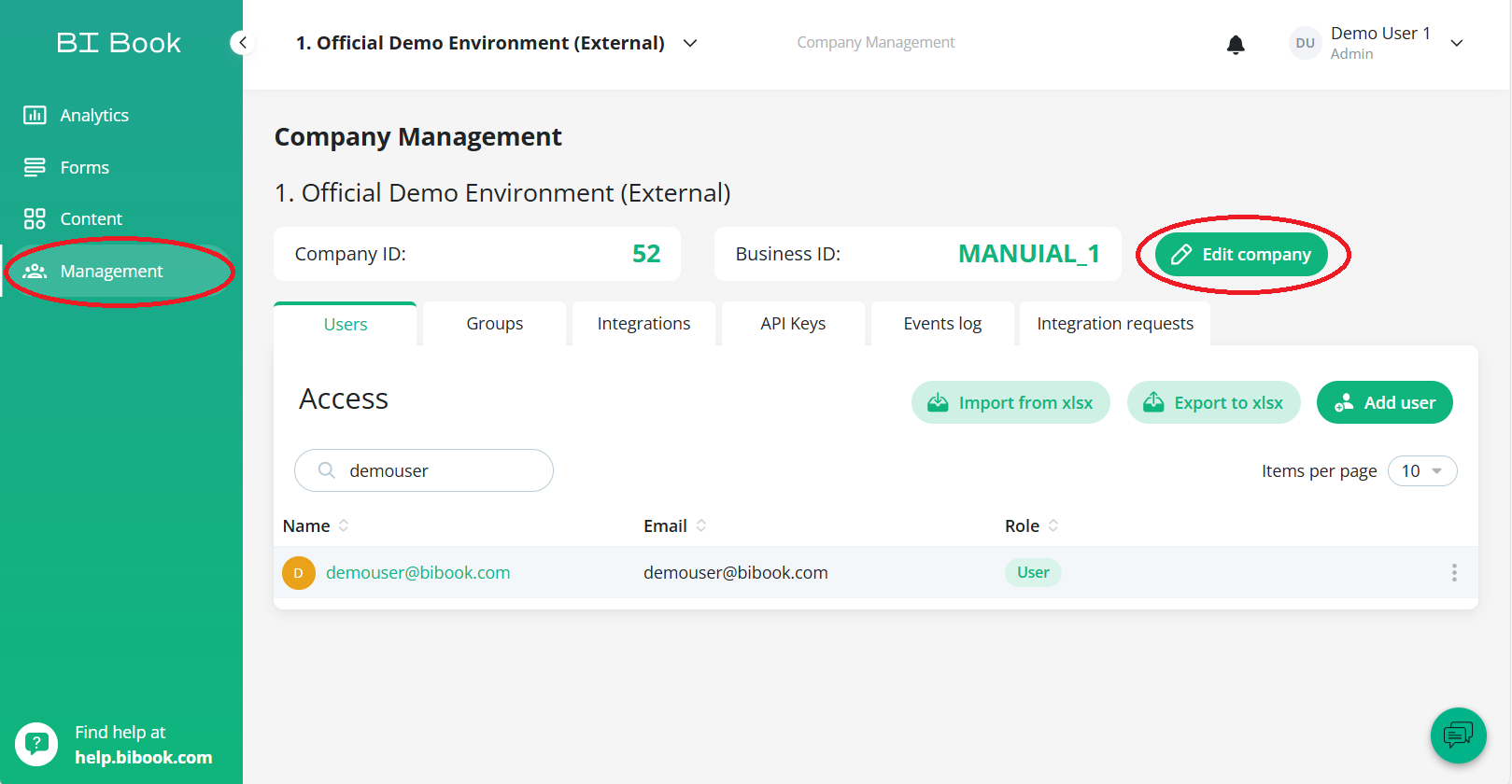
Within the Edit Company page, there are multiple tabs designed to help you customize environment-specific settings. All of these sections are listed below.
Company
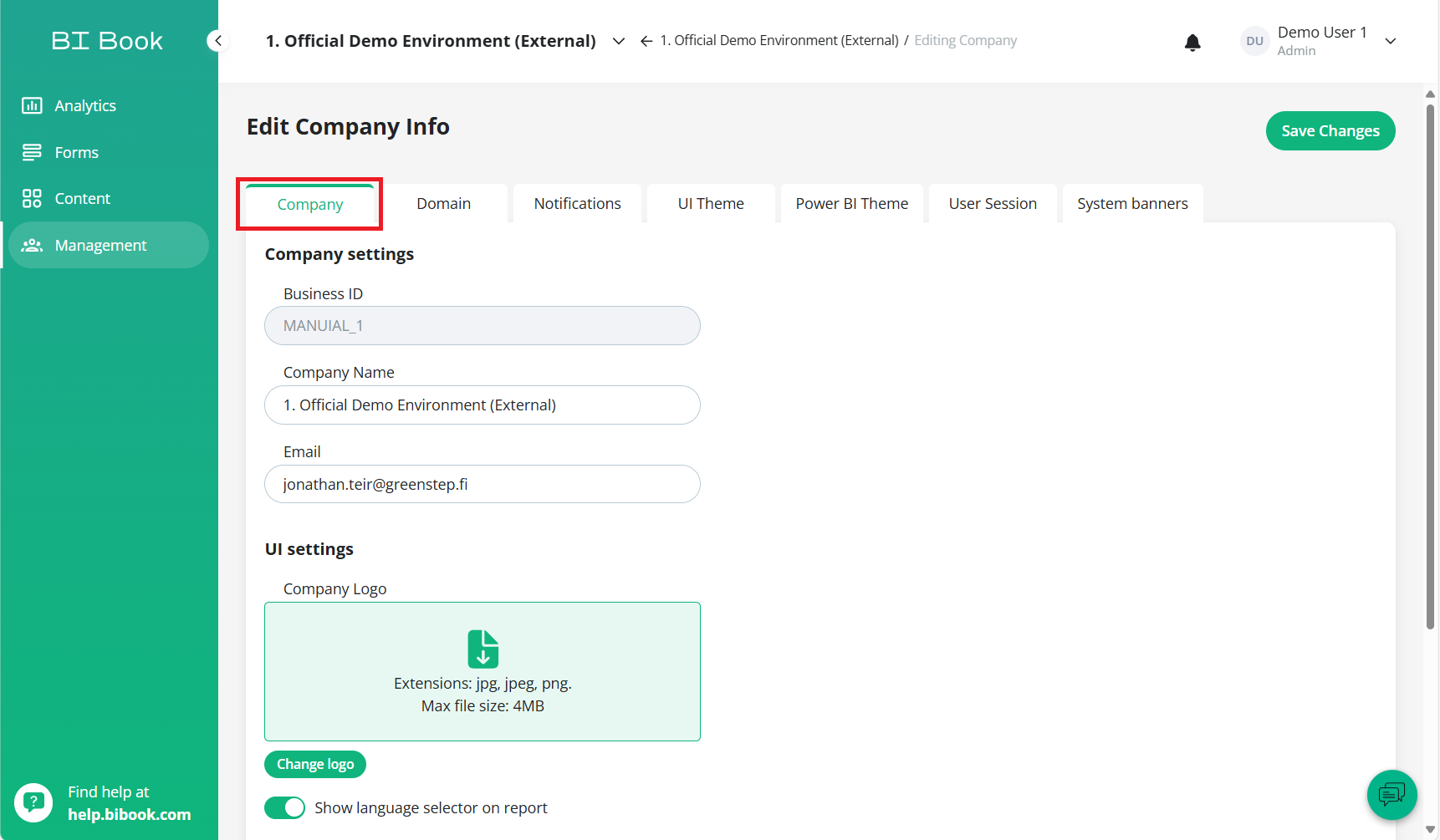
In this section you can change:
name of the company
email of company's contact-person
change the company logo
disable or enable language selector on the reports in your environment
when enabled: you can choose the default language for reports from the dropdown.
currently we support 3 language options: Finnish, Swedish, and English.
💡Reporting language selected for a specific user overrules the report language set in the company settings here (see adding a new user article).
Domain
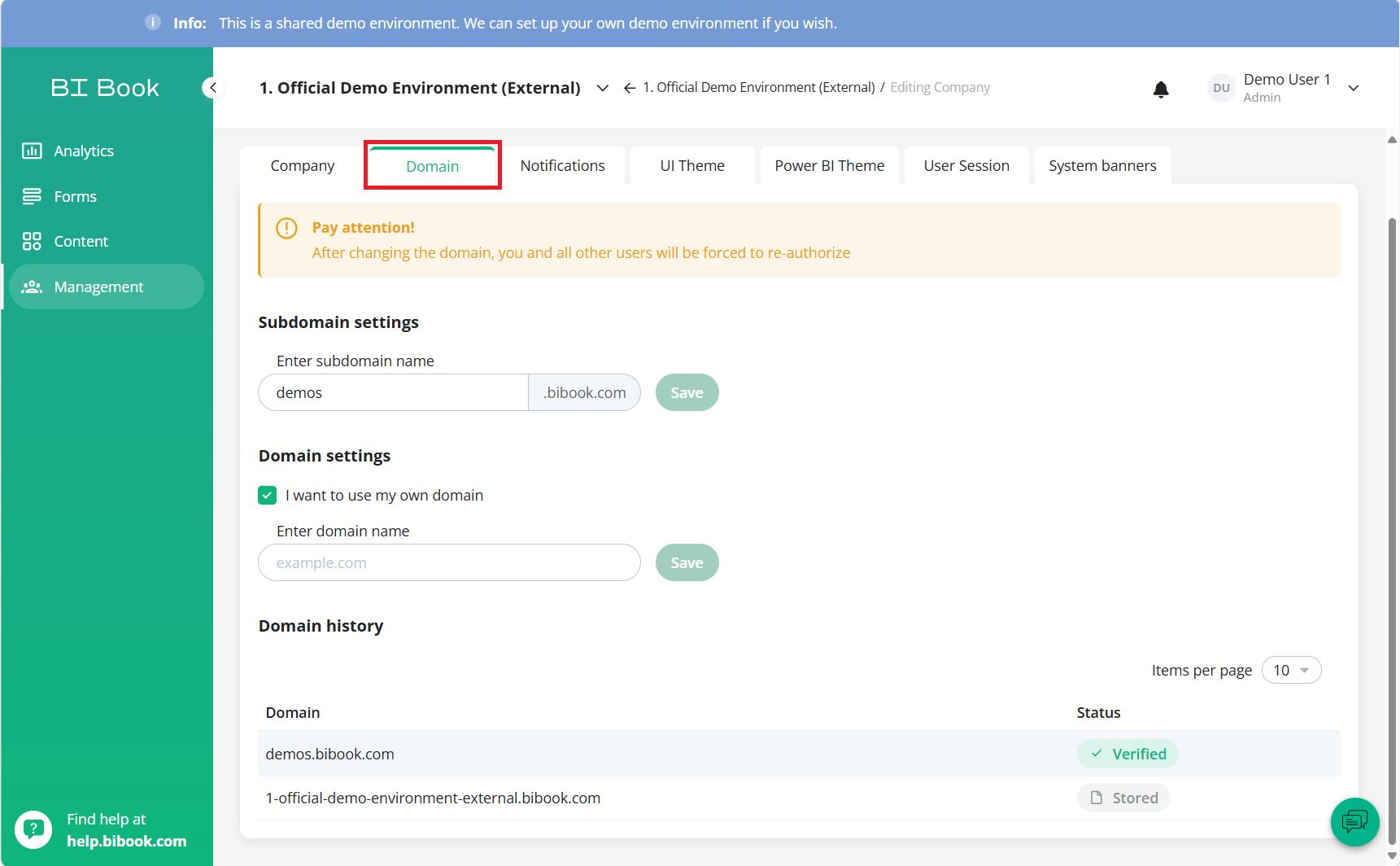
In this section you can change the URL used by environment's users to access reports.
There are separate settings for domain and subdomain.
Domain history is also shown on the bottom of page so you can see what domains have been used by environment in the past.
Notifications
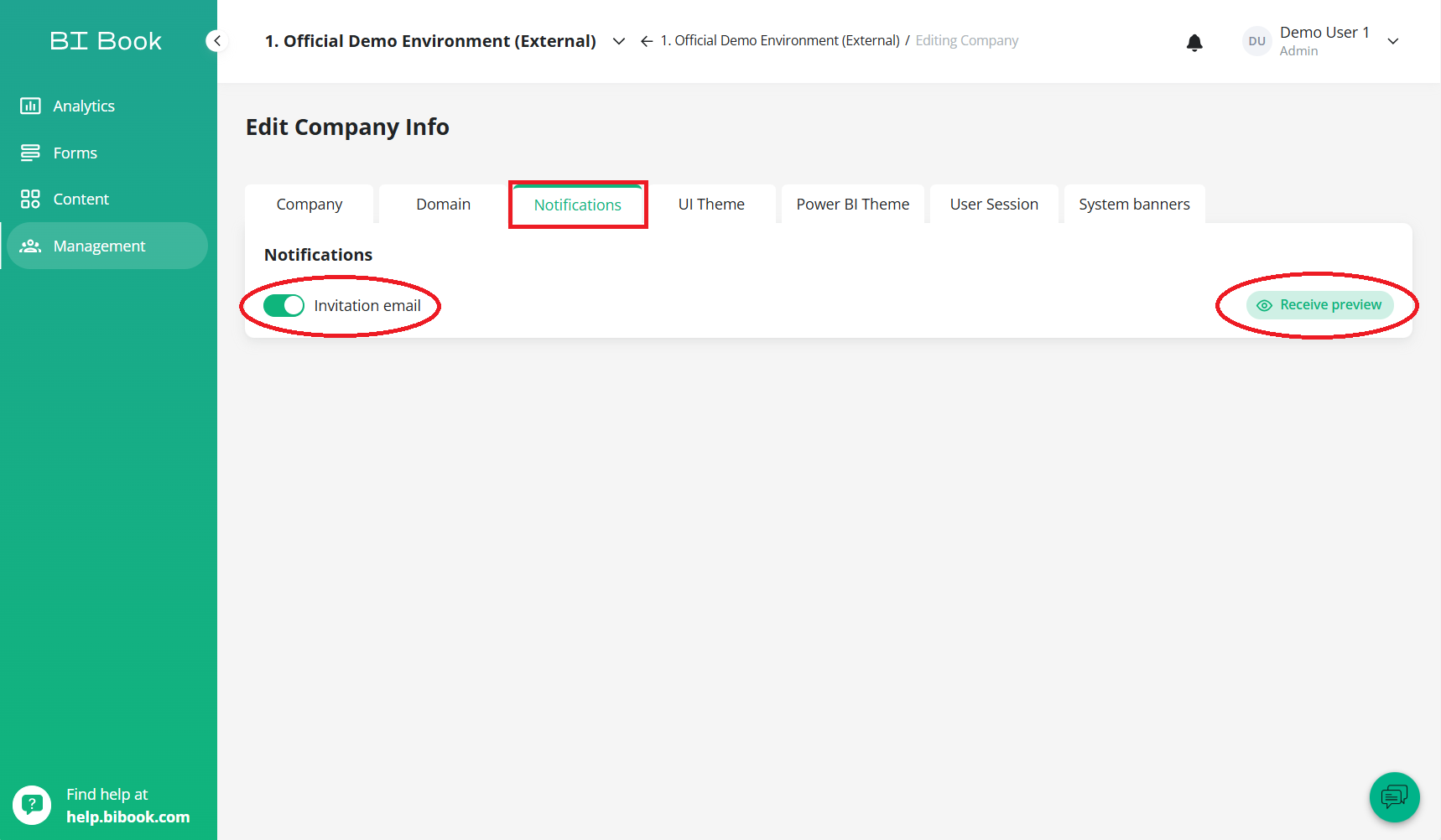
In this section you can toggle on/off invitation emails and send yourself a preview of the invitation.
Invitation email is enabled by default, but you can disable it if needed.
If enabled, an invitation email is automatically sent to all users you add to your BI Book environment.
This email includes step-by-step instructions on how to access BI Book, ensuring that your users receive clear guidance on how to get started.
UI Theme
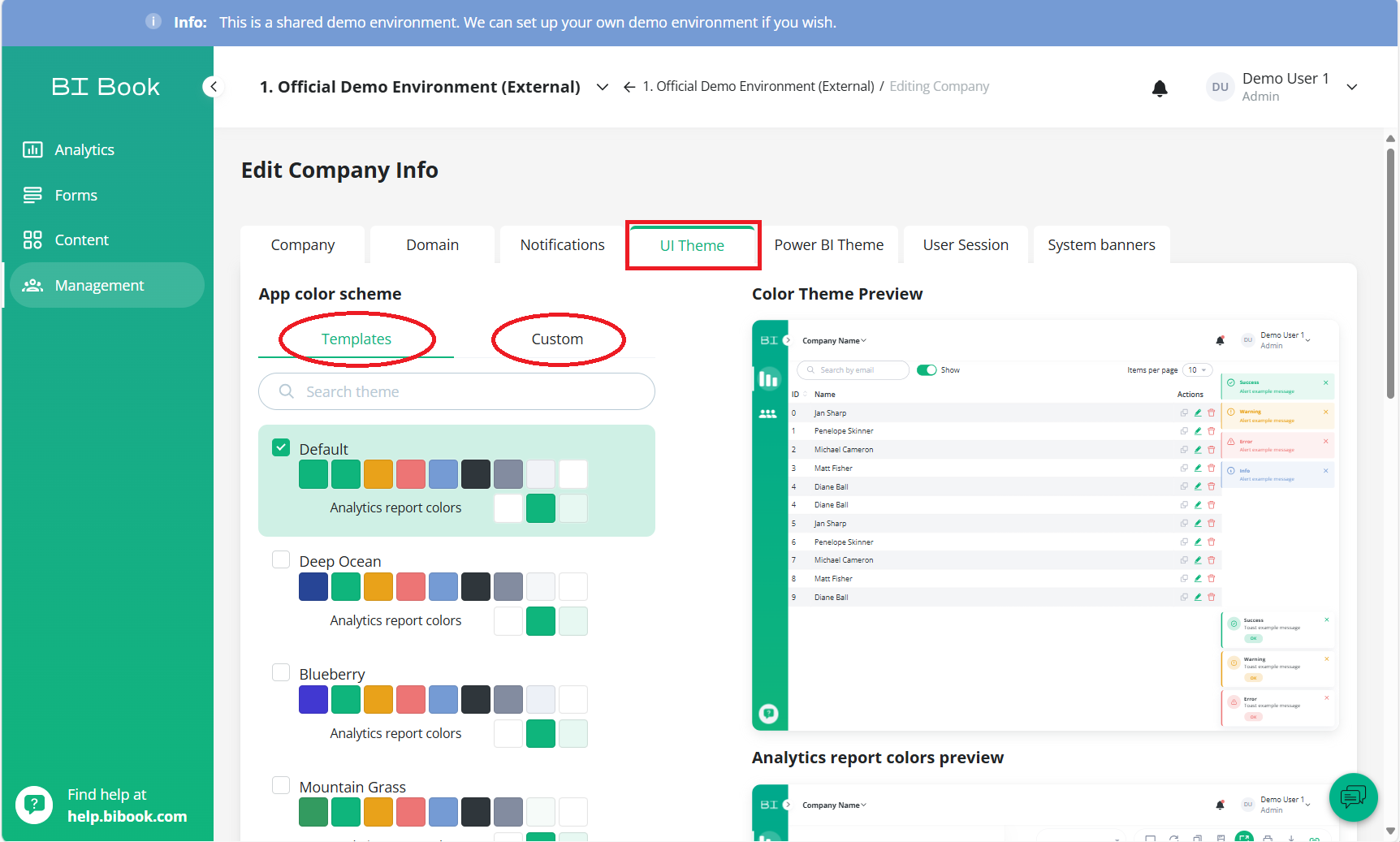
In this section you can change the color theme of your BI Book Company portal.
You can choose from multiple template themes or you can also create a custom theme.
Remember to press Apply theme / Save theme on the bottom right of the page after making the changes.
Power BI Theme
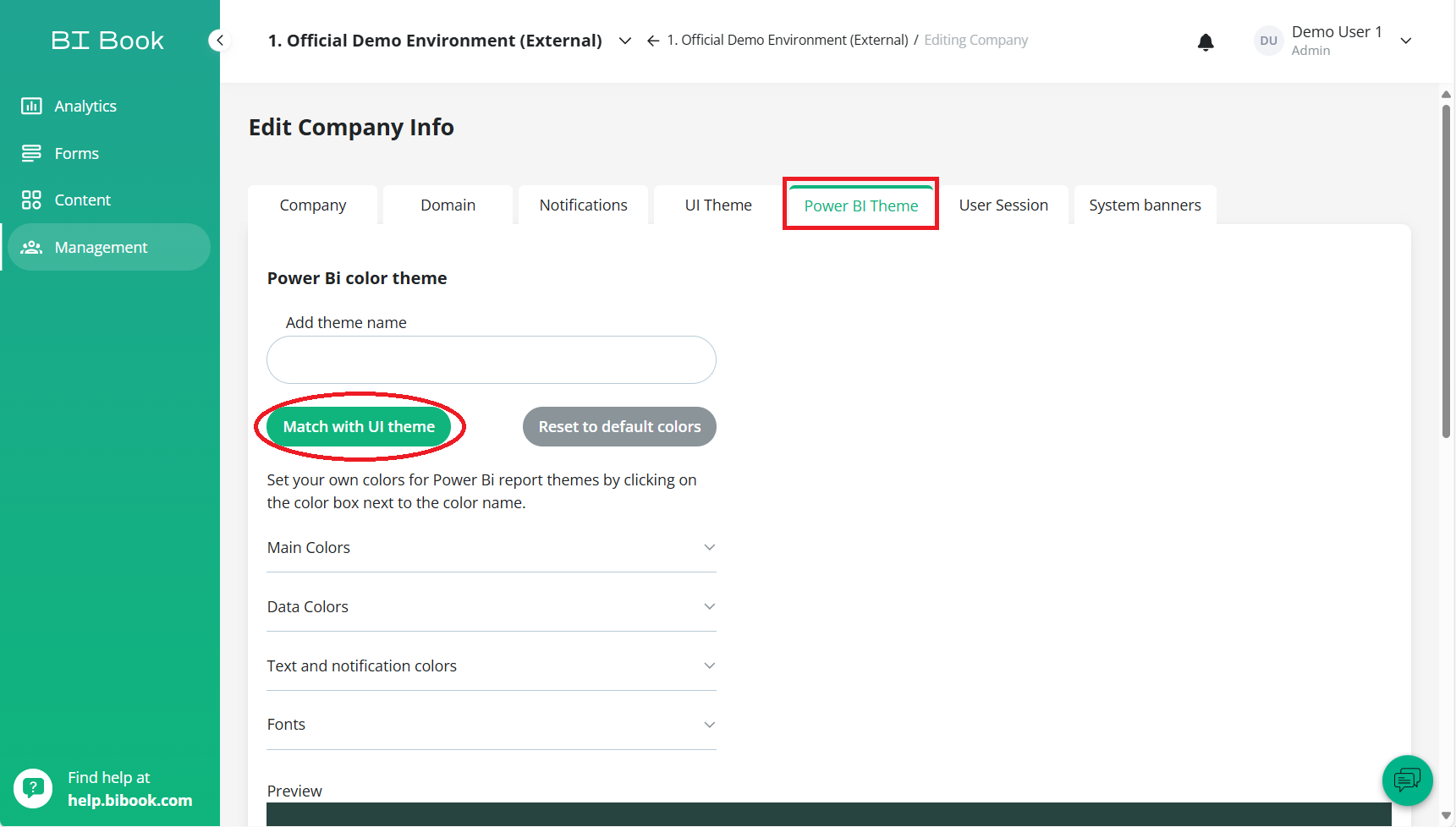
In this section you can change the color theme of the reports in your environment.
You can choose your own colors for different report objects here manually or you can also choose to Match with UI theme to match the colors of reports to colors of your UI Theme.
Please find detailed guidelines here on how to use the feature help.bibook.com/en/articles/power-bi-report-theme-generator
Remember to press Save at the bottom of the page after making any changes.
User Session
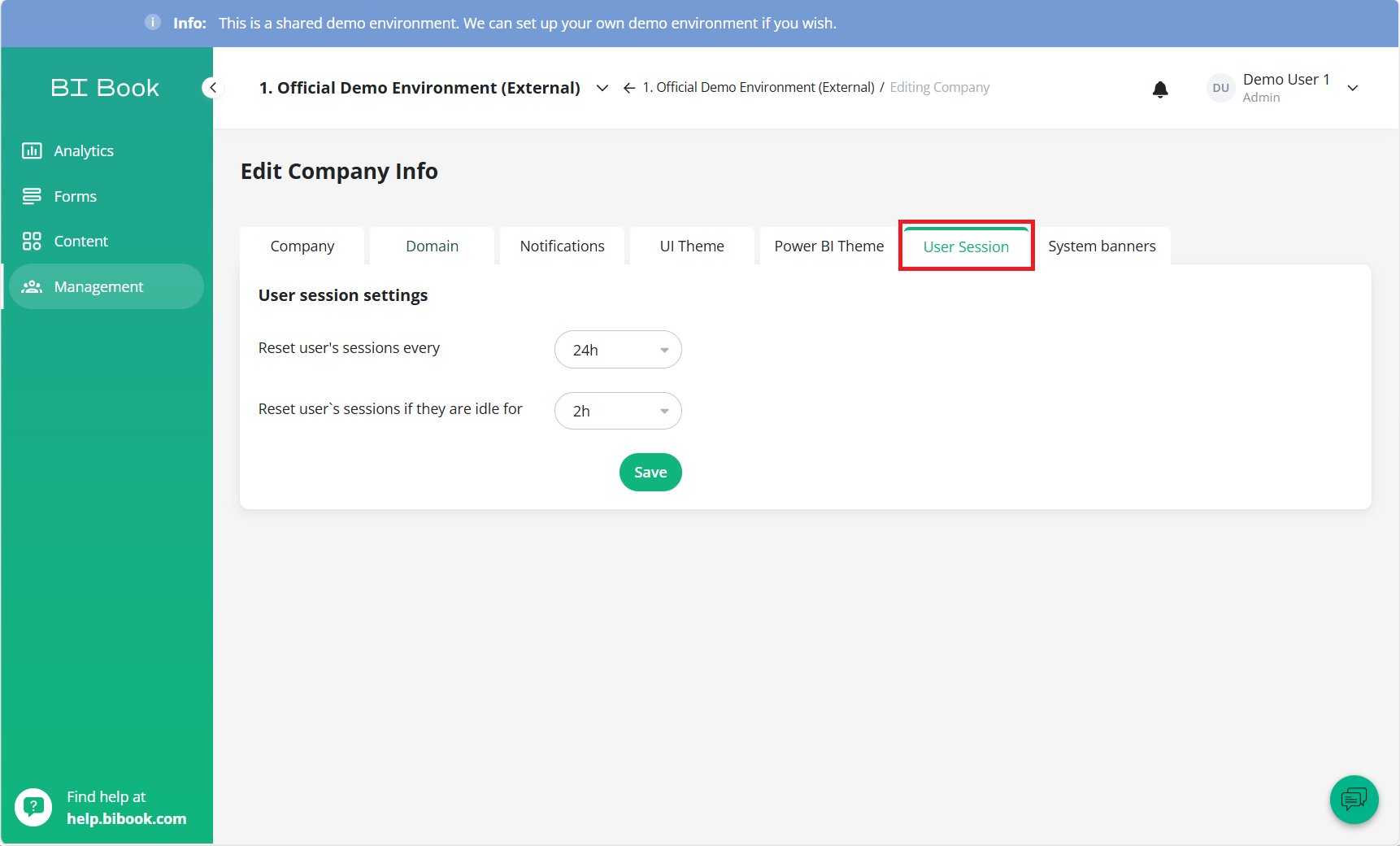
In this section you can define how many hours it takes to reset user's session in BI book environment.
You can choose separate timers for active sessions and idle sessions.
Idle session: users need to log back in after certain amount of time of inactivity.
Remember the press Save after making changes.
System banners
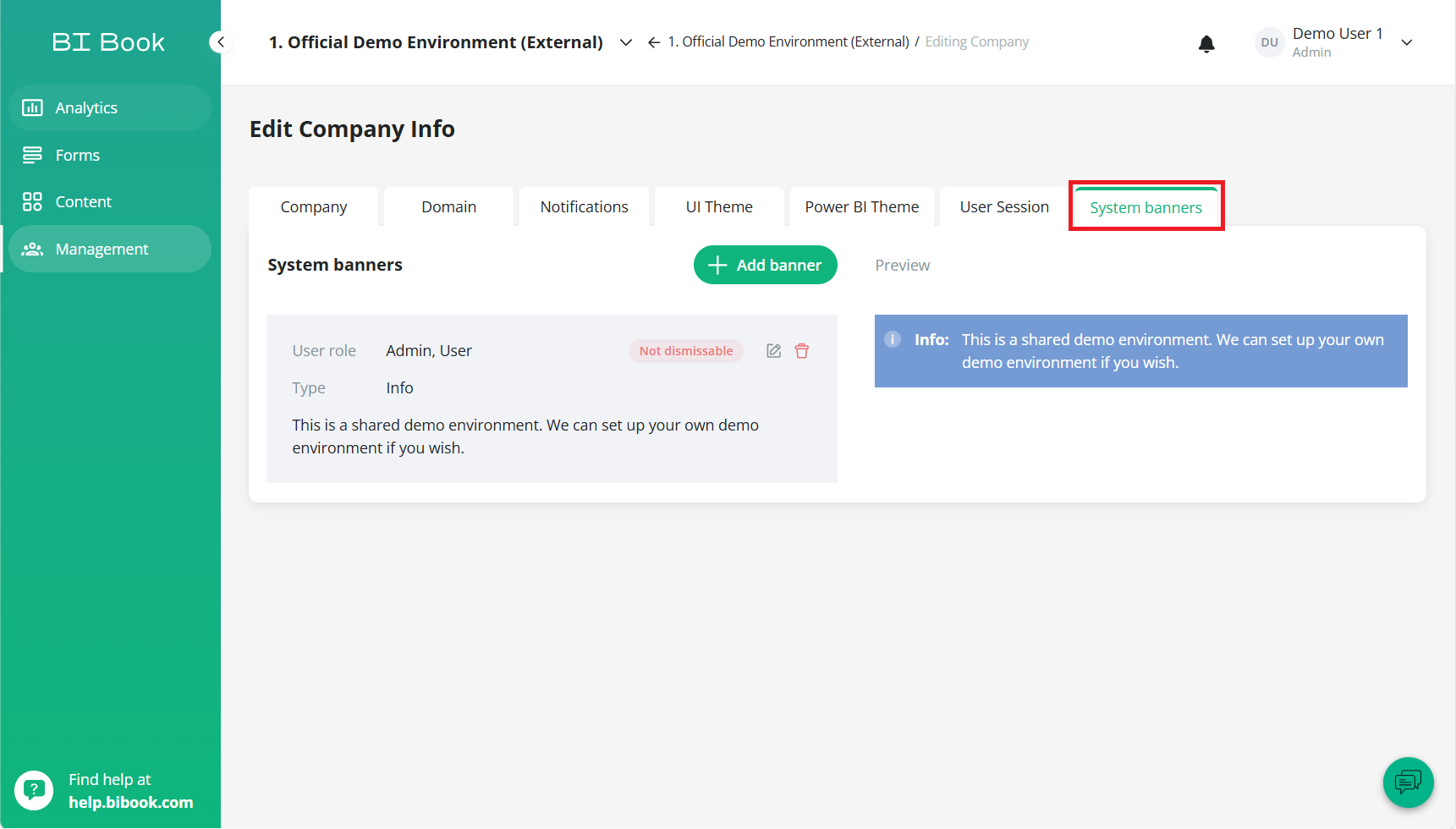
In this section you can create information messages and warning messages to be displayed for your environment's users. For more detailed guide check the link for System banners.
Was this helpful?
Still need help? Ask the team