Domain settings
Last updated 8 months ago
How to edit domain address?
Pre-requisites:
Have access to your DNS management (or know who to ask)
Admin rights in bibook in your enviroment.
Login into your BI Book Environment as an admin user.
Go to Management -> Edit Company -> click Domain tab
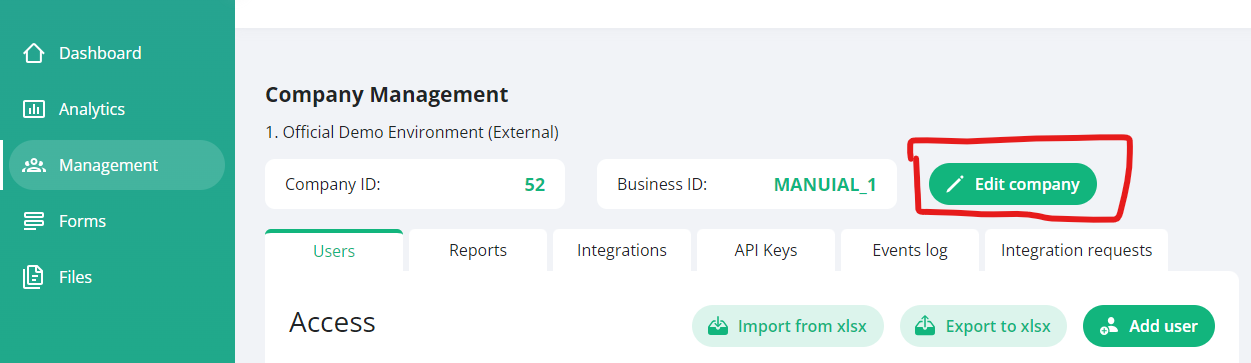
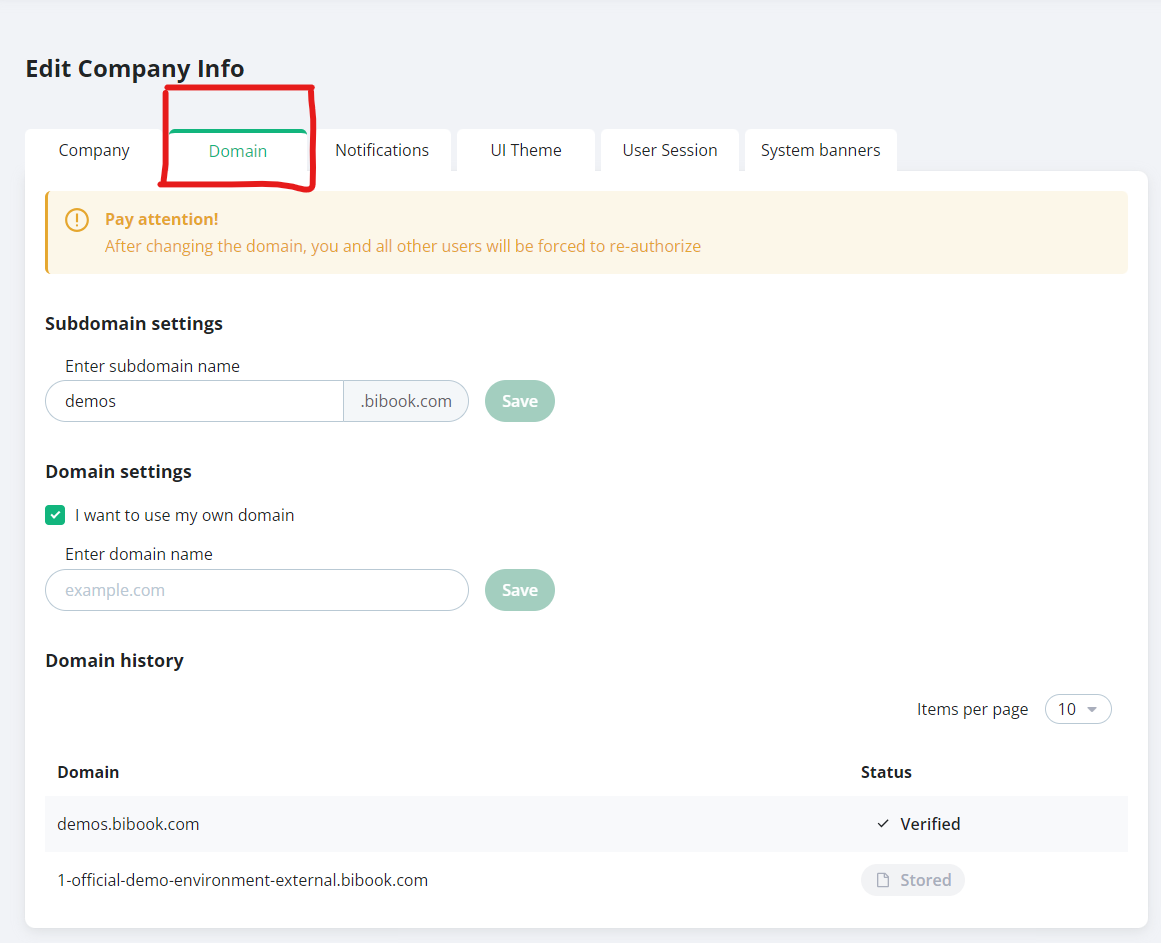
In domain tab you can modify your BI Book subdomain name. For bringing your own custom domain see section below!
HOX! Beware, after changing the domain, you and all other users will be forced to re-authorize and created bookmarks on your browser have to be created again.
Bringing your own domain
Add the custom domain to bibook
Create cname record from your new domain and point it to "app.bibook.com"
Wait for your domain to register the change (the TTL time indicates how long it will take)
Go to BI Book and press "verify"
Press Generate Certificate
Ensure that the status of your domain is "verified".
Detailed instructions:
Refresh the window to see if the change has take effect as we dont support notification streaming yet.
After configuring the CNAME record on the DNS service provider you need to configure the "Domain" settings in BI Book within 5 hours. Once you have configured the settings on BI Book it may take up to 24 hours before your own custom domain is verified.
Note that the order is important, i.e. you 1) configure DNS service provider settings 2) configure BI Book domain settings 3) press verify, 4 press generate Certificate.
Reach out to support@bibook.com or your customer representative for help if needed.
Was this helpful?
Still need help? Ask the team