Setting up SSO
This is a guide for how to set up SSO in your BI Book environment.
Last updated 23 days ago
We are using Azure as an example, but the same logic applies for other identity providers as well. Please still follow your organizations information security policy and guidelines.
Pre-requisites
For SSO setup BI Books support team must enable SSO in your environment.
Ensure you have a global admin account in the Azure AD you are setting up SSO in.
Ensure you are a Admin in your BI Book environment.
How to set up:
Log in to your Azure AD to set up SSO
Test your connection
Reach out to BI Book support to disable other authentication methods (e.g. one time passcode, Microsoft, Google) to ensure the security of your subdomain and to enhance user experience with automatic redirecting
Setting up on BI Books Side
Login with your admin account
Go to the "management" tab (if not visible you are not an admin)
Choose "edit company"
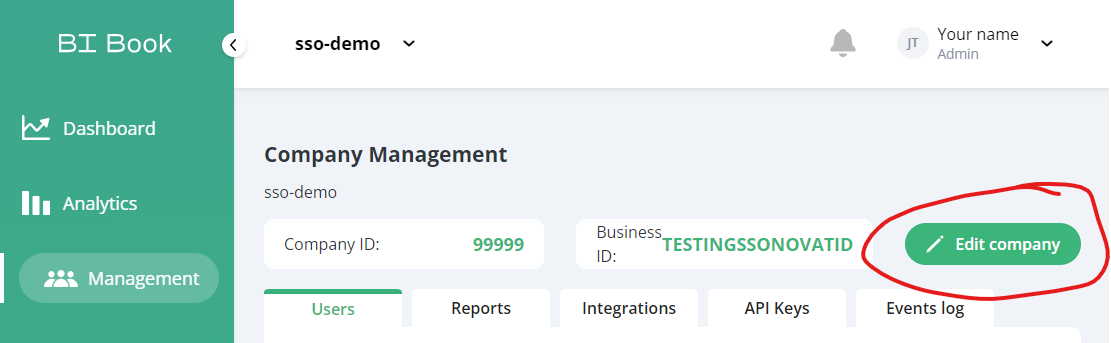
Navigate to "SSO" (if not visible, SSO is not enabled)
Here you can choose either OIDC or SAML as SSO method. (Scroll Down for OIDC Instructions)
Create SSO Application in Azure AD
Create SSO Application in Azure AD
Log in as Admin to your tenant and make sure you have elevated your user rights to global admin.
Go to your tenants Azure Active Directory.
Navigate to "Enterprise Applications".
Press "+ New Applications"
Press "+ Create your own application"
Add a name for the enterprise application (For example BI Book).
Not necessary to change the "what are you looking to do with your application?" setting.
Press "Create"
Wait for creation, can take a few minutes
Setting up SAML Based SSO Authentication (scroll down for OIDC)
Setting up SAML Based SSO Authentication (scroll down for OIDC)
In the Azure Enterprise application, under "Manage" section navigate to "Single sign-on".
Choose "SAML" as option.
Edit the "Basic SAML Configuration field".
Copy “SP Entity ID” from BI Book SSO settings and add it to “Identifier (Entity ID)”
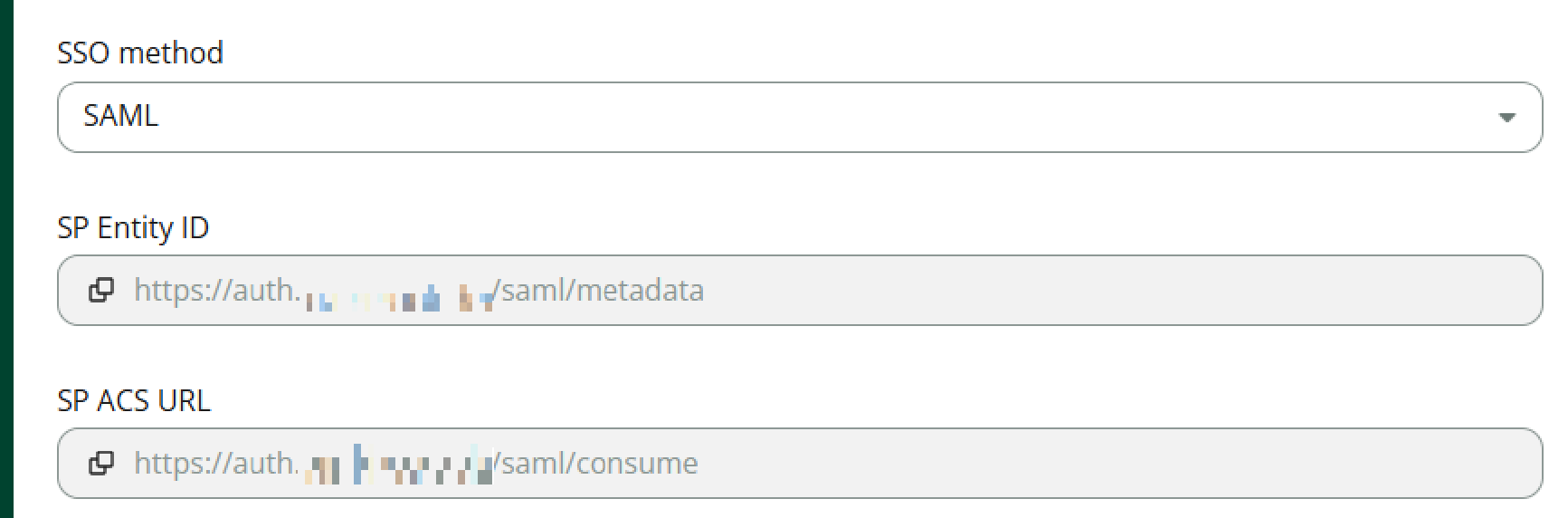
Copy “SP ACS URL” from BI Book SSO settings and add it to “Reply URL” (Assertion consumer Service URL)
Save
Go to section 3. SAML Certificates and download the "Federation metadata XML".
Upload the XML to BI Book in the Admin portal.
Press Save
Go to the Azure enterprise application, make sure your "properties" tab is set up according to your needs and required users and groups who need to access BI Book are assigned to the application to access it. Note: Access rights need to be defined both in your Azure AD application and BI Book
Navigate to your subdomain "your_domain.bibook.com" in a new browser or incognito mode or similar.
Press the SSO button and test your SSO configuration.
Setting up OIDC based SSO Authentication
Setting up OIDC based SSO Authentication
In Azure AD, find the corresponding app registration of the enterprise application you created in the previous step
Go to the "Authentication" tab under manage and click "Add a platform" and set the redirect URI to the one found in BI Book OIDC SSO settings
In BI Book SSO Settings set the endpoint to:
replace {tenant} with your tenant id (can be found by searching tenant in azure - tenant properties)
In azure app registrations go to Overview and copy the Client ID and paste it in BI Book as the client id
In azure app registrations go to “Certificates & Secrets” tab and create a client secret for your application (name it e.g. BI Book) and paste it into bibook
In BI Book:
Set scope to email openid profile
Set email key to email
Provider name: can be left empty (at least for microsoft)
In azure app registration go to API permissions
Go to the Azure enterprise application, make sure your "properties" tab is set up according to your needs and required users and groups who need to access BI Book are assigned to the application to access it. Note: Access rights need to be defined both in your Azure AD application and BI Book
Navigate to your subdomain "your_domain.bibook.com" in a new browser or incognito mode or similar.
Press the SSO button in BI Book login and test your SSO configuration.
Reach out to support@bibook.com if you have issues.
Q&A
Do we support Okta?
Yes, Okta fully supports OIDC which we also support. Follow this guideline to set this up.
Was this helpful?
Still need help? Ask the team