How to activate OfficeRnD integration
Last updated 8 months ago
ref: Making your first API request (officernd.com)
You’ll need "Client ID", "Client secret" and “Org Slug”.
Create an OfficeRnD organisation
In order to have access to our API you'll need to have access to an organisation.This can be done by making a request for a new organisation through our website or if your teammates already have access to one they can invite you as a teammate.
Creating an application
Creating a new application (officernd.com)
Once you have access to the admin end of OfficeRnD you can create an application by going to Settings/Developer Tools. On this page, you'll be able to see a list of all the applications that have been created.
When you're creating an application you can specify:
Name - the name of the application.
Description - a short description of the application and what it does.
Image - an image associated with the application, e.g. a logo.
Permissions - the permissions that the app has. This determines what the app can do - read data only (GET) or both read and write (GET, PUT, POST, DELETE).
Once you create the application you'll have two buttons next to it - "Configure" and "View":
Configure - allows you to change the earlier parameters you entered.
View - gives you the "Client ID" and "Client secret" necessary to <a href="https://developer.officernd.com/docs/authentication" target="_blank" rel="noopener noreferrer nofollow">https://developer.officernd.com/docs/authentication</a> >generate an OAuth 2 token.
Slug
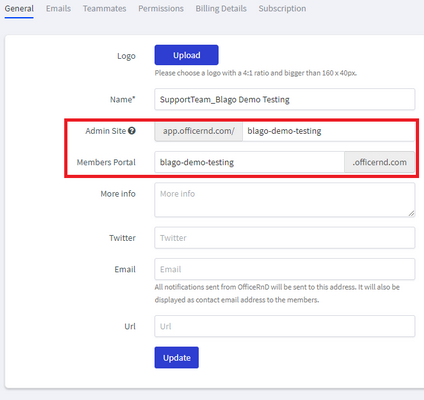
You'll also need to get the slug for your organisation. This can be done by going to "Settings"->"My Account".The fields "Admin Site" and "Members Portal" both show your organisation slug.
Was this helpful?
Still need help? Ask the team