Granting access to the Content objects
Last updated 8 months ago
🎯 This article describes how Admins can grant access to a Content object using user groups and/or direct access.
If you are not yet familiar with the definitions of access modes and permissions in BI Book, we recommend starting with the following resource:
Access Management Overview: help.bibook.com/en/articles/bi-book-access-management
For guidance on how to create a user group, please refer to:
Creating and Managing User Groups: help.bibook.com/en/articles/creating-and-managing-user-groups
Content object - a BI Book Report/ File/ Form/ Folder.
Content - refers to the collection of elements within BI Book, which includes reports, files, forms, folders.
(1) Once you have configured the permissions and added all users to the user group, it's time to assign access to the content objects. Navigate to the “Content” page.
(2) Upon reaching the Content page, you will find yourself at the root level. Here, the root folder hosts ALL content and content objects types available in the Company Portal (to learn about “share the root” functionality check help.bibook.com/en/articles/how-to-share-root-folder-with-user-s). To efficiently locate the desired content object, you have two options:
Search bar - simply type in the name of the report, folder, or any other content object you are looking for;
Apply the dropdown filter - filter by specific content object type; for example, if you select “Reports”, only folder containing reports will be displayed in the search results as well as the reports that are located on the root.
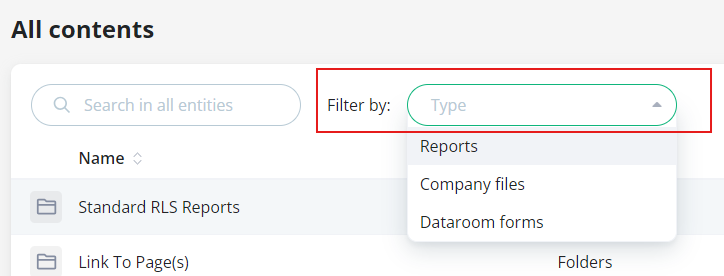
💡 With User Group release you can grant a user group access to specific subfolders without sharing the content of the parent folder.
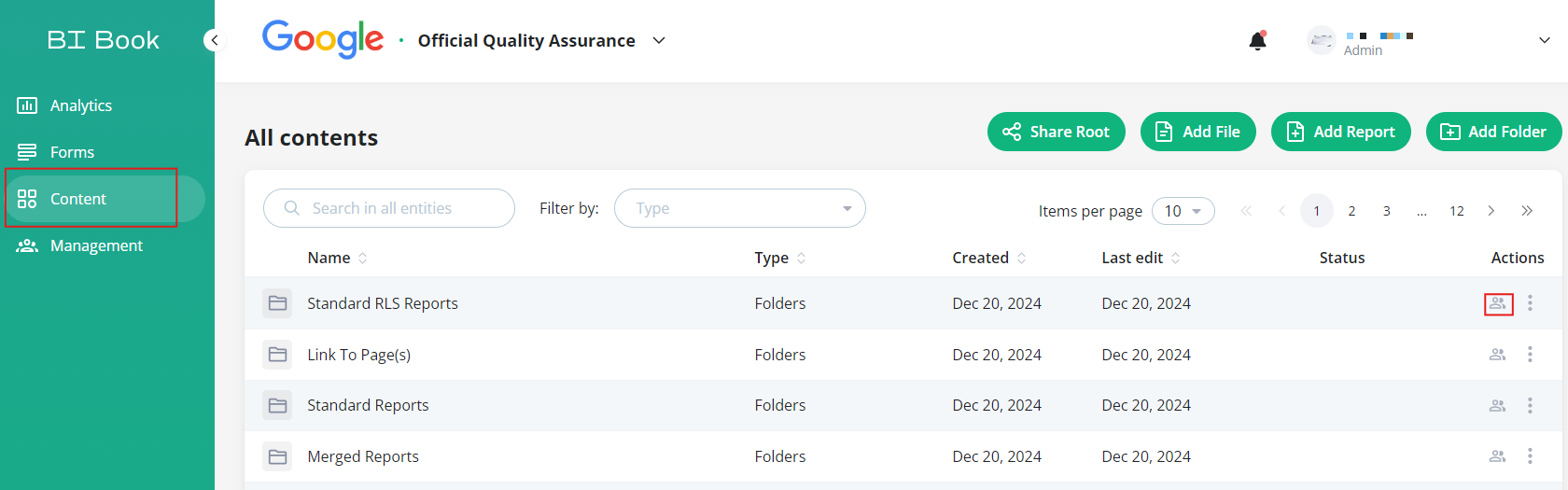
(3) As mentioned earlier, you have the flexibility to grant access to Content objects using either User Groups or Direct Access (or both), depending on your specific needs. To grant access to the content object to a user group or/and user please choose the content object you want to share, e.g., folder “Standard RLS Reports” → under “Actions” press “Manage access icon”:
(4) If you would like to grant Direct Access (Access Mode subsection at help.bibook.com/en/articles/bi-book-access-management), on the tab “Users” select a user you want to share direct access with → from the dropdown on the right select the permission level you want to apply for this user (default is “Can view”):
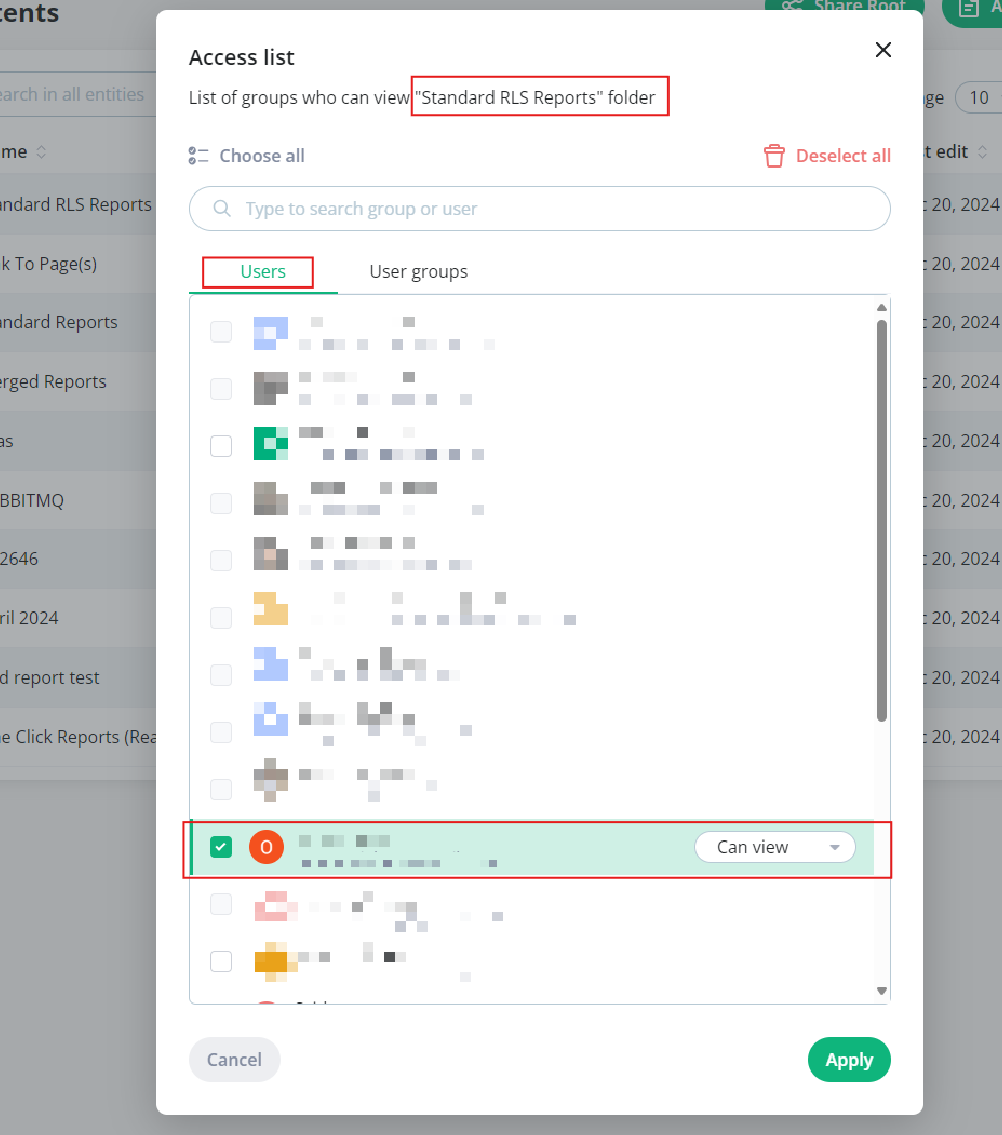
⚠️Note: Admin users are greyed out and not available for the selection as by default all admins have access to all content.
(5) You can now either press “Apply” and grant only the direct access to the folder, or you can navigate to the tab “User Groups”. In this example we proceed to the “User Groups” tab → select the user groups you would like to share the folder with (multiple selections is supported) → press “Apply”:
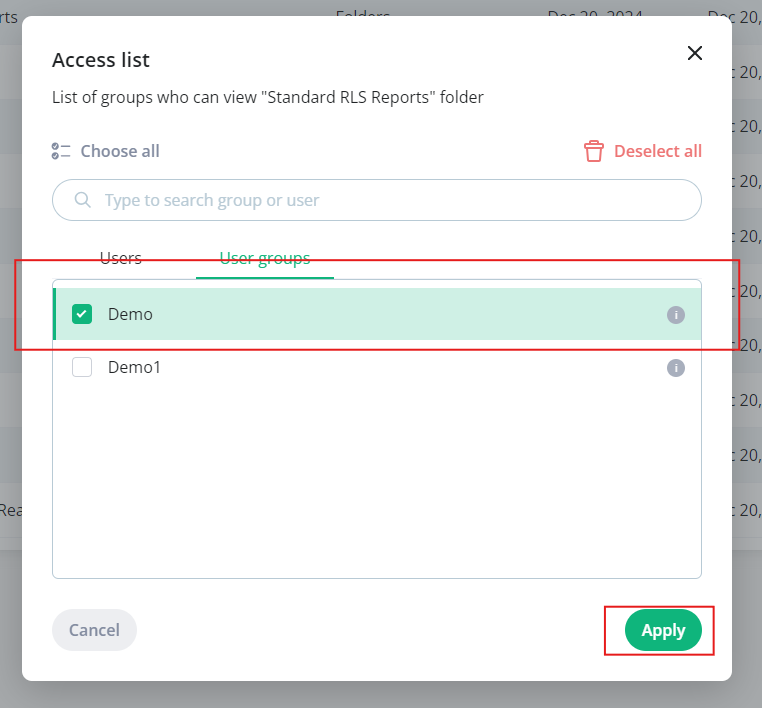
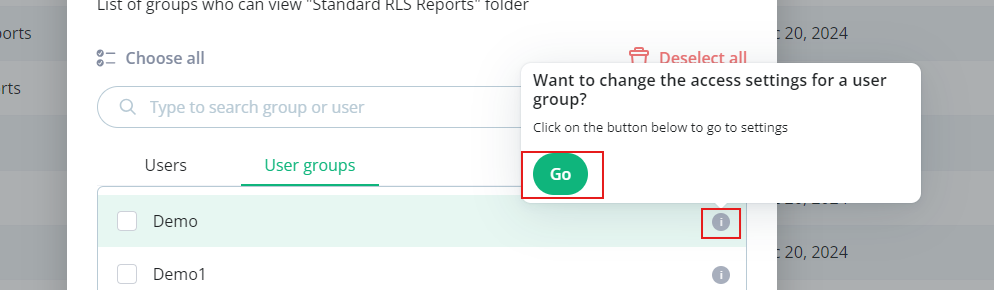
💡If you forgot what permissions are defined for a certain user group you can first click on the info icon and press “Go”. This specific user group settings will be opened in a new tab:
💡You can grant direct access also to the users that belong to the user group. In the case if there are overlapping permission to the same Content object, the higher permissions prevail.
💡 Content objects do not need to be placed within a folder to share access via user groups or/and direct access. However, utilizing folder structures simplifies the access management, making it easier to organize and control who can view or edit specific content.
Use-case example - how the access actually work:
🟢Given:
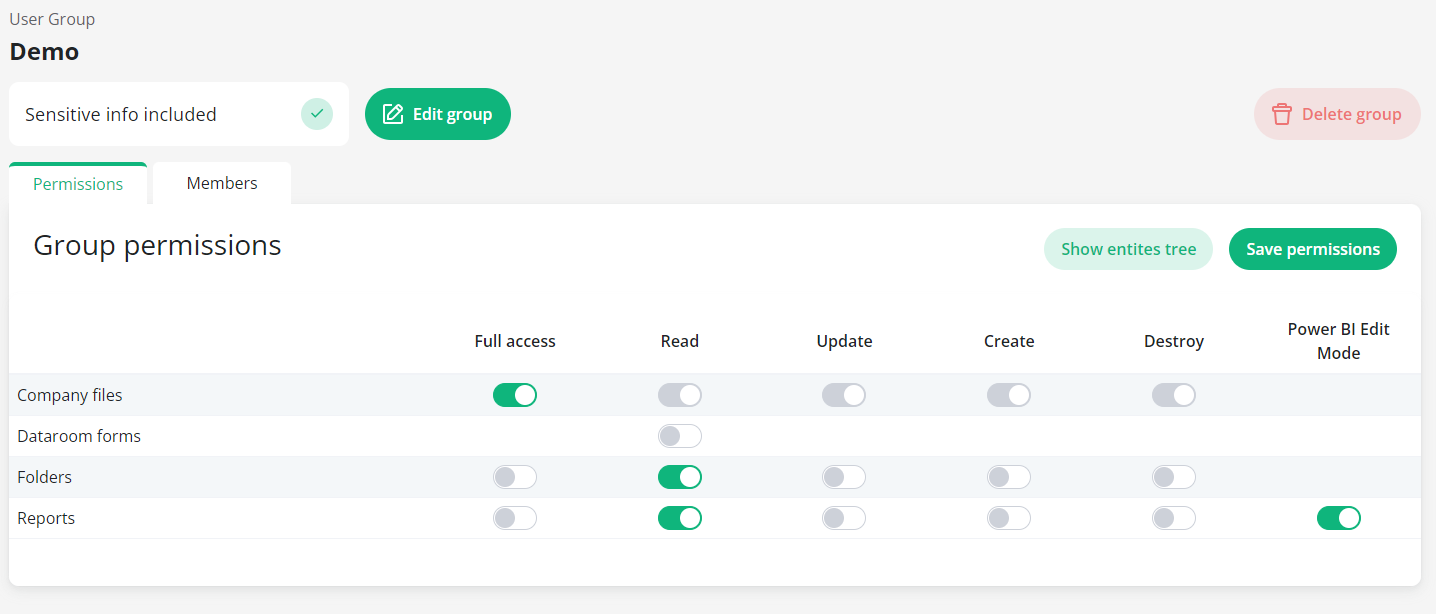
- User Group “Demo” which has permissions configured as follows
- Folder “Standard RLS Reports” which contains the following objects:
Reports: 3 (incl. 1 editable report)
Files: 1
🟢AND the Admin adds User Group “Demo” in the Access list of the “Standard RLS Reports” folder
🟢THEN the users who belong to the User Group “Demo” get Read permission to the “Standard RLS Reports” folder, Full access to the files in the folder, Read and Power BI Edit mode permissions for the reports inside the folder in accordance with the permission definitions for this user group.
Was this helpful?
Still need help? Ask the team