Viewing and editing who has access to a report
Last updated 8 months ago
🎯This article includes guidance on how to view and edit who has access to a specific BI Book report object.
Log in to BI Book as an Admin
Navigate to "Content" page → select report, access to which you would like to modify → click on "Manage access" icon
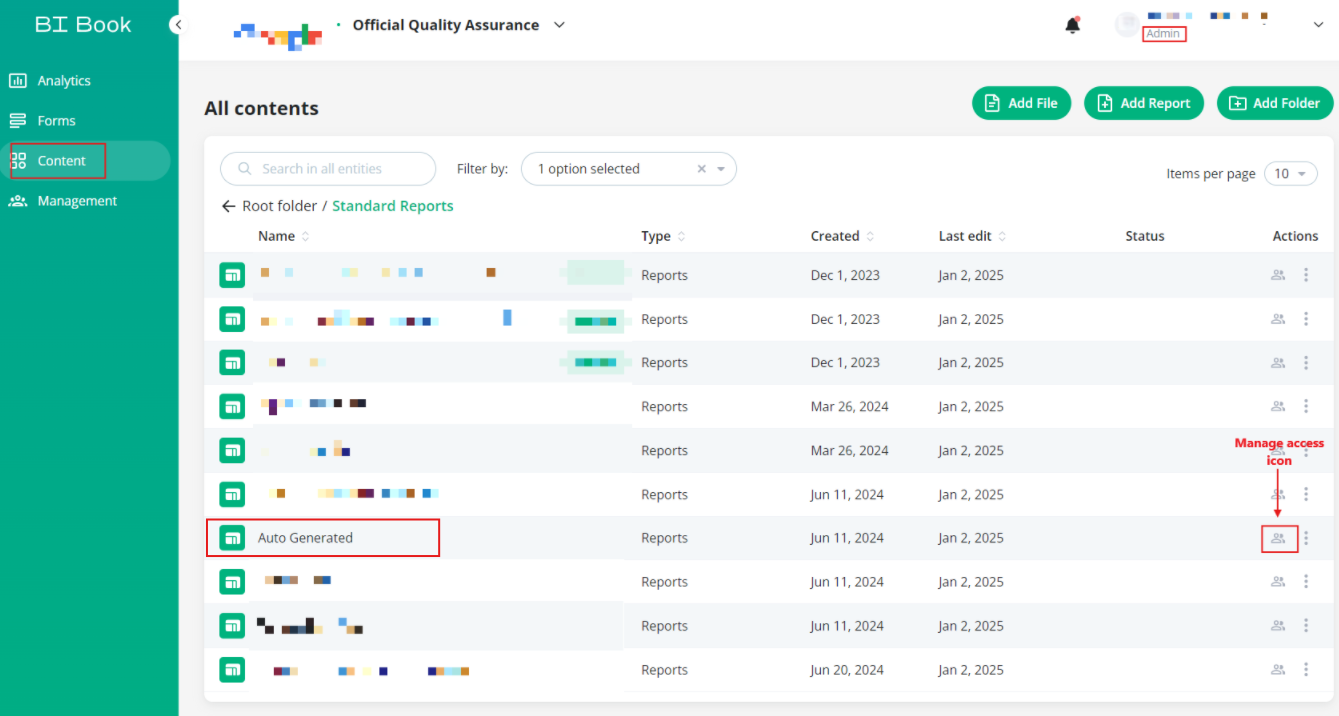
In the "Access list" pop-up window you can see users and user groups who have access to this report object:
>> Tab "Users"
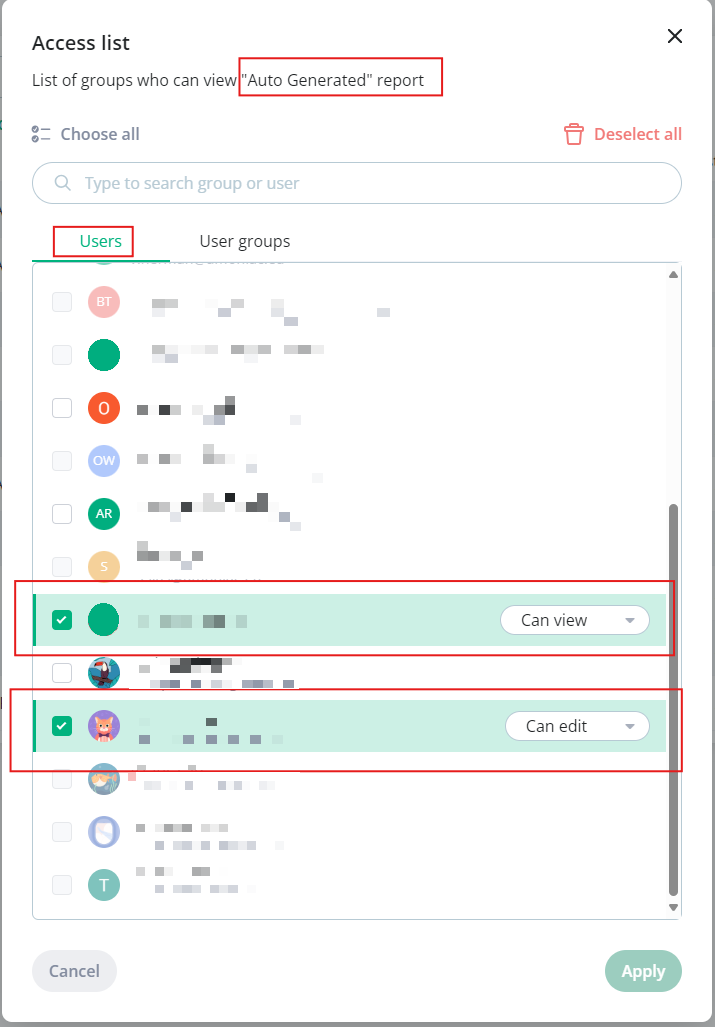
Users with direct access to this report will be "checked" and their permission level will be specified either "Can view" or "Can edit".
You can assign direct access to any user in the list except for Admins who are greyed out and by default have access to this report
You can assign direct access to all users in the list at once (except for Admins) by clicking "Choose all"
You can remove direct access by unchecking the user
You can remove direct access from all users (except for Admins) at once by clicking "Deselect all"
To remove access to a report from an Admin user, you need to 1) Demote the Admin User (change the user's role from Admin to User); 2) Configure User Permissions (add the user to required user groups or/ and assign direct access, etc.)
You can update direct access by clicking on the permission level dropdown and choosing either "Can view" or "Can edit". For more information what these permission levels entail please check "Access Mode" section of this article help.bibook.com/en/articles/bi-book-access-management
Whatever changes you make please remember to press "Apply" button if you want you changes to be saved.
⚠️Note: If a user is "unchecked" on the Users' tab of the "Access list" pop-up window it does not necessarily mean that this user does not have access to the report. You should also check "User Groups" tab.
>> Tab "User groups"
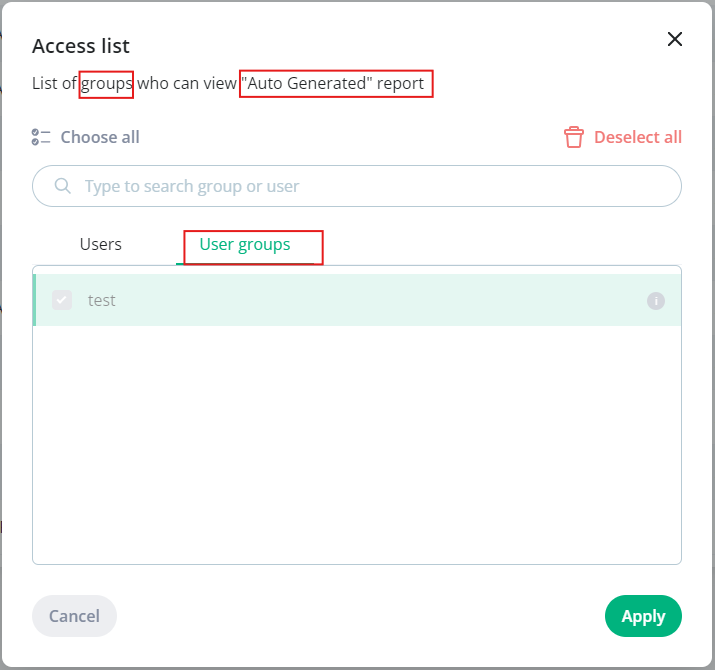
This tab contains the list of all user groups that exist in your company environment.
User groups that have access to this report will be "checked" and highlighted if any.
If the access to the report was granted to the user group directly on the report level → you can remove the user group's access to it by unchecking the corresponding box. BUT
If the user group was granted access to the folder where this report is located and the user group has at least "Read" permission enabled on "Report" object → you will not be able to remove the access from the level of the report object (scenario on the screenshot above). You will first need either to remove the user group's access to the folder or change the user groups permissions for the "Report" object in user group settings (see BI Book Access Management and Creating and Managing User Groups)
If you would like to check/adjust a specific User Groups settings (e.g. permissions enabled, user group members) without closing the report's "Access list":
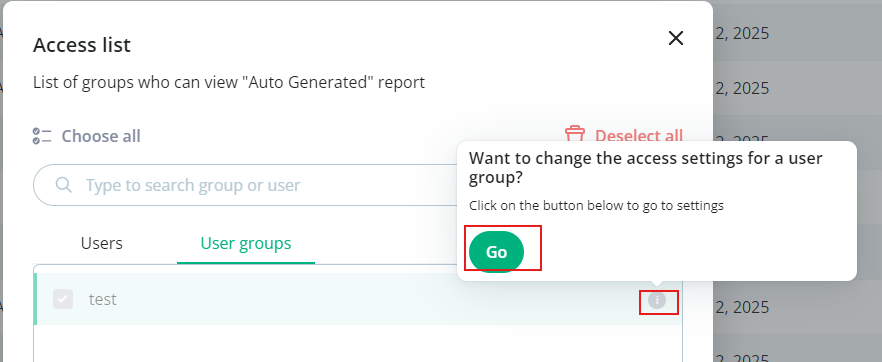
Click on a user group's row info icon → click "Go" → the user group settings will be opened in a new tab
Remember to press "Apply" if you want to save the changes.
Was this helpful?
Still need help? Ask the team