Making an existing user an admin
Last updated 8 months ago
The user management system in BI Book is designed to be both straightforward and flexible, ensuring security for all users.
In this article, we will cover:
When to Appoint a User as an Admin
How to Assign Admin Roles
Recommended resources
When to Appoint a User as an Admin
In BI Book we have certain functionalities that are reserved exclusively for Admins. These features include:
Refreshing reports and data connections
Creating embed links for the reports
Everything under Company Management page, including but not limited to user management, user group management, activating/deactivating integrations, monitoring event log, editing company settings, etc.
Granting access to the BI Book content objects
If you need to grant a user access to the functionalities listed above, you must appoint that user as an Admin.
For all other scenarios that do not require these specific features, you can configure user access through Direct Access and/or User Groups. Please check out this article and associated sources to learn more how the accesses can be configured.
Instructions to make an existing user an admin
⚠️Before assigning a user Admin role, please make sure that it is truly necessary. Admins have access to all content and settings within your company environment.
(1) Log in to BI Book as an Admin
(2) Navigate to Management page → Users tab
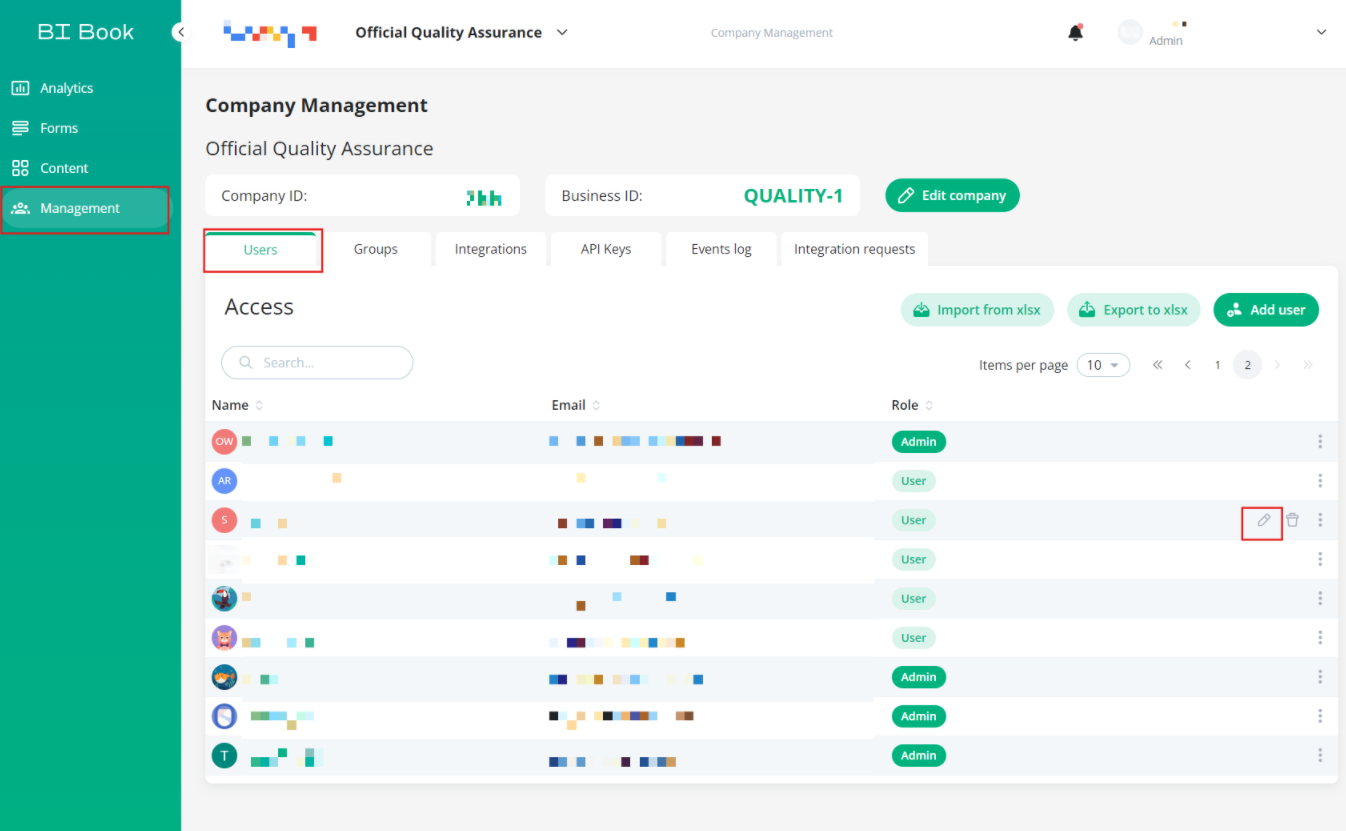
The "User" tab view contains the list of users (name, email, role) that have been added to your company environment. (3) Find the user whom you want to promote to Admin.
(4) Hover the row with the user you want to make an Admin → "Edit" and "Delete" icons will appear for this user → click "Edit"
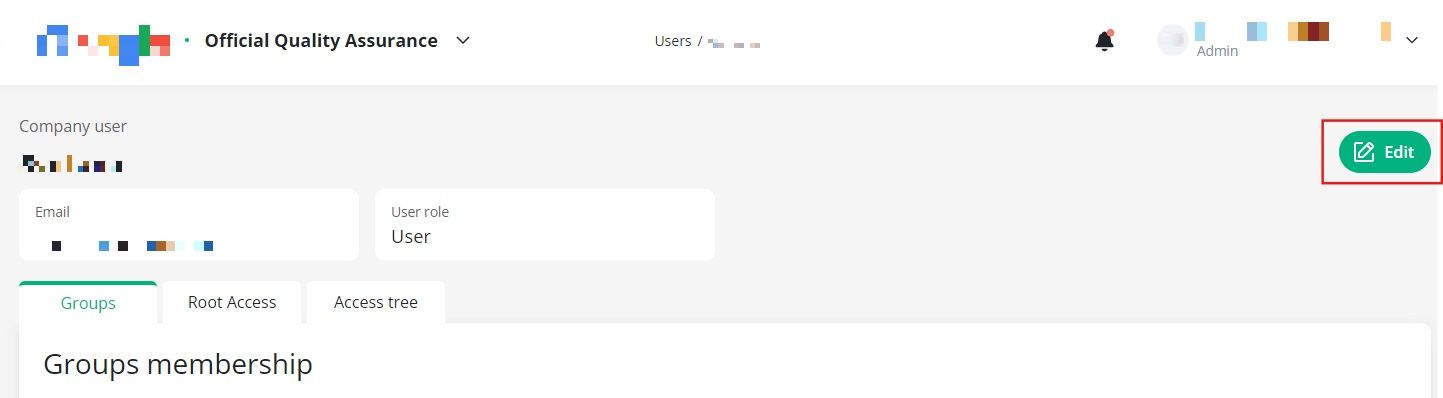
(5) After this the user profile will be opened where you can see Groups membership, Root access rights, Access tree, as well as another "Edit" button. Click "Edit":
(6) In the "Edit user" pop-up window select "Admin" option from "User role" dropdown → click "Save"
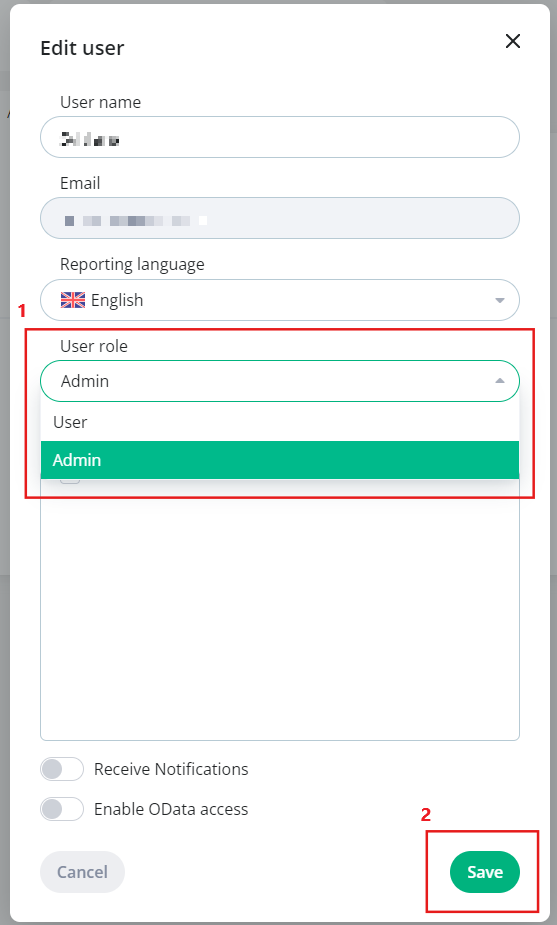
Done. The user is now an Admin.
Recommended resources
BI Book Access Management help.bibook.com/en/articles/bi-book-access-management
Was this helpful?
Still need help? Ask the team