How to activate Visma Net integration
Last updated 8 months ago
How to create needed Visma Net Tenant ID
Until BI Book's integration has been listed in the Visma App Store, we have to activate Visma.net integration through invitation code. BI Book side need to create an invitation code for each client. This code is valid for five days.
Instructions how to use the invitation code can be found here: Visma.net ERP API Developer Portal Startup Guide - Visma Community All relevant info are from page 18 forward. How to actually use the invitation code is on page 23.
After the invitation code has been used and BI Book has been given access to the data, the integration can be activated from BI Book by inserting the Tenant ID. Tenant ID can be found from the top right of the Visma App Store page.
How to activate integration
Log in to BI Book with administrative rights. Please refer to these instructions if you do not have a BI Book account.
Go to Management, choose the Integrations tab, and look for the Visma Net integration. Click the button next to it.
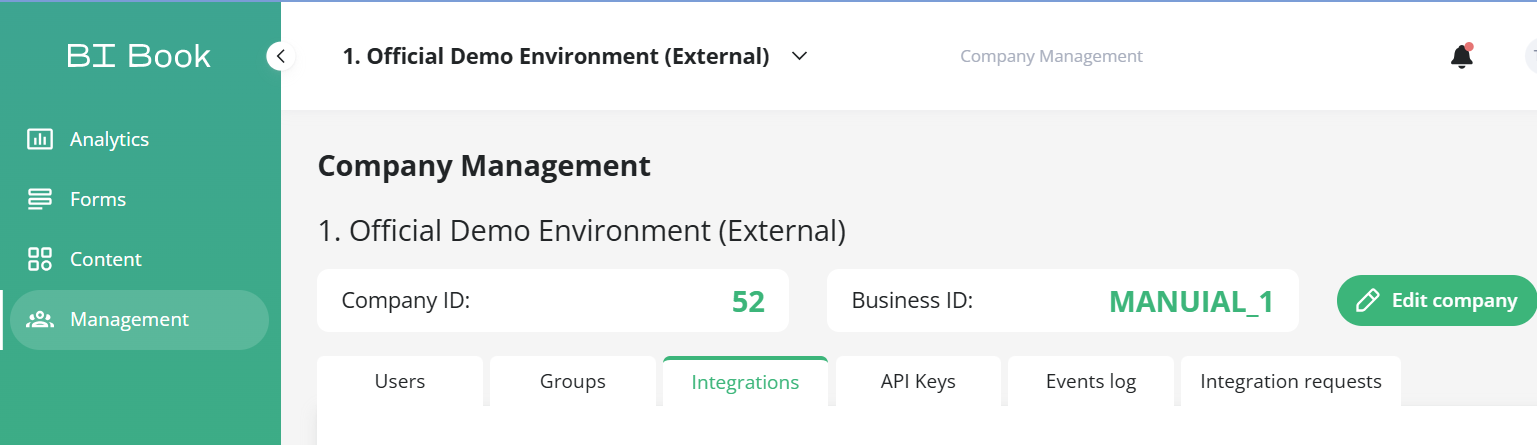
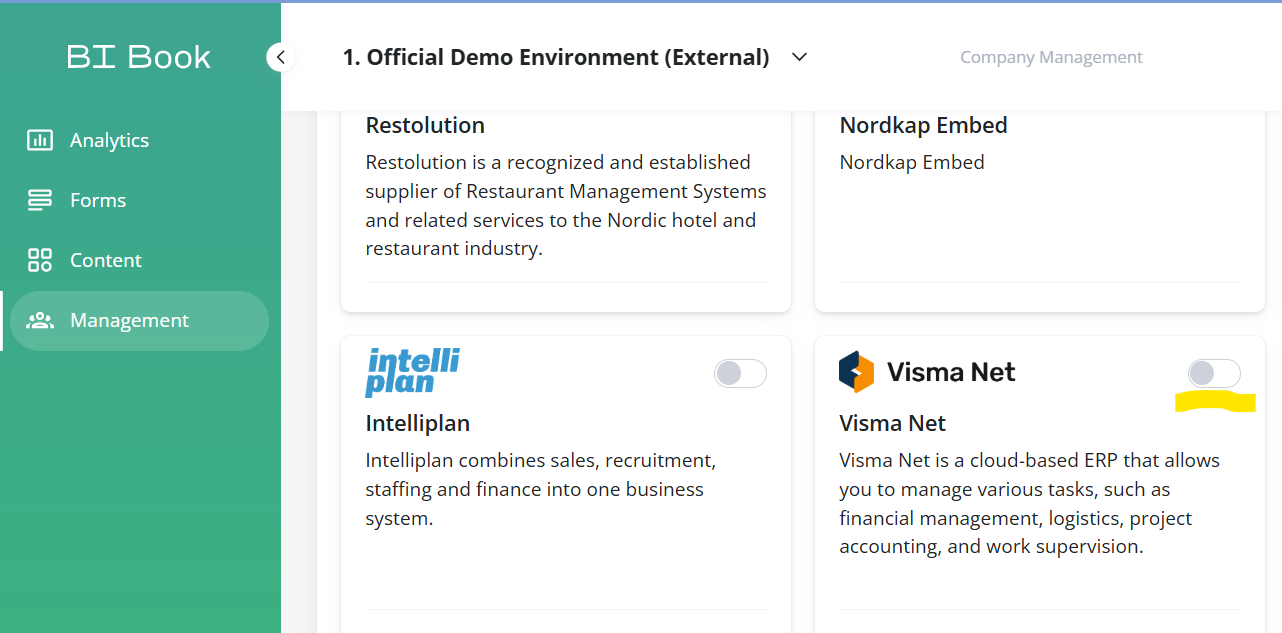
After you have clicked the button, the user interface will ask you add the Tenant ID, which you have created with the invitation code by following instructions top of this article.
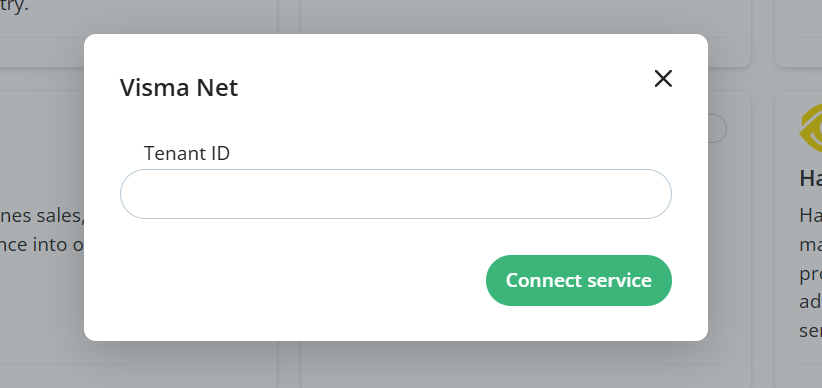
Click "Connect service" and the connector will be activated.
Was this helpful?
Still need help? Ask the team