Connecting to your data with ODC file
Last updated 8 months ago
In the article BI Book API Connection Methods we've discussed 2 ways of connecting to BI Book API and getting access to your data.
In this article we'll cover how you can establish OData connection even faster - by using ODC file.
What is ODC file
In short, ODC file format is a connection information file that contains properties to connect to, and retrieve data from an external data source or a Reporting Services Report.
When you download the ODC file from BI Book and open it with Excel, Power Query creates the OData connection automatically. All you have to do to access your data is to authenticate with one of the methods available.
Where to find it
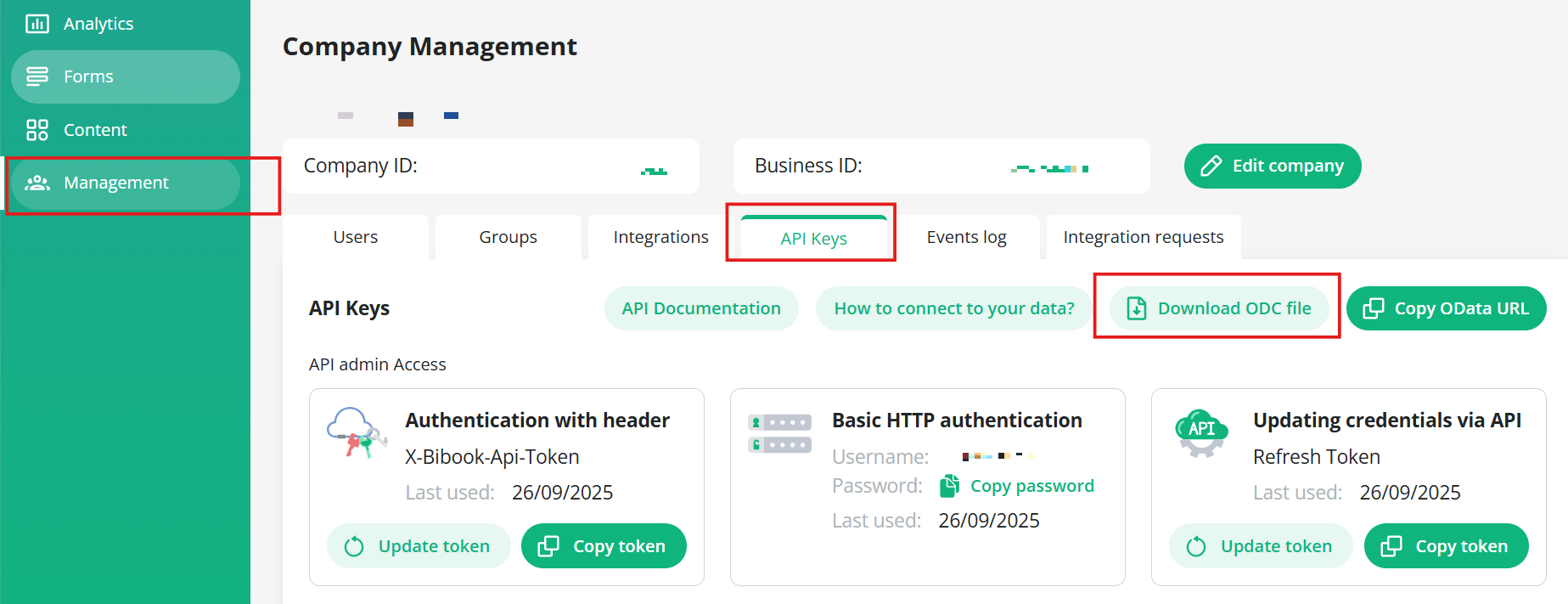
Please navigate to Management page > API keys tab > press the button "Download ODC file" - the download will start automatically:
How to use it
Open the downloaded ODC file with MS Excel
You might receive a standard Microsoft Excel Security Notice outlining the following warning:
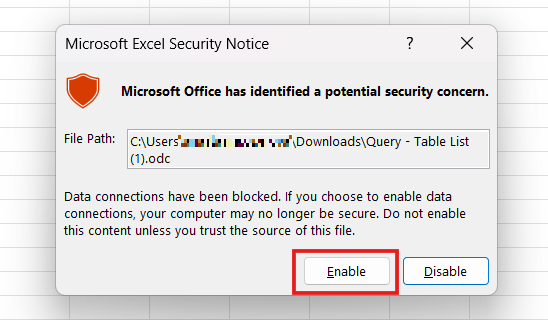
Please press "Enable" to proceed.
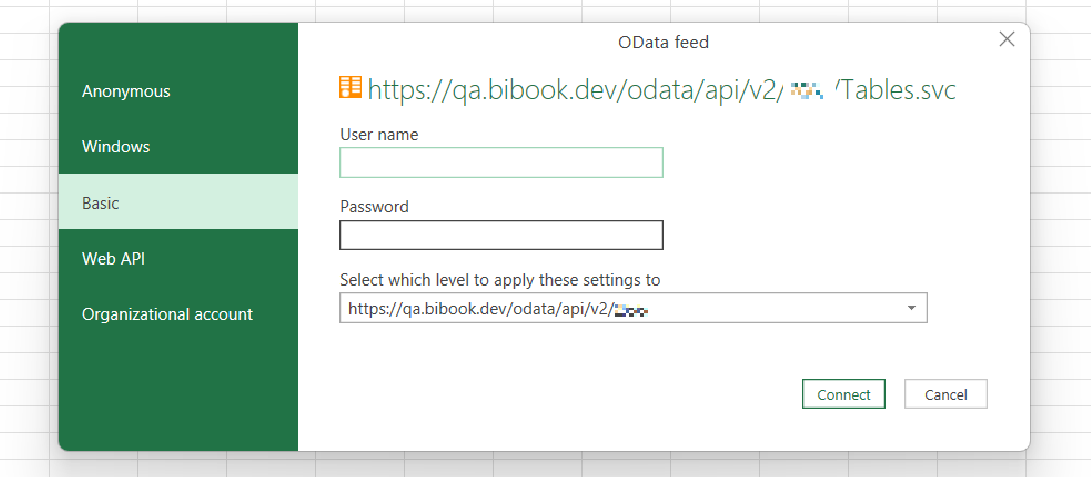
Next, you should authenticate using either "Basic" method or "Organizational account" method.
Basic authentication
You can find user name and password for Basic auth from Management > API keys > API Admin Access:
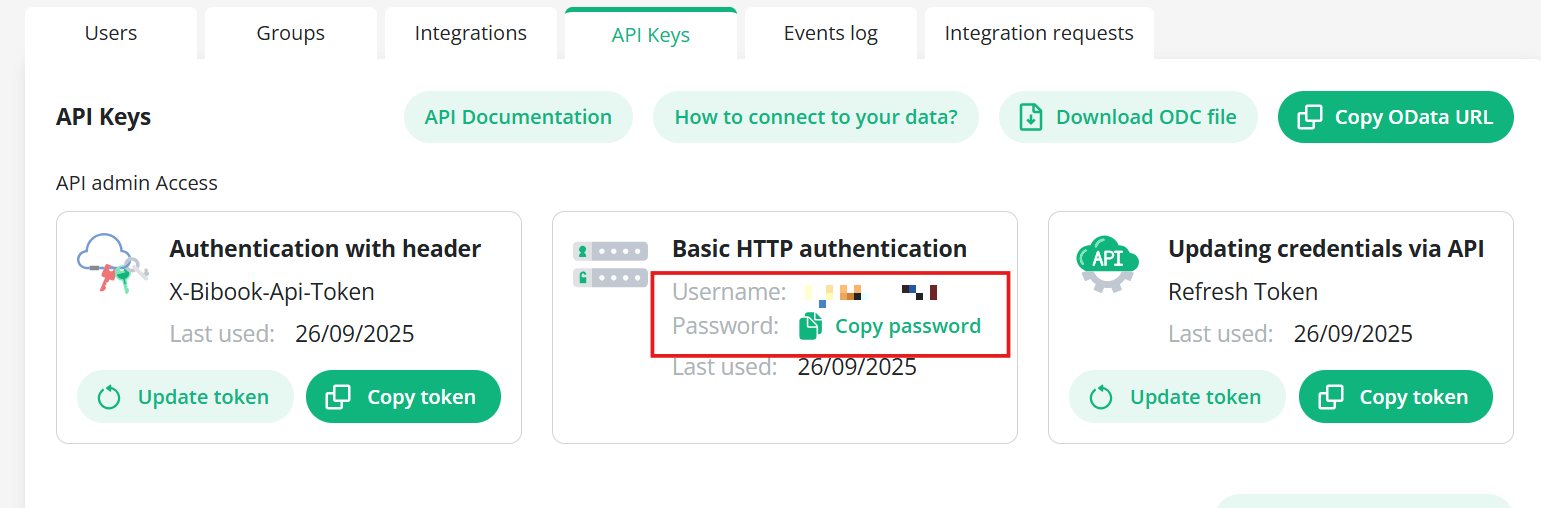
Just copy paste both user name and password and press "Connect".
Organizational account
Alternatively, if you are using your Microsoft organizational account with BI Book, you can connect to data using your organizational account.
!!! Prerequisite: please make sure that you have "Enable OData" toggle ON in your user settings
Management > Users > Edit user > "Enable OData access" (please remember to press "Save" if you change any of the settings):
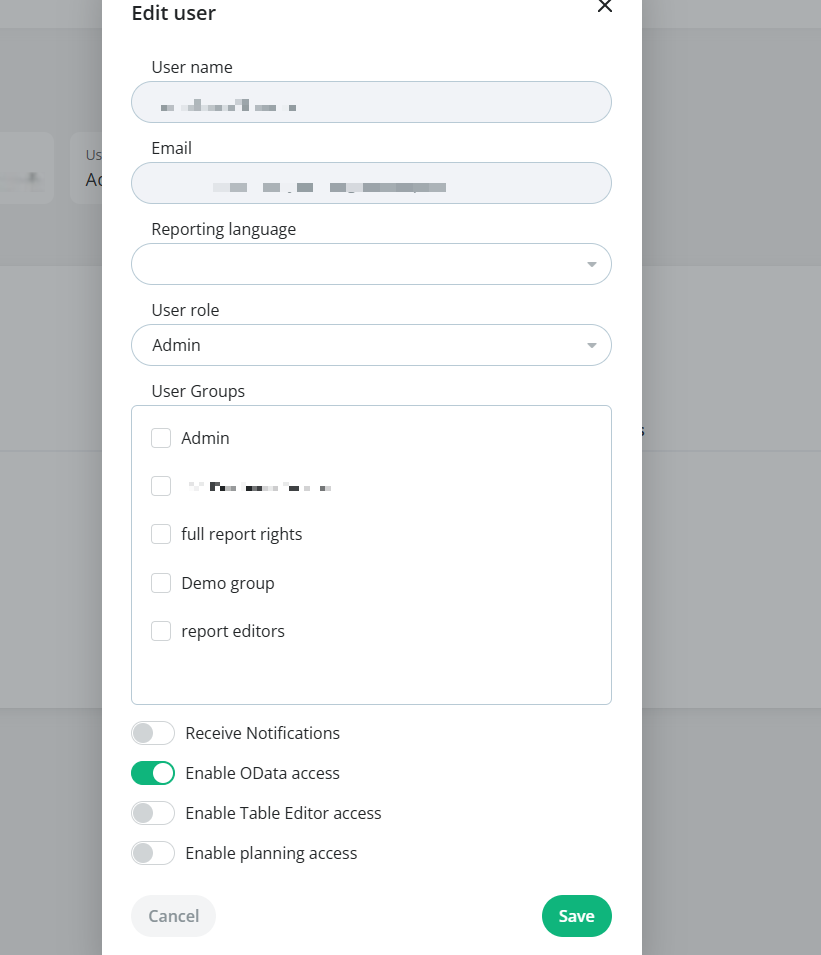
Once "Enable OData access" toggle is ON for your user, you can then authenticate with your Organizational account > press "Sign in":
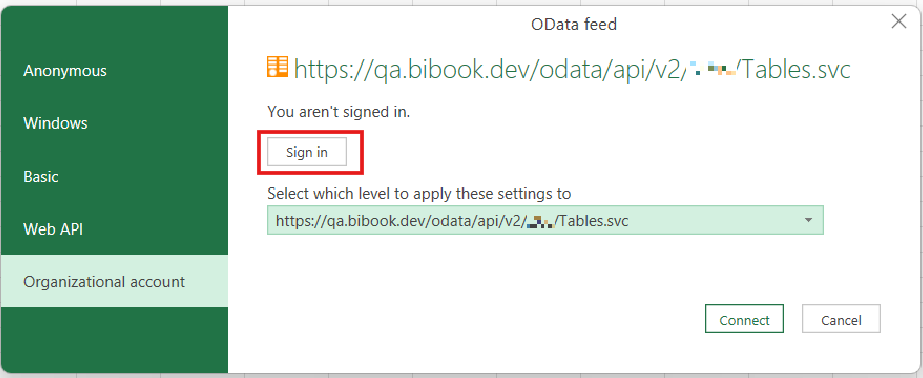
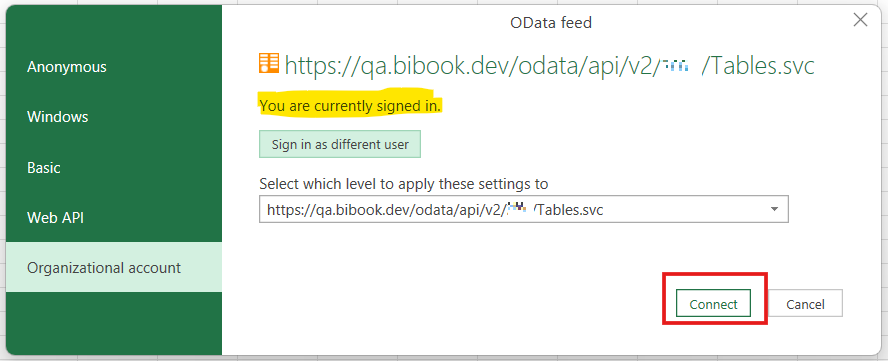
After that you'll see Microsoft login window - if you have several Microsoft accounts, please choose the one you use with BI Book.
If authentication is successful > press "Connect":
Navigating between data tables
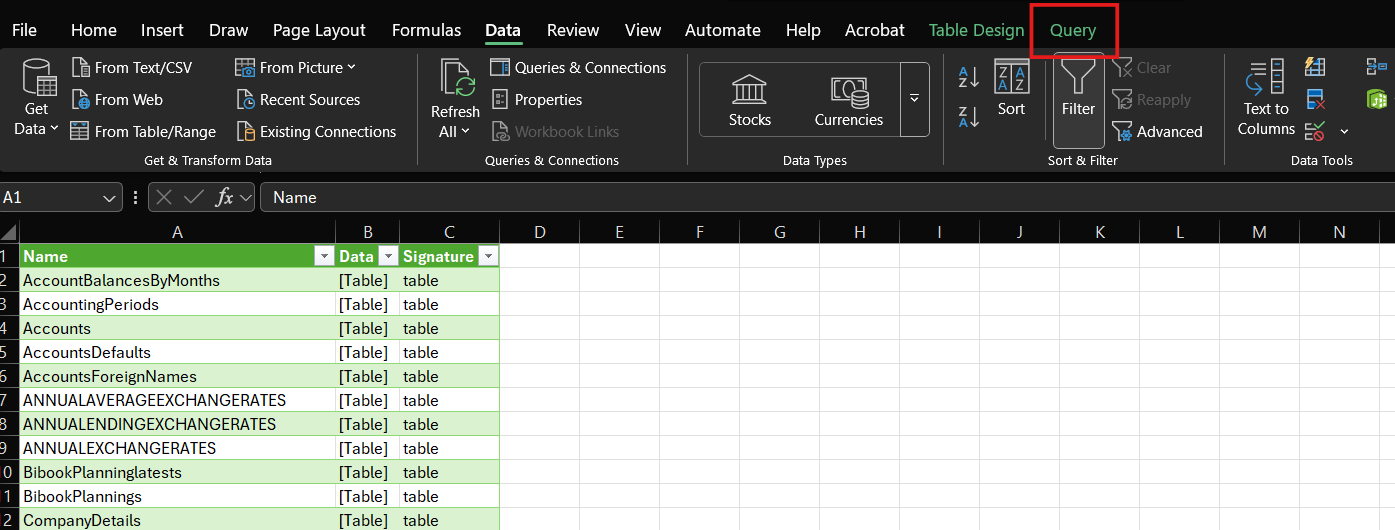
Once authentication is completed successfully, you will see the list of tables available via OData connection.
To view a specific table click on "Query" tab in Excel:
Click on "Edit"
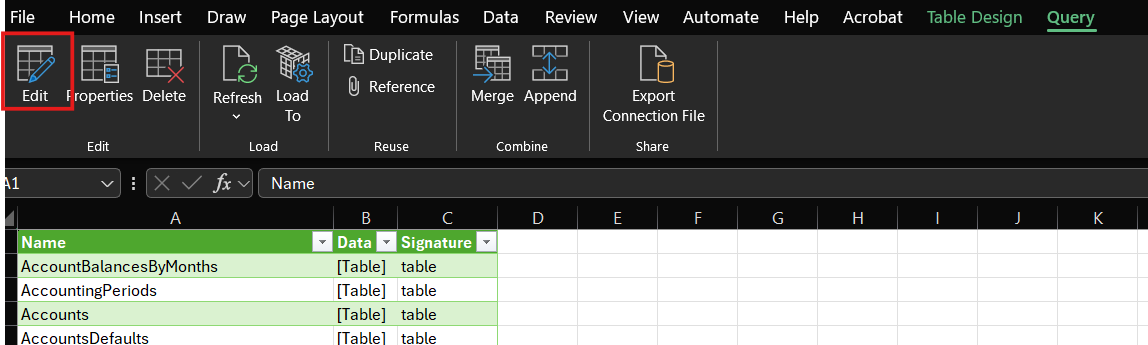
Power Query Editor will open.
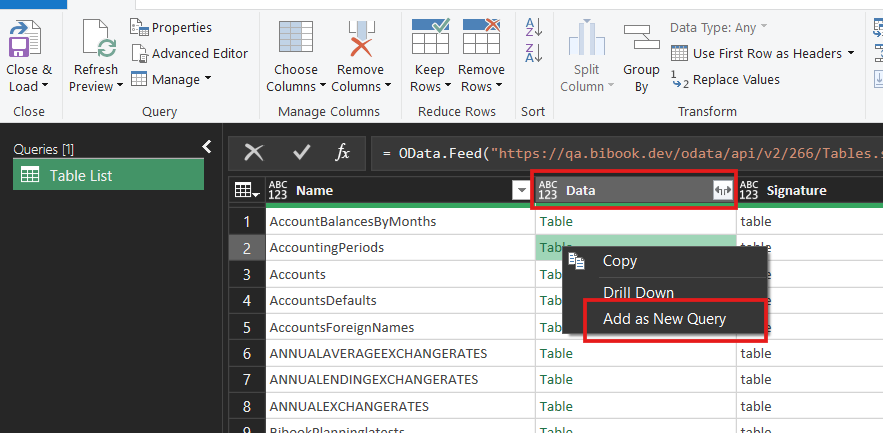
Select a table you want to view > right click on the link in "Data" column > press "Add as a new query"
The table will be added as a new query
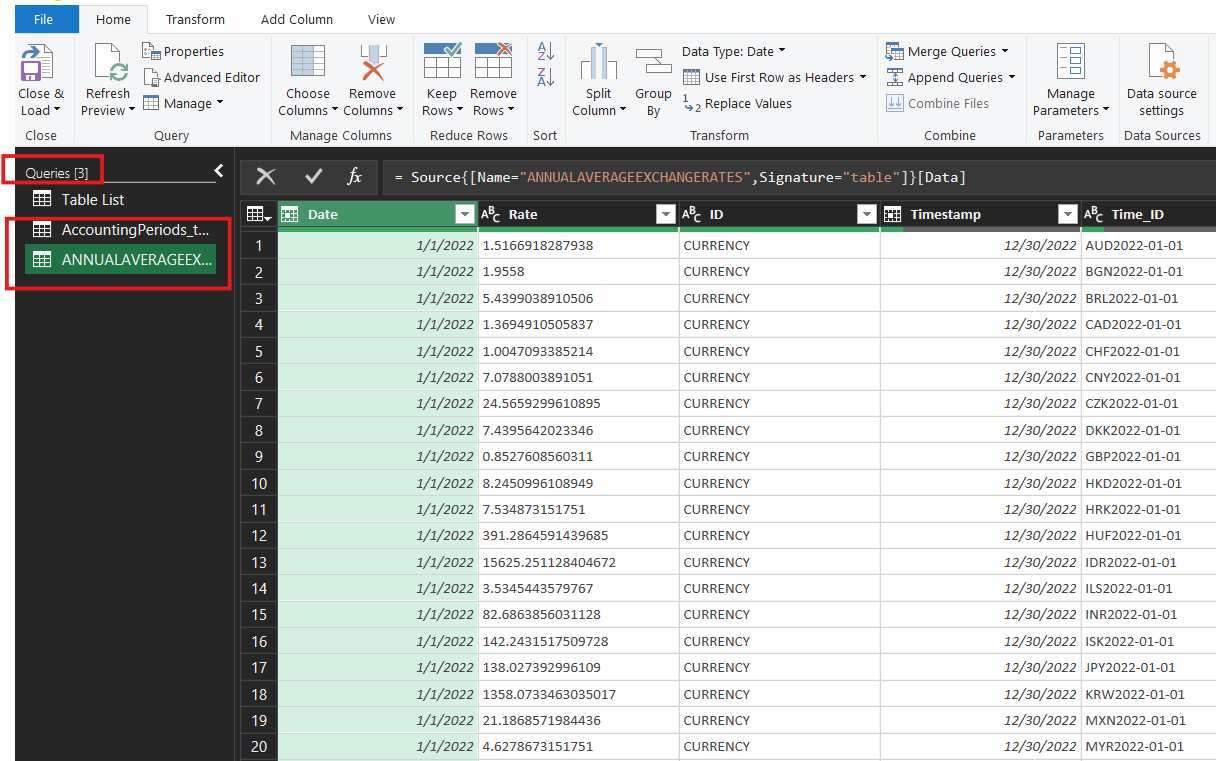
In Power Query Editor you can apply different transformations to your data before loading it and using it in Excel. Please read more here: About Power Query in Excel - Microsoft Support
Once you are done with selecting / transforming your data tables, please press "Close & Load":
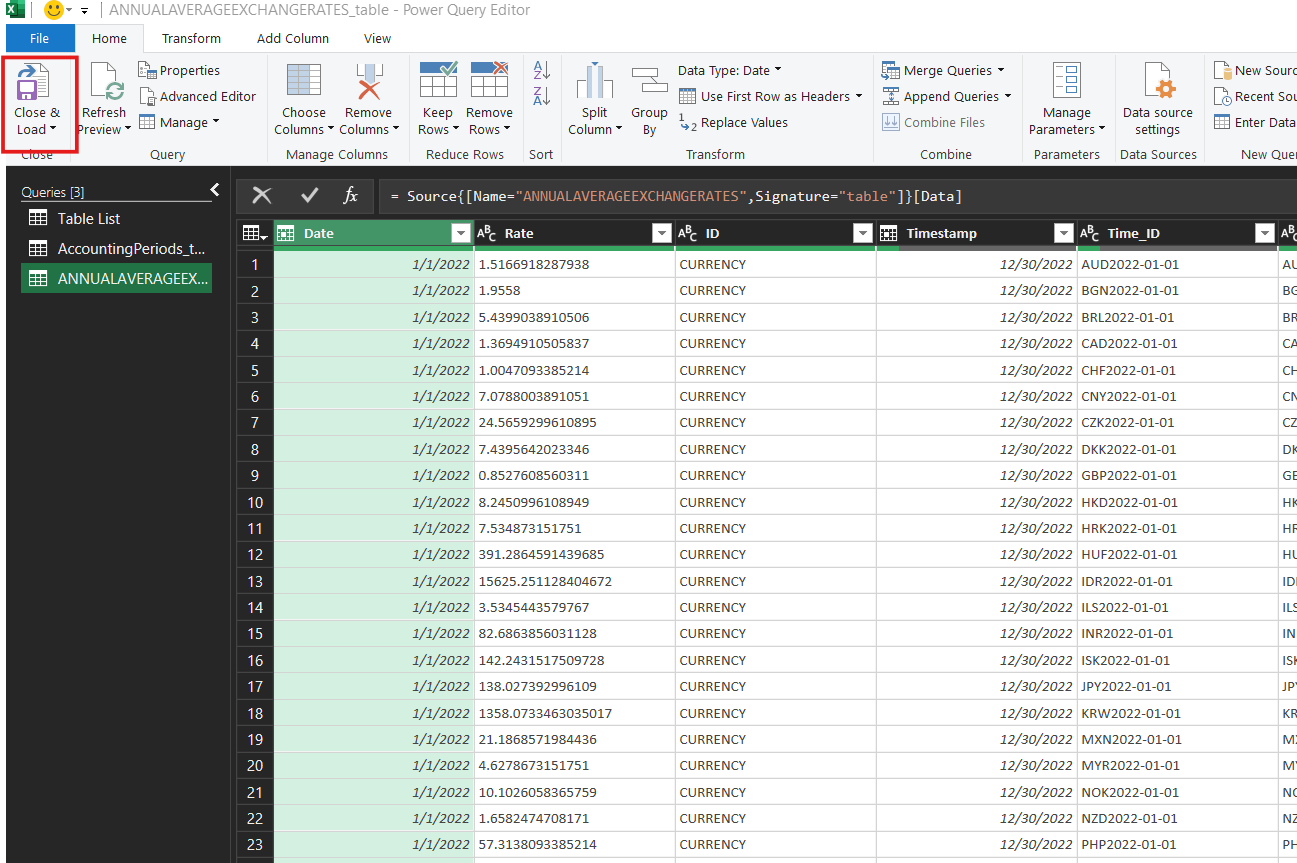
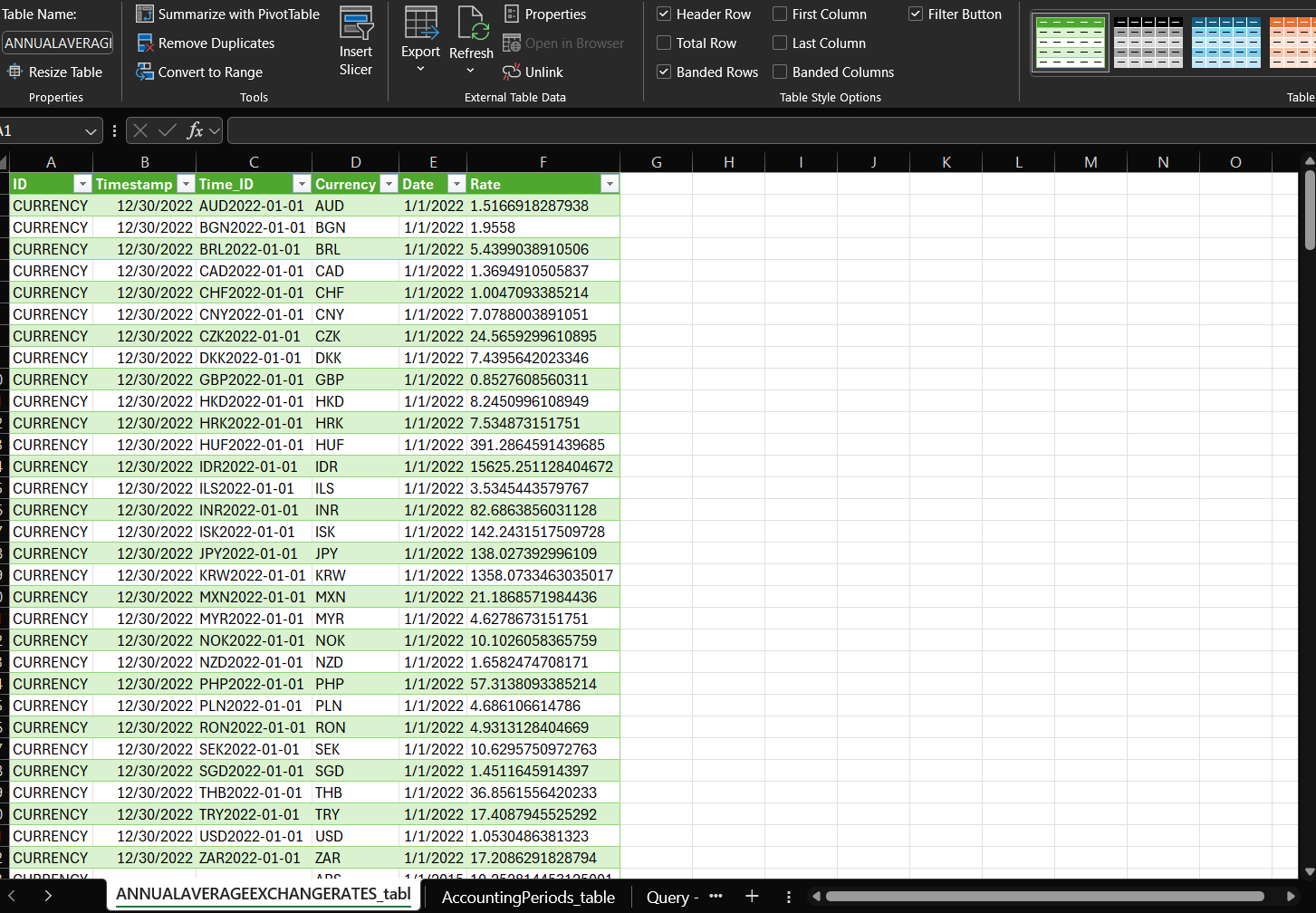
All queries (tables) you've added in the Power Query Editor, will be added as separate sheets, which you can further use for your analysis or reporting:
Was this helpful?
Still need help? Ask the team