How to manage users
This article explains how to add and edit users in BI Book, manage their permissions through group membership, root access, and the Access Tree, and use the “View as” feature to verify what each user can see. It also links to recommended articles for setting admin roles and understanding access levels.
Last updated 8 months ago
The articles comprises the following parts:
Adding /editing users
In order to add a new user please follow the steps described here help.bibook.com/en/articles/adding-a-user
If you would like to edit the basic user settings (e.g., user name, email, user role), you can access "Edit user" pop-up window via Management page → User tab → click on a specific user's name or the edit icon in the user's row → change the settings according to your needs (please find fields description here under Step 4) → press "Save".
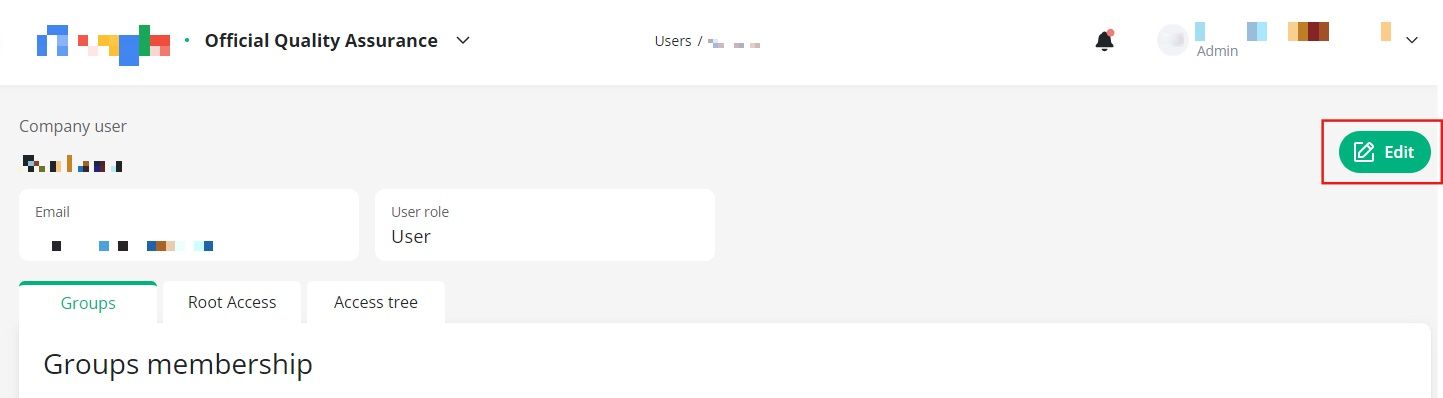
Please see this article to learn more in what cases you should update the user's role to Admin.
Managing user's permissions
You can view user’s permissions by clicking on the user’s name or “Edit” icon on “Management” page → “Users” tab:
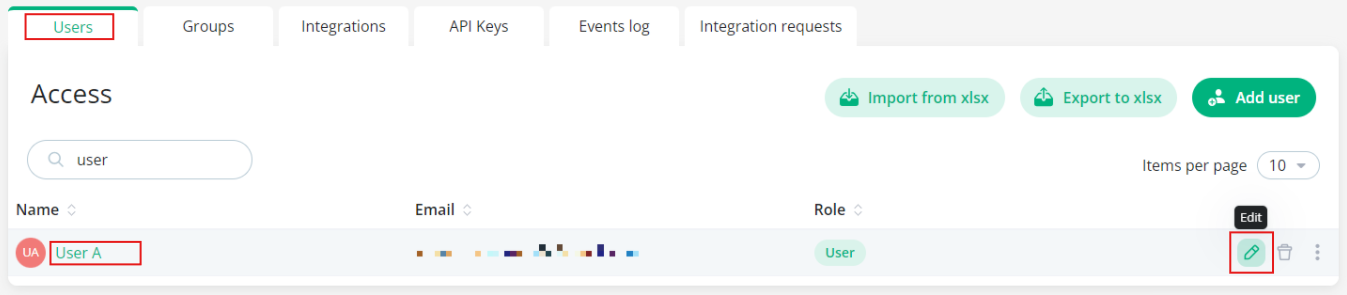
When viewing the user there are 3 main tabs - Groups, Root Access, and Access Tree.
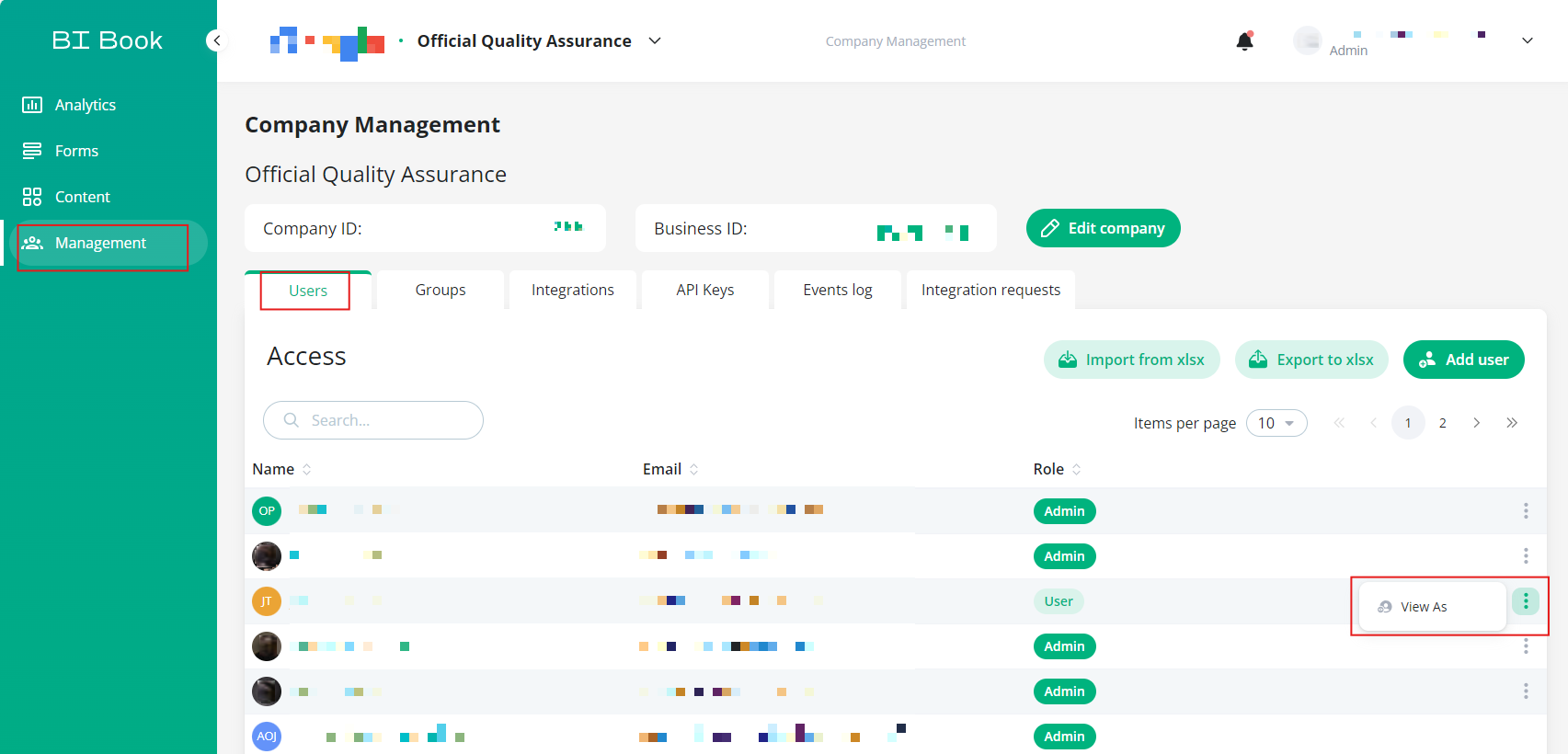
Additionally from this tab you can access "View as" functionality that allows to check how the BI Book company portal looks like for a specific user:
User's row → Action menu icon → "View as"
Groups Membership
Groups tab - overview of the user group the user belongs to.
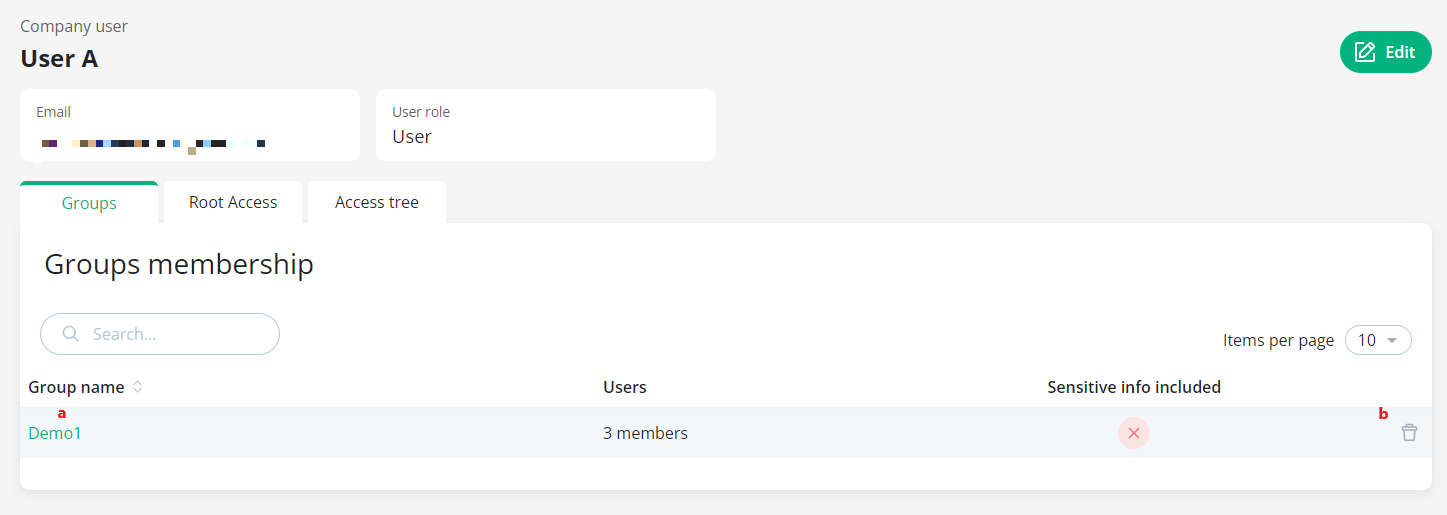
a. To view the access granted to a specific user (e.g. User A) via specific user group click on user group name (e.g., Demo1). You will be redirected to the prefiltered tab “Access tree”
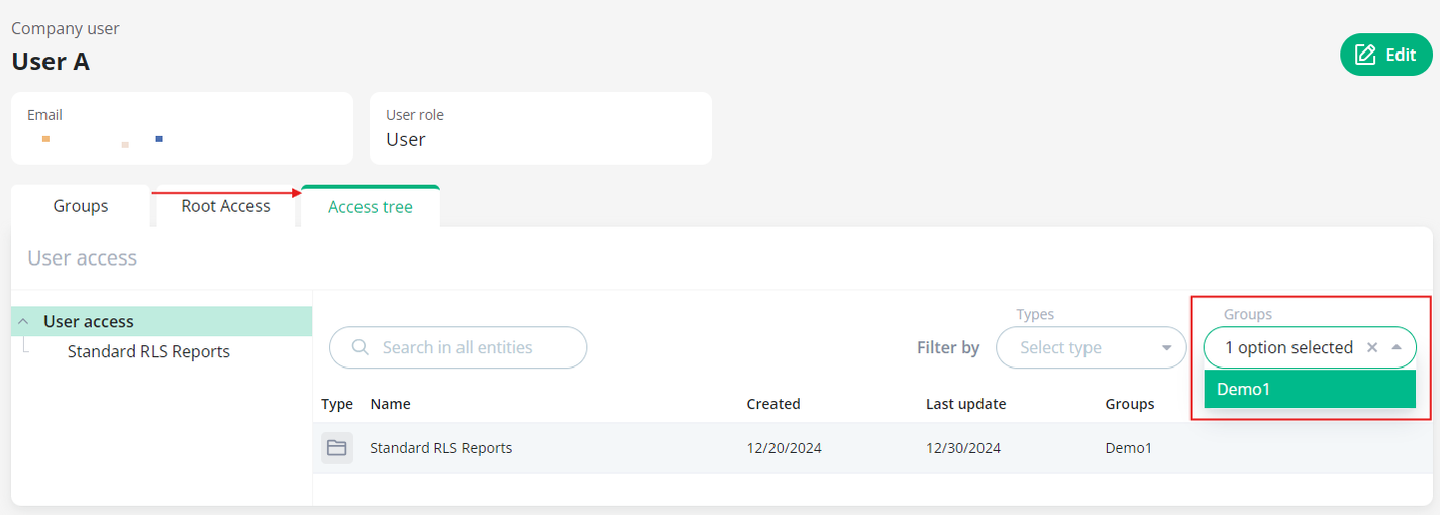
b. You can remove the user from the user group by clicking the “Delete” icon and pressing “Remove” in the confirmation window.
Root Access
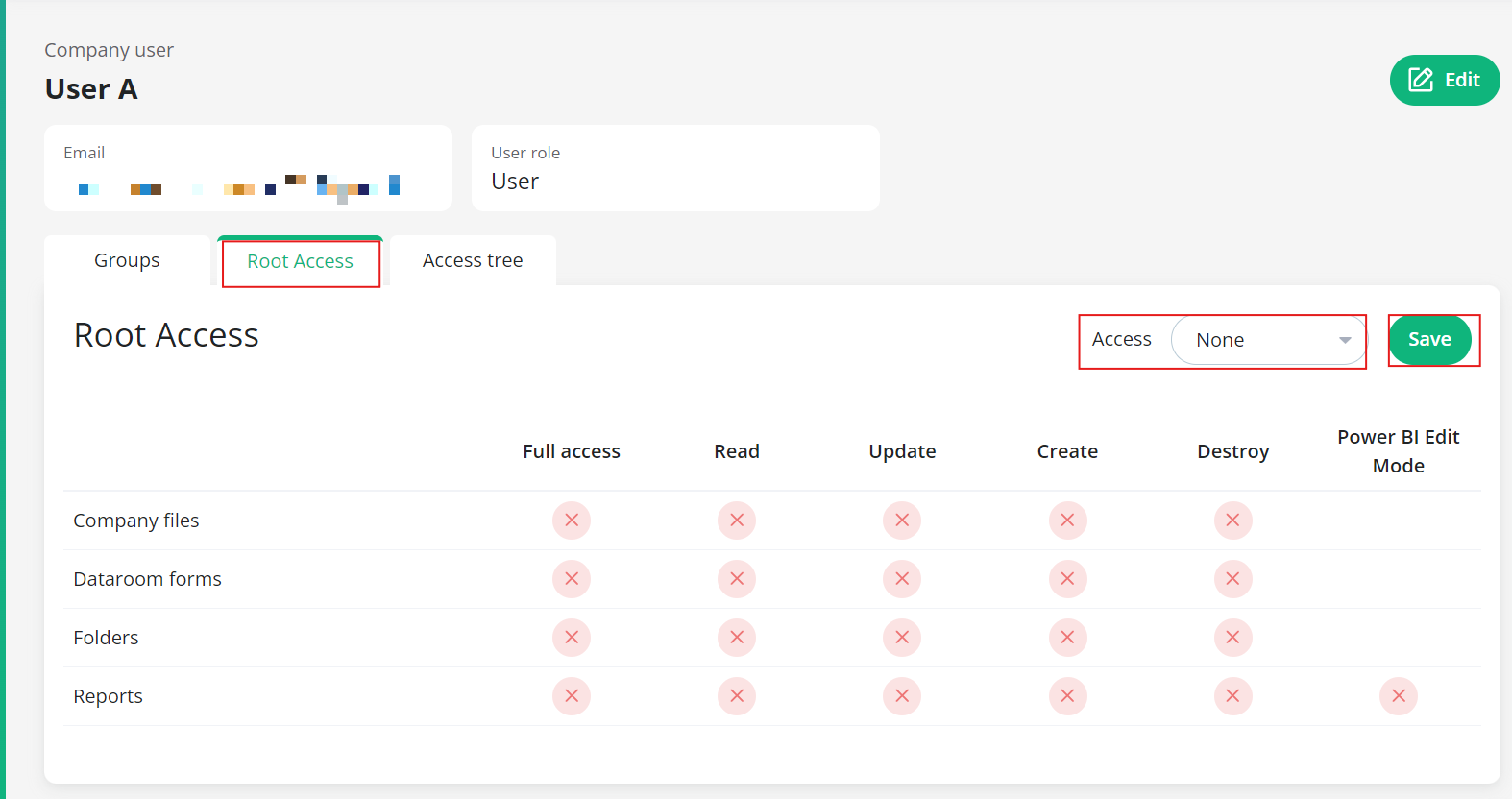
Root Access - you can view the type of root access assigned to the user on this tab.
The Root Access tab is only visible under Users who are not Admins, as Admins automatically have default access to the root.
Additionally, this tab allows you to change direct access permissions for the root. Access dropdown (default “None” unless the root was shared with this user from the Content page) → select suitable option or keep the default (“None”, “Can view”, “Can edit”) → press “Save” (see also help.bibook.com/en/articles/how-to-share-root-folder-with-user-s)
Please note that while you cannot modify the permission scheme, you can select the type of direct access to the root from the dropdown menu.
“Can view” and “Can edit” permission levels are configured as described in Access Mode section here: help.bibook.com/en/articles/bi-book-access-management
Access Tree
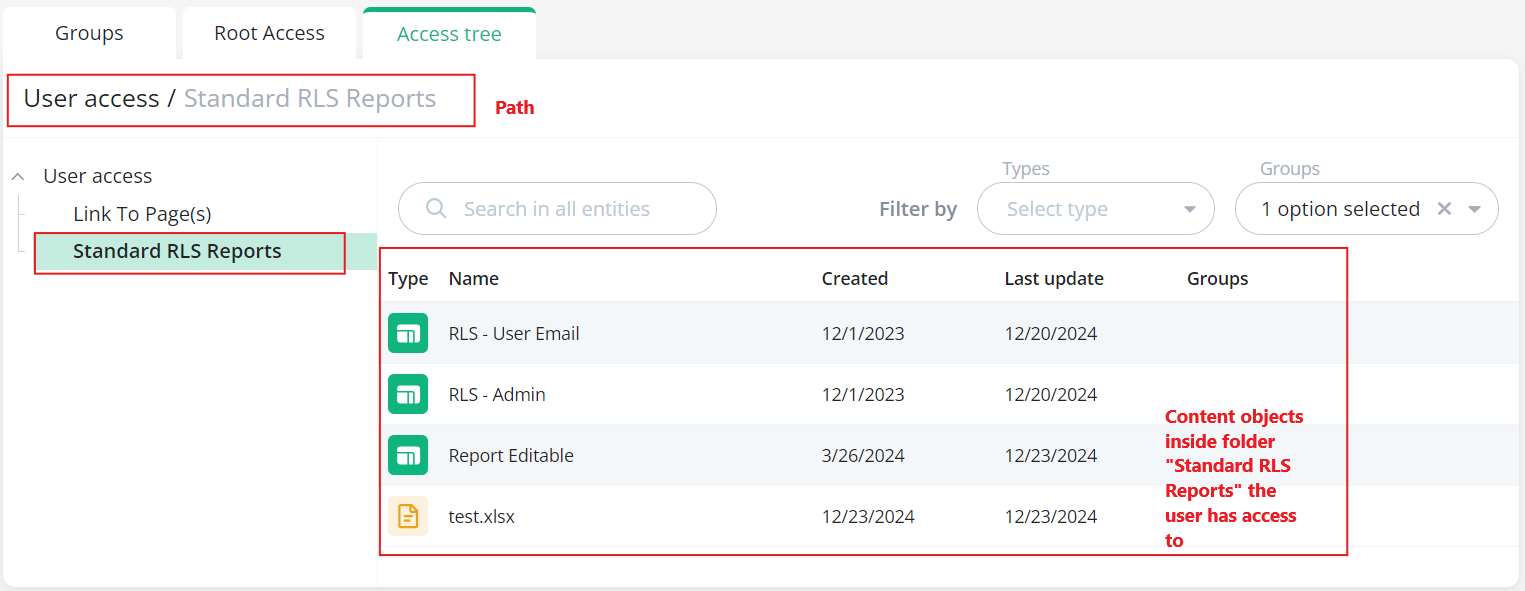
Access Tree - in this view you get a list of all content objects a user has access to via both user groups and direct access.
If access to a content object has been granted through one or more user groups, the "Groups" column in the list view will display the names of the corresponding user groups.
If access to a content object has been obtained via direct access, then “Groups” column in the list view will be empty.
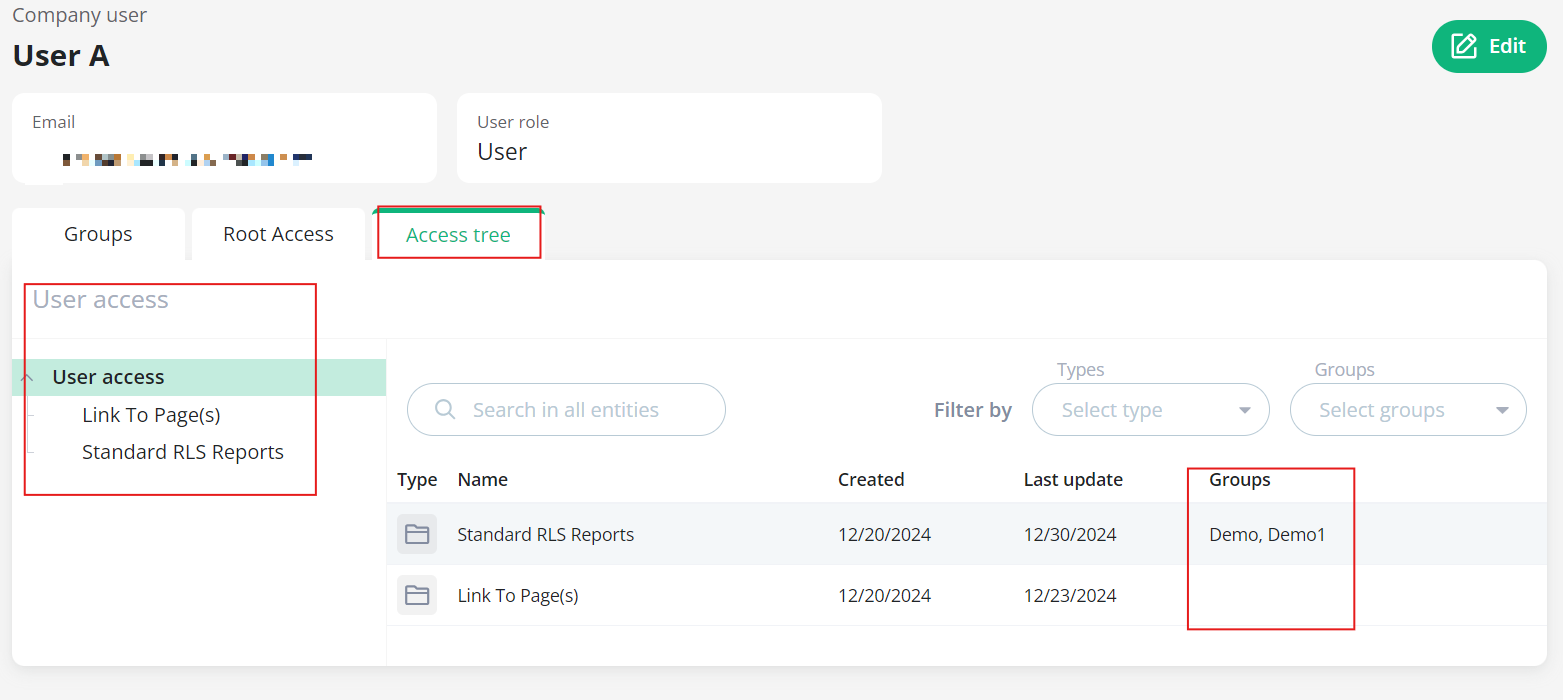
You can filter the Access Tree list view by content object type and/or user groups whenever needed. This is particularly useful if you want to check a user's access to a specific content object. Additionally, you can use the search bar in the list view to quickly locate the desired content object. For example:
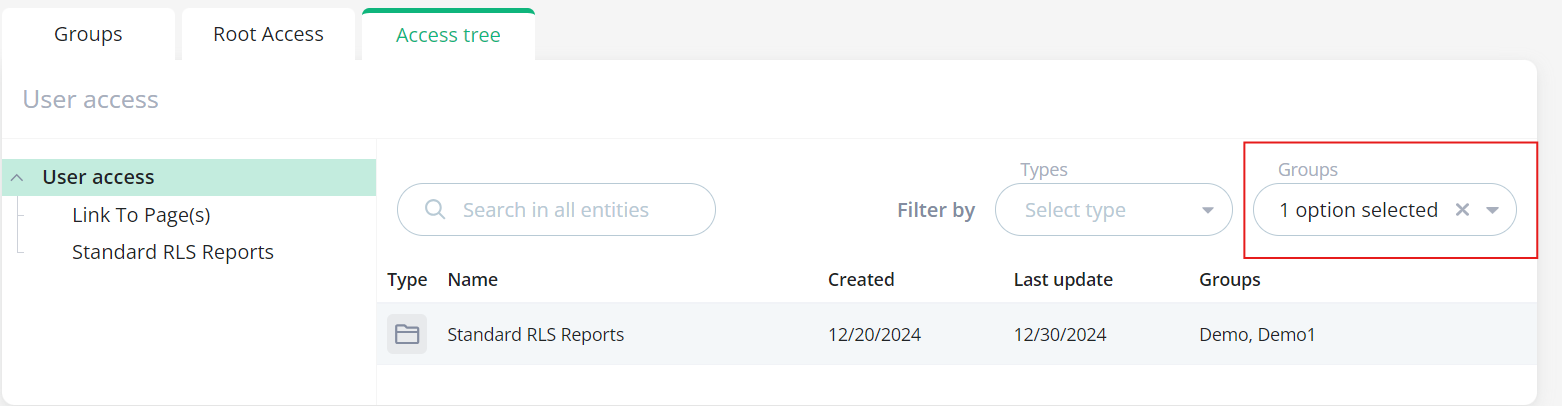
You can easily explore the content objects within a folder to which the user has access by clicking on the folder name directly from the Access Tree view. You can return to the highest level at any time using the path:
⚠️By utilizing the Access Tree together with the “View as” functionality in BI Book, you gain complete visibility into the content accessible to each user.
Recommended reading
BI Book Access Management help.bibook.com/en/articles/bi-book-access-management
Making an existing user an admin (in what cases you should grant a user an admin role) help.bibook.com/en/articles/making-an-existing-user-an-admin
How to share root folder with user(s) help.bibook.com/en/articles/how-to-share-root-folder-with-user-s
Granting access to Content objects help.bibook.com/en/articles/granting-access-to-the-content-objects
Was this helpful?
Still need help? Ask the team