Power BI Report Theme Generator
Last updated 8 months ago
BI Book: Report Theme Generator
BI Book users can now easily customize the report themes available in their BI Book environment. If you are Admin user, you can either “create a theme from scratch” or match the report theme with your BI Book UI Theme.
Prerequisites:
You have Admin rights.
The report's visual styles are the defaults ones.
Where to find: Management - Edit Company - "Power BI Theme" tab:

How to use the theme generator
You can control the style of the following elements with Power BI Theme generator:
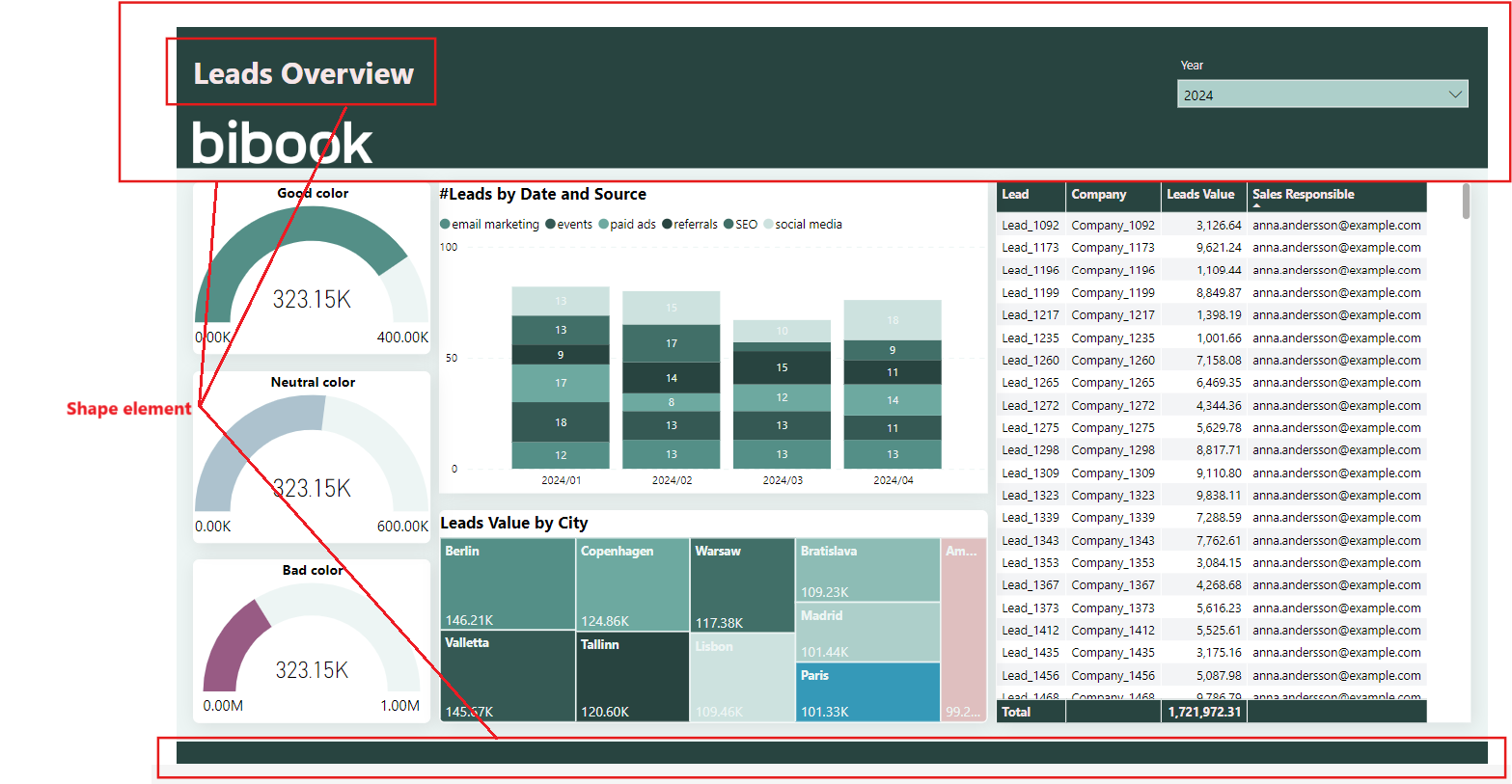
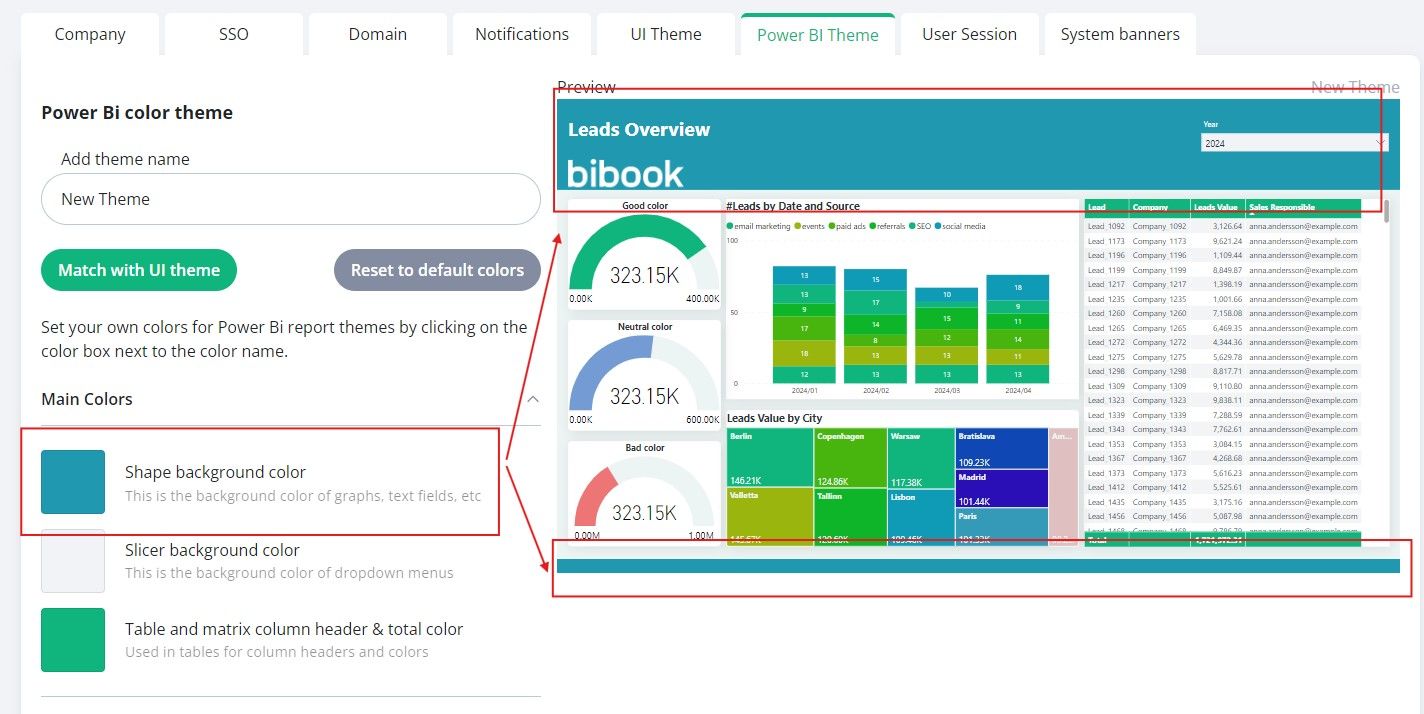
Shape background color. Shapes are used for Header & Footer in the standard BI Book report layout. Also, shapes are used to hold report page titles:
Slicer background color. You can select the background color of the dropdown slicers that are used in your report.
Table and matrix column header & total color.
Data colors. For now we support changing only the first 8 data colors that are used in the report’s visuals.
Text and notifications colors:
Header text color - used for the text in shapes, tables/matrixes column headers & totals, as well as slicer header.
Body text color - affects titles of the visuals, body text in tables and matrixes, and slicer text.
Good, bad, and neutral colors - these colors correspond to sentiment colors that are used in KPI visuals, waterfall charts to indicate positive, negative, or neutral results
Fonts:
Header font - affects shape’s text font, visuals' titles font, and slicer header font
Header font size - affects visuals' titles font size
Body text font - affects tables/matrixes column headers, totals and body text, slicers' text, and body text of the visuals
Body text font size - affects visuals body text font size, tables and matrixes font size, slicer header size
Matching with the UI theme
You can match your report theme with the BI Book UI Theme that is defined here (Management - Edit Company - UI Theme):

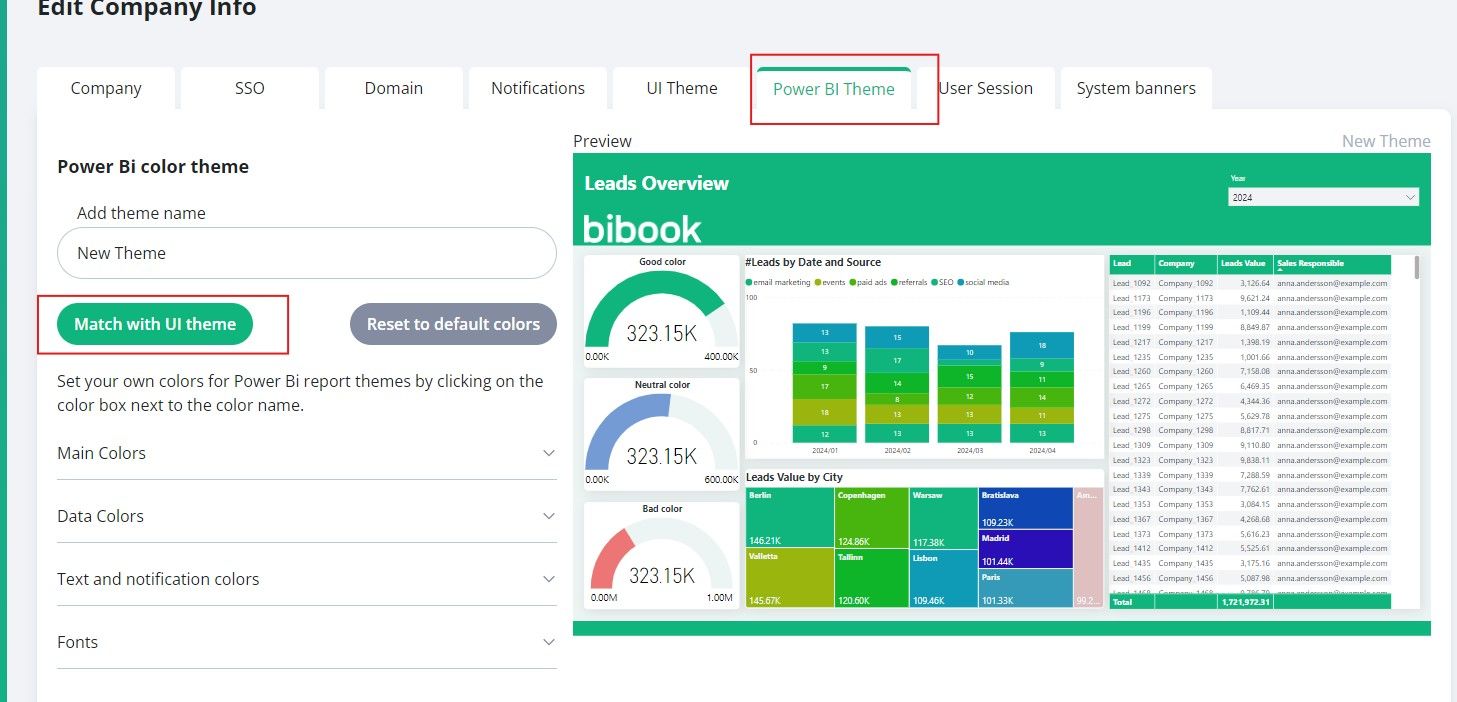
To do so you just need to press the button "Match with UI theme":
After pressing the button, the UI theme colors will be suggested for your report theme - you can modify any of those and check how it will affect the report using "Preview":
Saving and Using the theme
When you have finished creating a theme, please remember to press "Save".
Once saved, you can start using your theme by Navigating to a BI Book report and applying the theme:
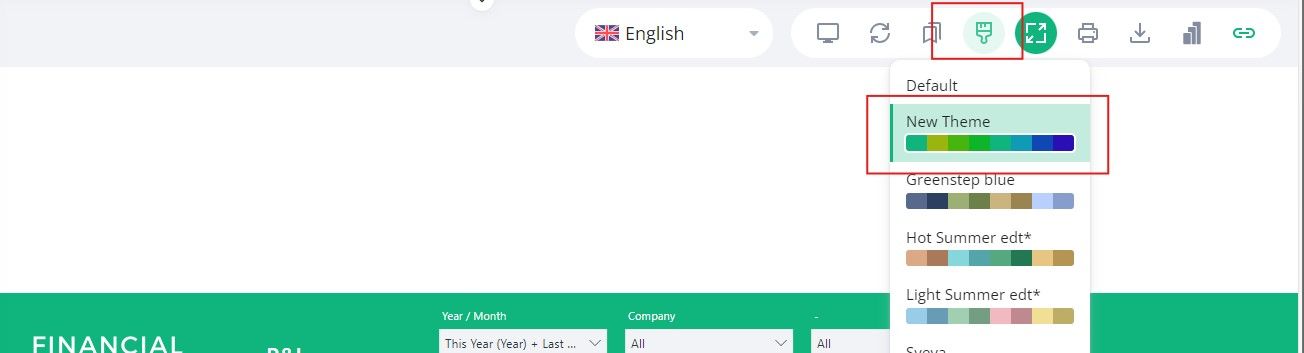
Note: this theme will be applied to all the reports within your environment.
You can always revert the changes by selecting the "Default" option from the dropdown:
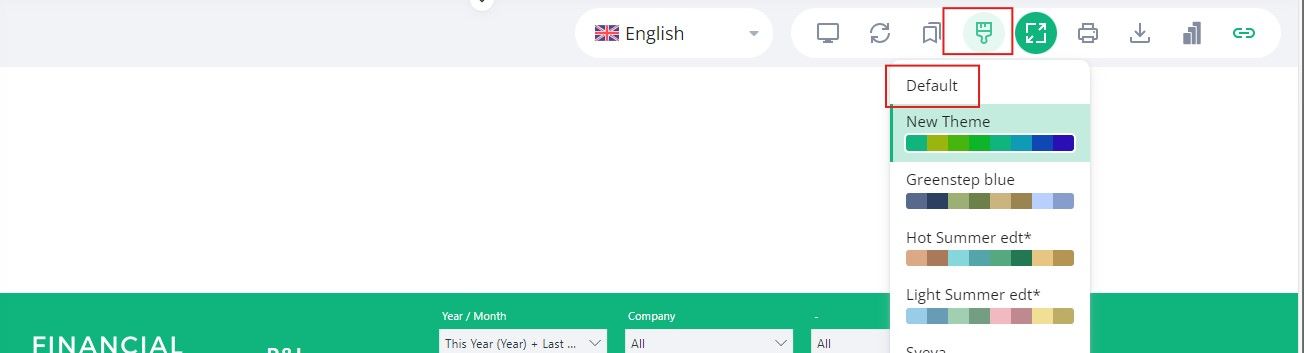
"Default" in this case is the theme that was used in the report, when it was published to Power BI Service.
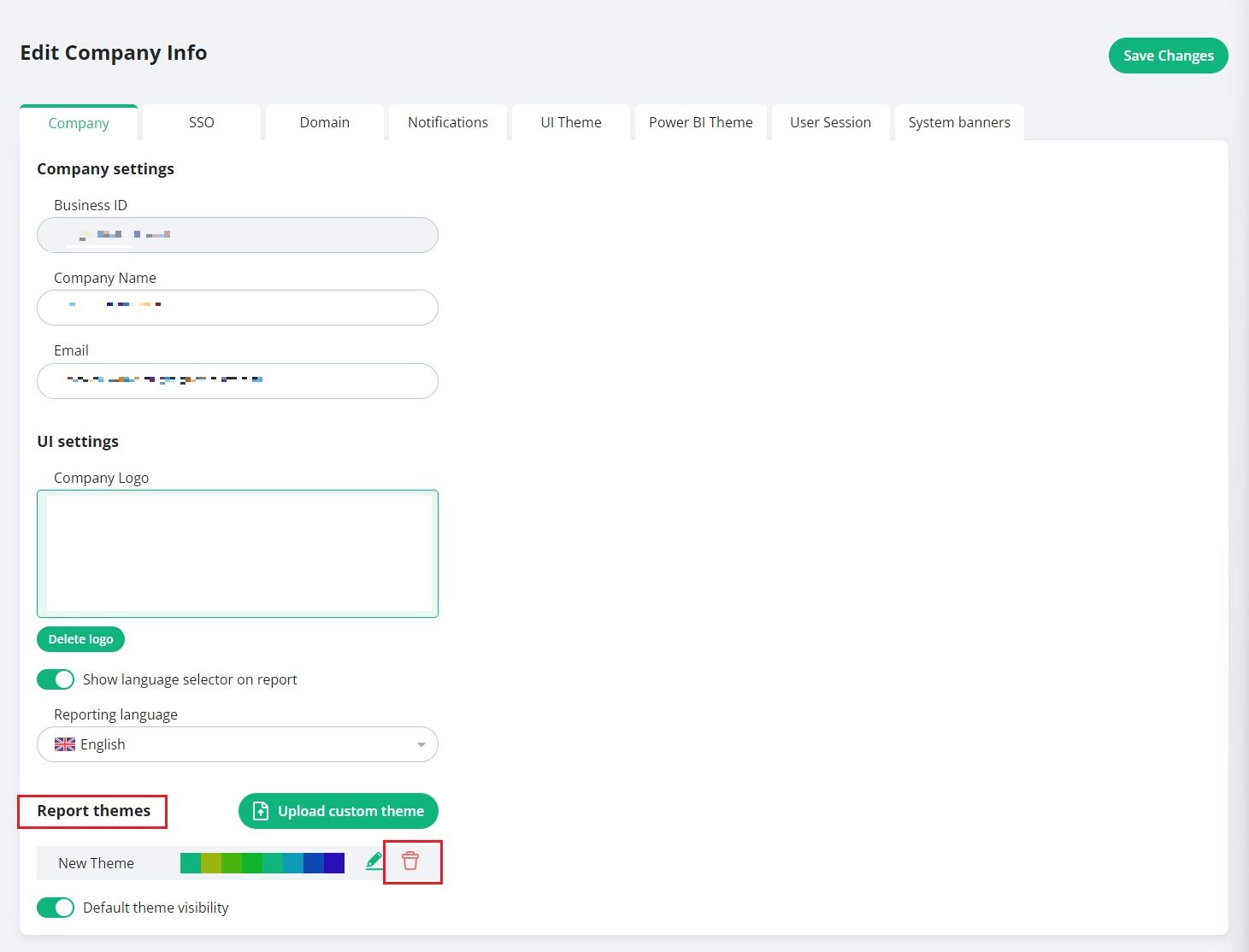
Delete the created theme
If you would like to delete the theme you've created, please navigate to Management - Edit company - "Company" tab - "Report theme" subsection:
Limitations
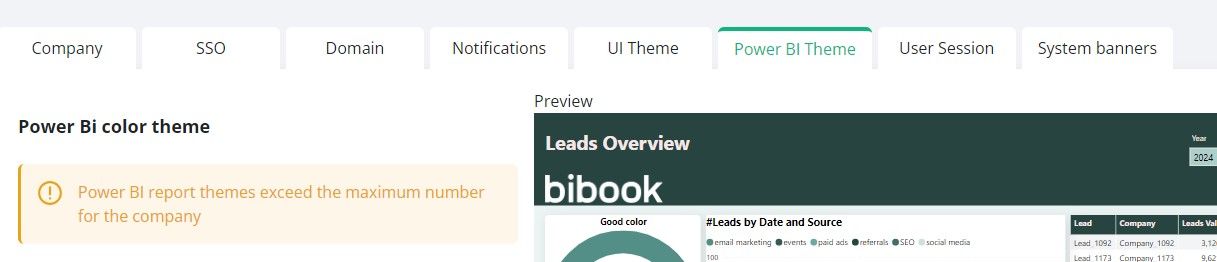
You can only add 3 custom themes per your company environment. Once the limit is exceeded you'll see a message
When applying a theme in a report, it is applied to all the reports in your BI Book environment
When you delete the custom theme you've created, it is irreversible
You cannot edit/view the added theme (this functionality will be added later)
The report's visuals' styles should be set to default
Was this helpful?
Still need help? Ask the team