Power BI Report Rendering Issues
Last updated 8 months ago
At BI Book, we are happy to offer one of the largest Power BI Premium capacities in Europe, tailored to meet your unique business needs. With BI book, you gain access to Power BI features only available in premium subscription plans. Here's what sets us apart:
Robust Load Balancing: Enjoy enhanced load balancing capabilities that ensure smooth performance even during peak usage.
Increased Processing Power: Benefit from significantly more processing power than what other plans and solutions offer, allowing for quicker data analysis and reporting.
Support: Additionally, we have a dedicated service level agreement and support from Microsoft as well as ability to quickly scale to different regions for geo redundancy if necessary.
To ensure uninterrupted service delivery, we have implemented several proactive measures:
1. Enhanced capacity scaling
Our advanced scaling script automatically ramps up capacity before anticipated spikes, effectively preventing slowdowns in 95% of cases and ensuring seamless performance.
Power BI reports may experience reduced performance during scaling events. Currently, we avoid performing these events during work hours unless we observe extreme peaks in usage.
On average, we operate our capacity at around 40%. A typical scaling event usually takes between 1 to 7 seconds to complete.
2. Continuous optimization
We are dedicated to continuously optimizing our capacity usage and enhancing the BI Book platform, ensuring that you experience no interruptions in service.
While optimizing capacity can help, it’s not always the solution to report rendering issues. Often, errors arise from specific dataset/semantic model problems. For example, the model may contain tremendous amount of data or bunch of suboptimal DAX queries.
To enhance our services and resolve and in the future prevent these issues effectively, we kindly ask for your assistance in identifying errors that may cause disruptions to the Power BI Server.
If you experience latency when loading a report, please follow these steps:
DO NOT Close Your BI Book Report Window
Keeping the window open allows us to gather necessary data (see the next steps).
Record Network Traffic
Use the technical recording instructions provided below to capture network traffic in the same browser window. This information is crucial for diagnosing the issue.
Open a New Browser Tab and Record Network Traffic Again
If possible, provide a screen recording of your BI Book event and attach that as well.
You can, for example, use default Snipping Tool for screen recording.
Send an Email to BI Book Support
Send an email to support@bibook.com with your customer responsible as CC with the logs(HAR file) and screen recording attached.
How to Record Network Traffic
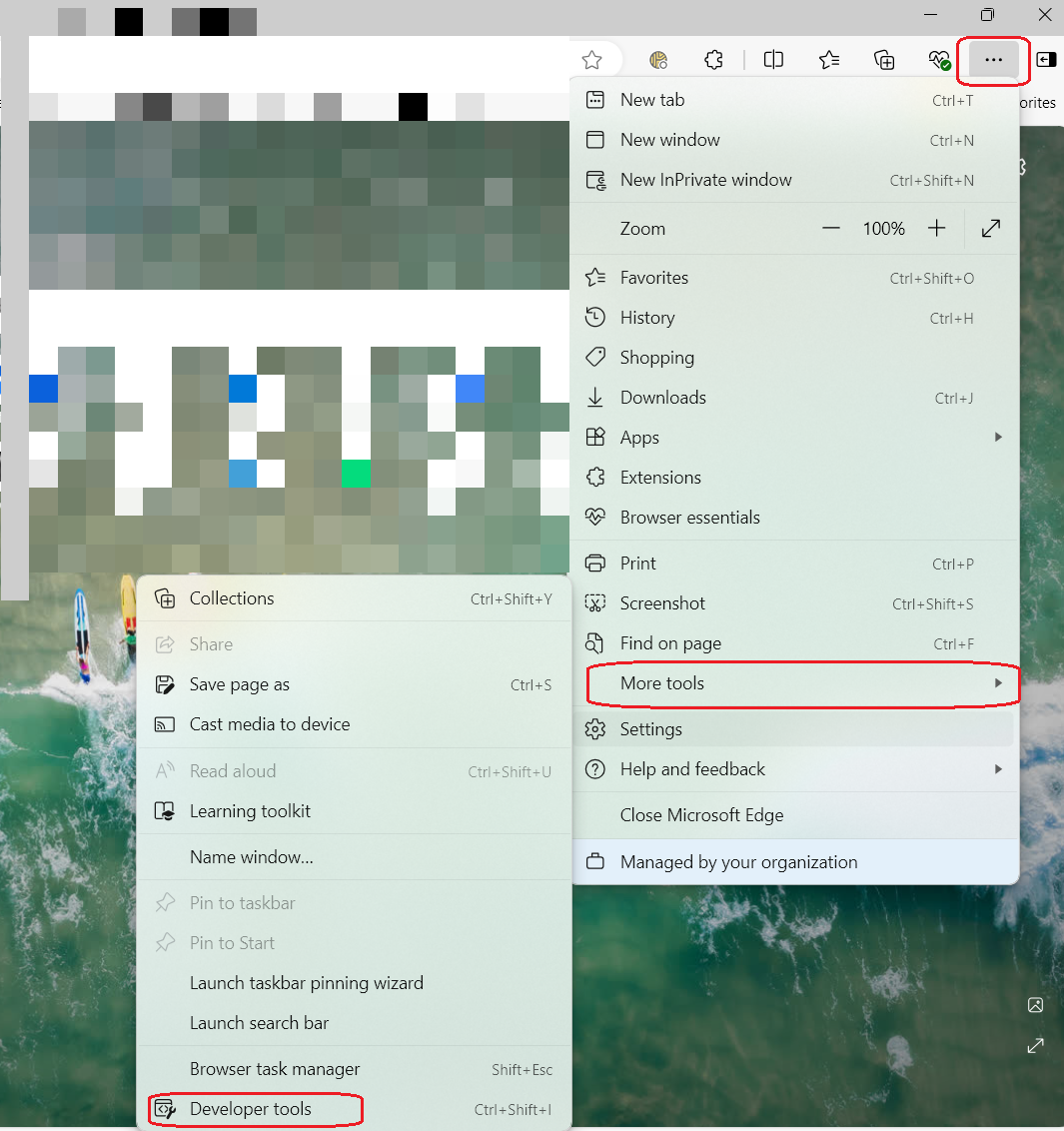
Click the button in the top right corner > More tools > Developer Tools
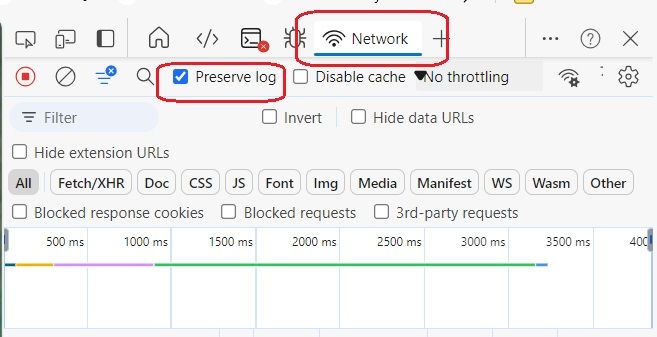
Select the Network tab in the dev tools console. Also, please enable "Preserve log" option as highlighted below:
Reproduce the issue (e.g., try to open a malfunctioning report in BI Book)
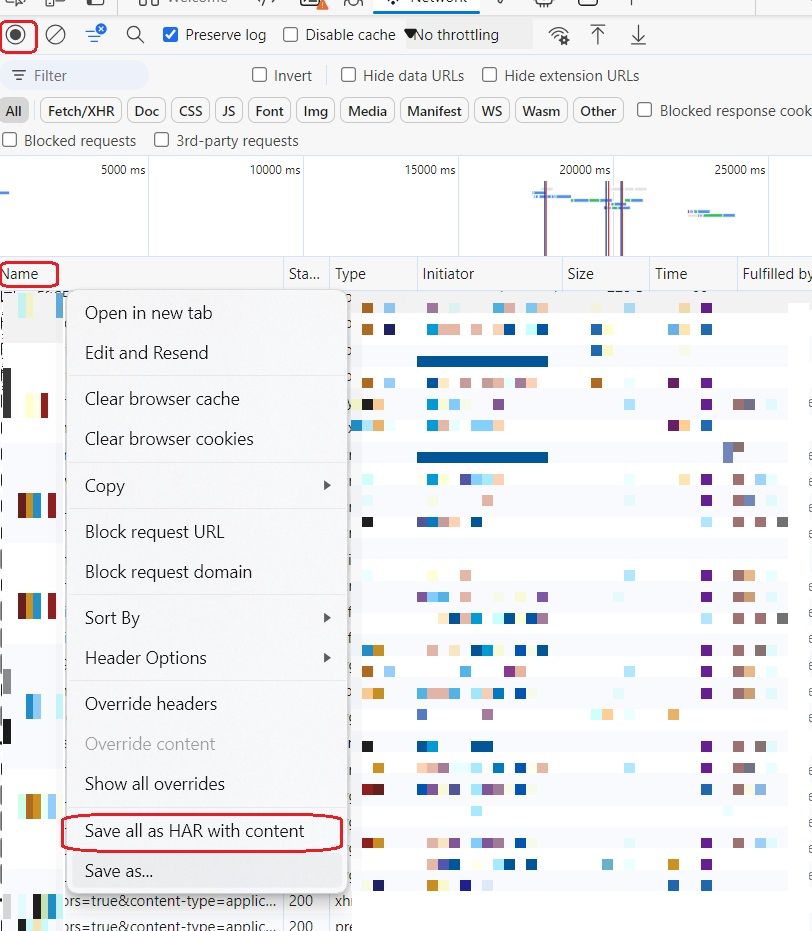
Once completed, stop recording network log > right click anywhere under the first column ("Name") in the trace window > select "Save as HAR with content":
We sincerely appreciate your contribution and thank you for choosing BI Book!
Was this helpful?
Still need help? Ask the team