How to save report as PDF in BI Book
Last updated 8 months ago
Sometimes you need to print or save your report pages from BI Book. You can easily print a page from BI Book or save it as a PDF. These instructions will guide you through the steps to navigate and accomplish this tasks.
❗Note: if you would like to export all report pages please check this article for more guidelines
How to print a page
Step 1. Navigate to a BI Book report that you would like to print.
Step 2. Choose the report page which you want to print from navigation side bar on the left.
Step 3. Click the printer icon on the top right corner.
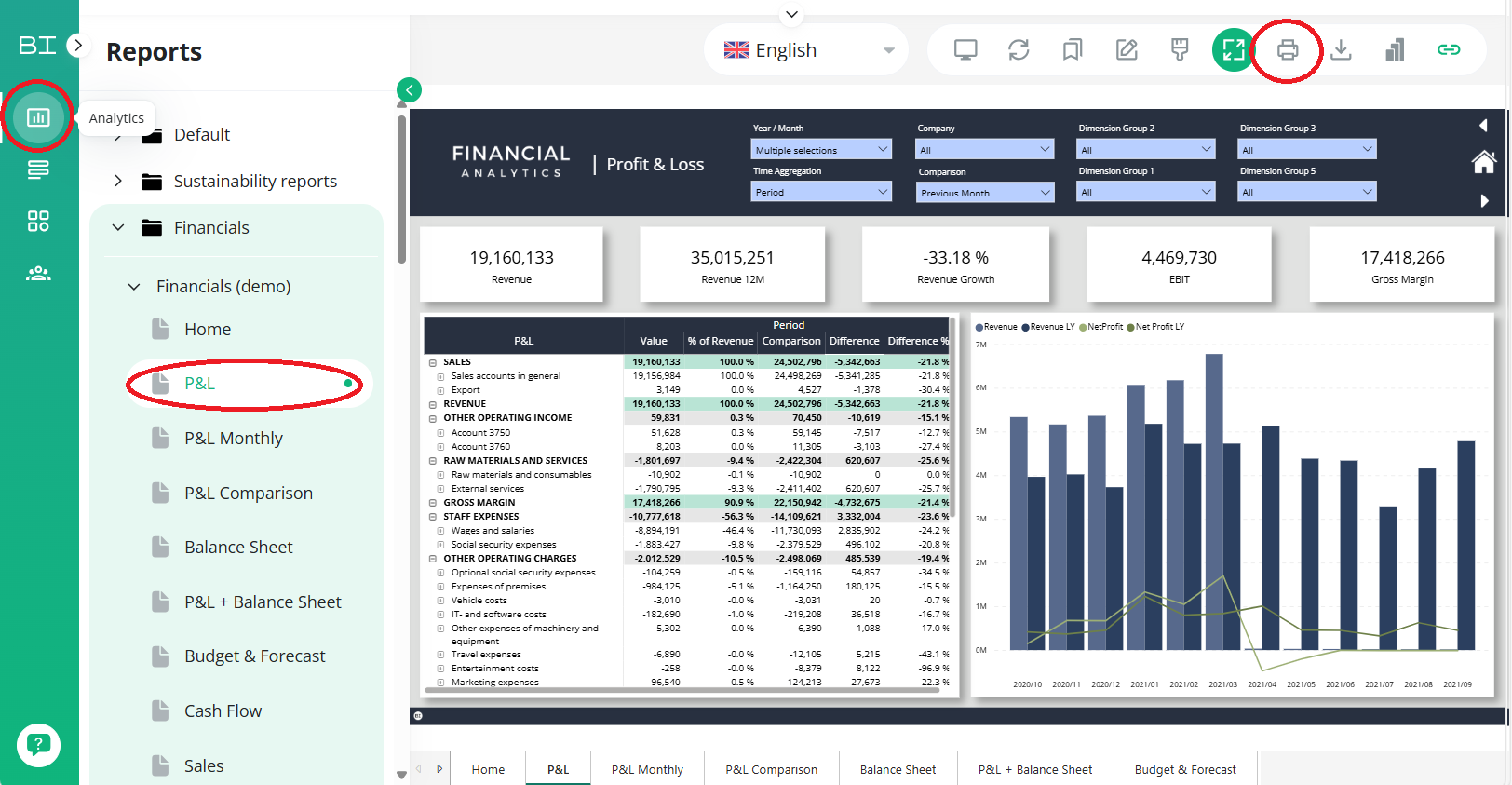
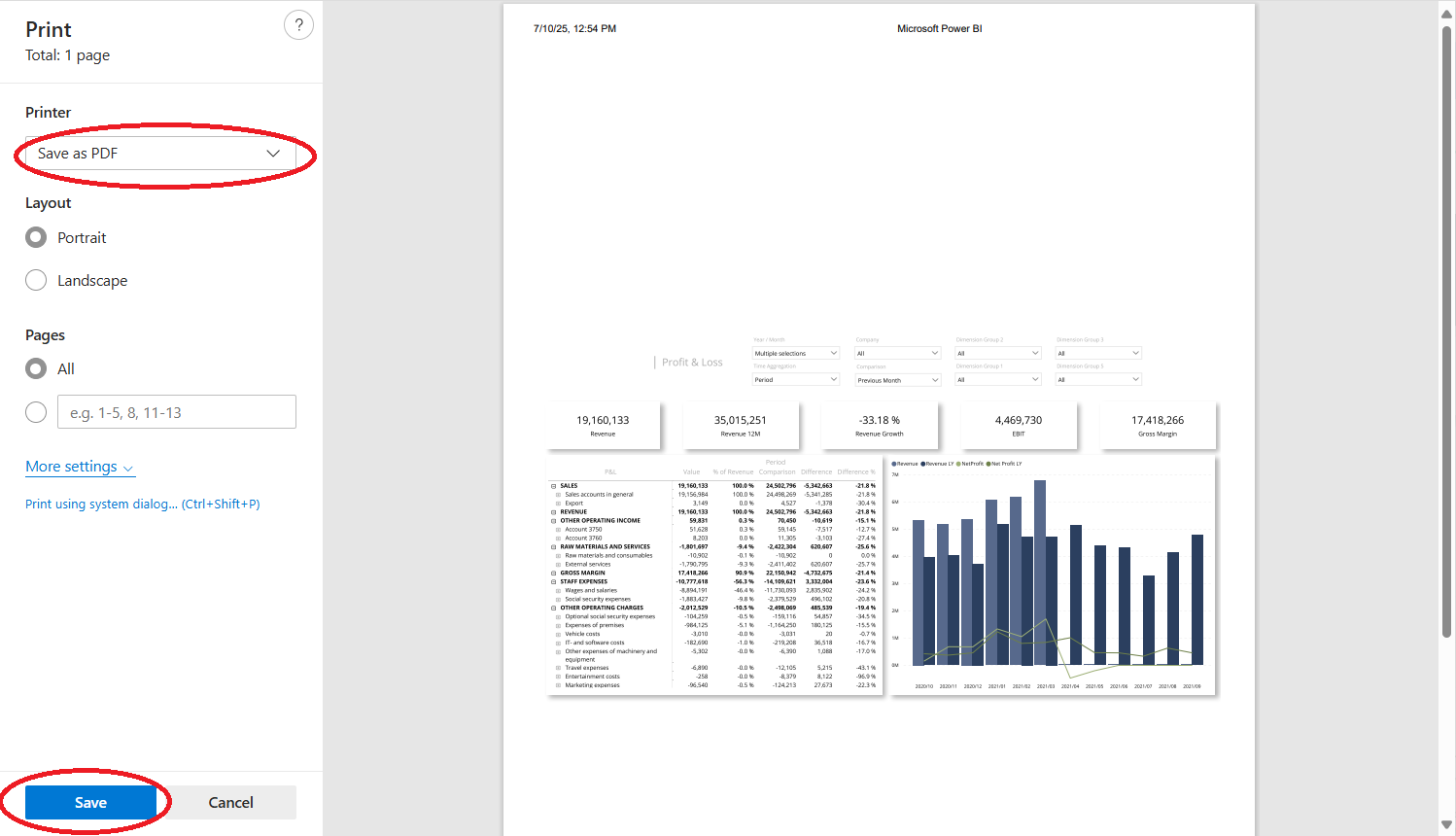
Step 4. A pop-up window will appear, offering you usual printing options. Select which printer you want to use.
To print a page to paper choose the correct printer from the Printer menu
To Save page as a PDF choose the Save as PDF from the Printer menu
Step 5. After choosing printer and other settings which you prefer, click Save or Print.
FAQ
What should I do if certain rows are messed up when printing? (see example picture below)
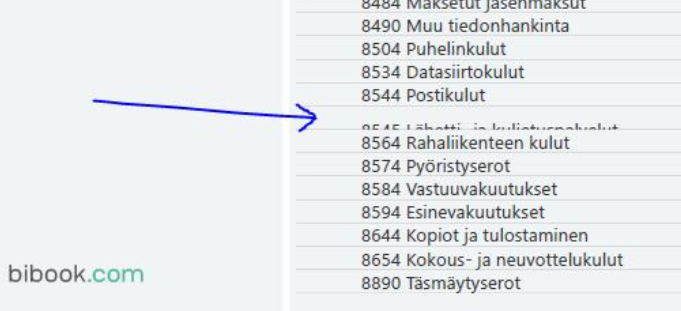
The quickest way to resolve this is by switching to edit mode and increasing the font sizes.
You can enter Edit mode by clicking the Edit report button located in the upper right-hand corner of your screen.
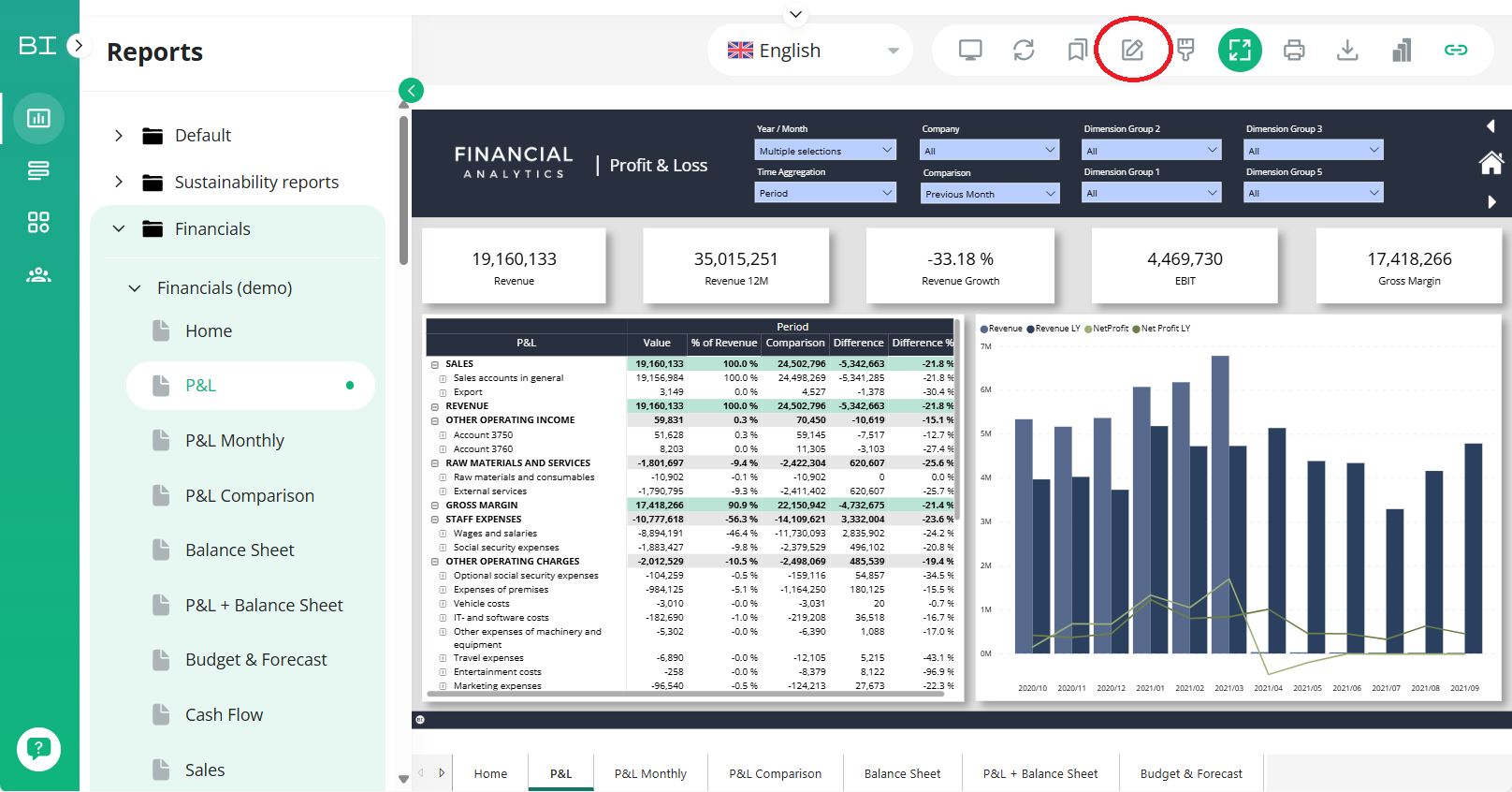
⚠️If you do not have access to edit mode, please contact us at support@bibook.com, and our team will assist you in fixing it.
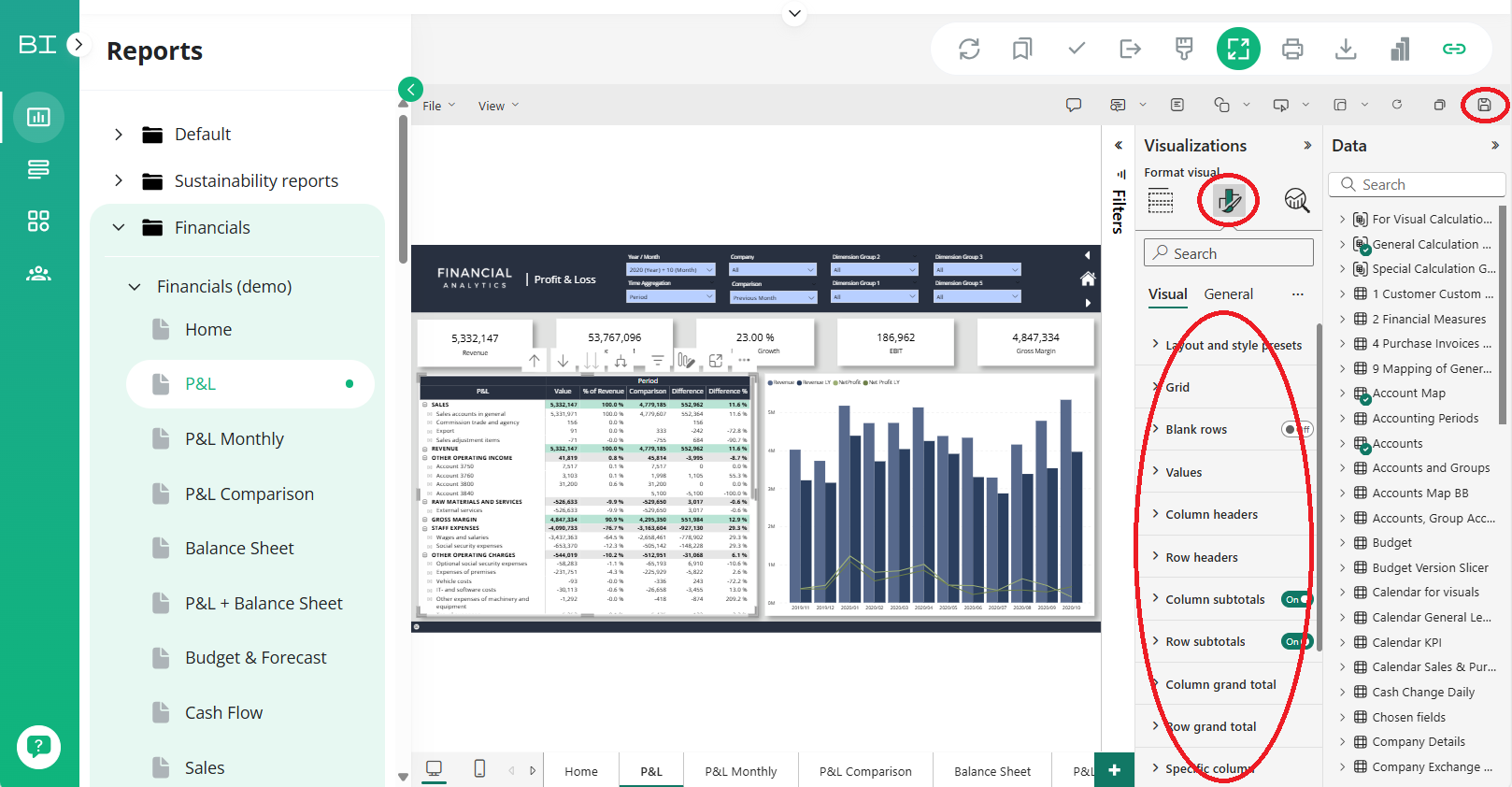
Steps to Adjust the Table to fix printed rows
Select the table that is not functioning correctly.
Click on 'Format your visual' to open the formatting options.
Navigate through the various sections and increase the text size until the rows display properly.
When you are finished, click 'Save' in the upper right-hand corner of your screen to apply the changes.
Was this helpful?
Still need help? Ask the team