Microsoft Authentication: Logging in for the first time
This article explains what to do if you see the Microsoft “Approval required” message when logging in to BI Book for the first time. It guides BI Book users on how to request access, and IT managers on how to review and approve the consent request in Microsoft Entra admin center, so that users can then log in normally.
Last updated 8 months ago
💡This article is for both BI Book users/admins and IT managers.
When logging in to BI Book for the first time
After you have activated BI Book and try to log in for the first time, your organization may require admin approval for BI Book as an application.
If this happens, an “Approval required” message appears.
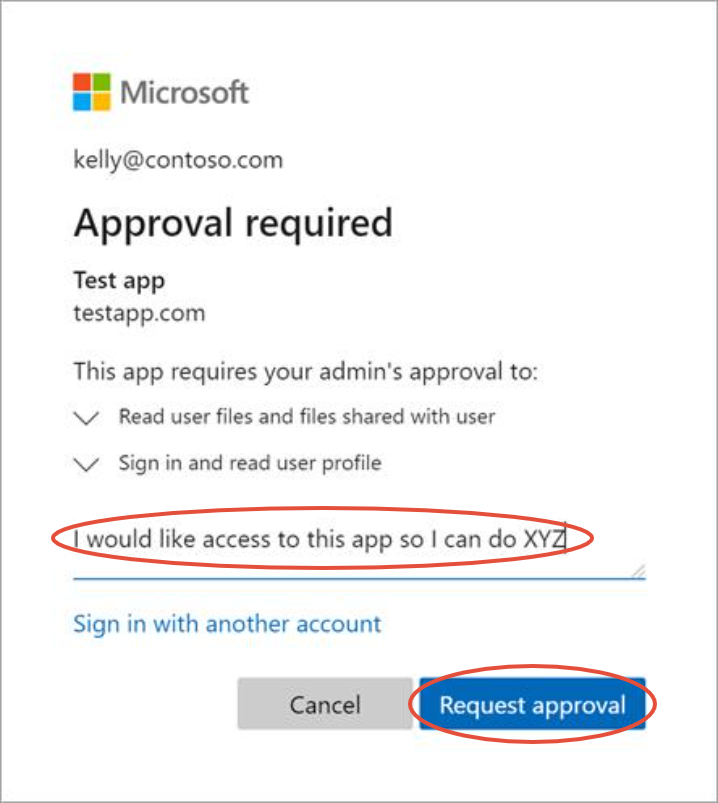
Enter a short justification for why you need access to BI Book.
Select Request approval.
Your request is then sent to your organization’s admin/IT team for review.
You can find Microsoft’s detailed instructions for handling these requests in their documentation.
If your organization has already enabled the admin consent workflow, you can go directly to the “Review and take action on admin consent requests” section. Otherwise, start from the beginning of the article.
Once your request is approved, you will receive an email notification.
After that, you can log in to BI Book normally.
For IT Managers
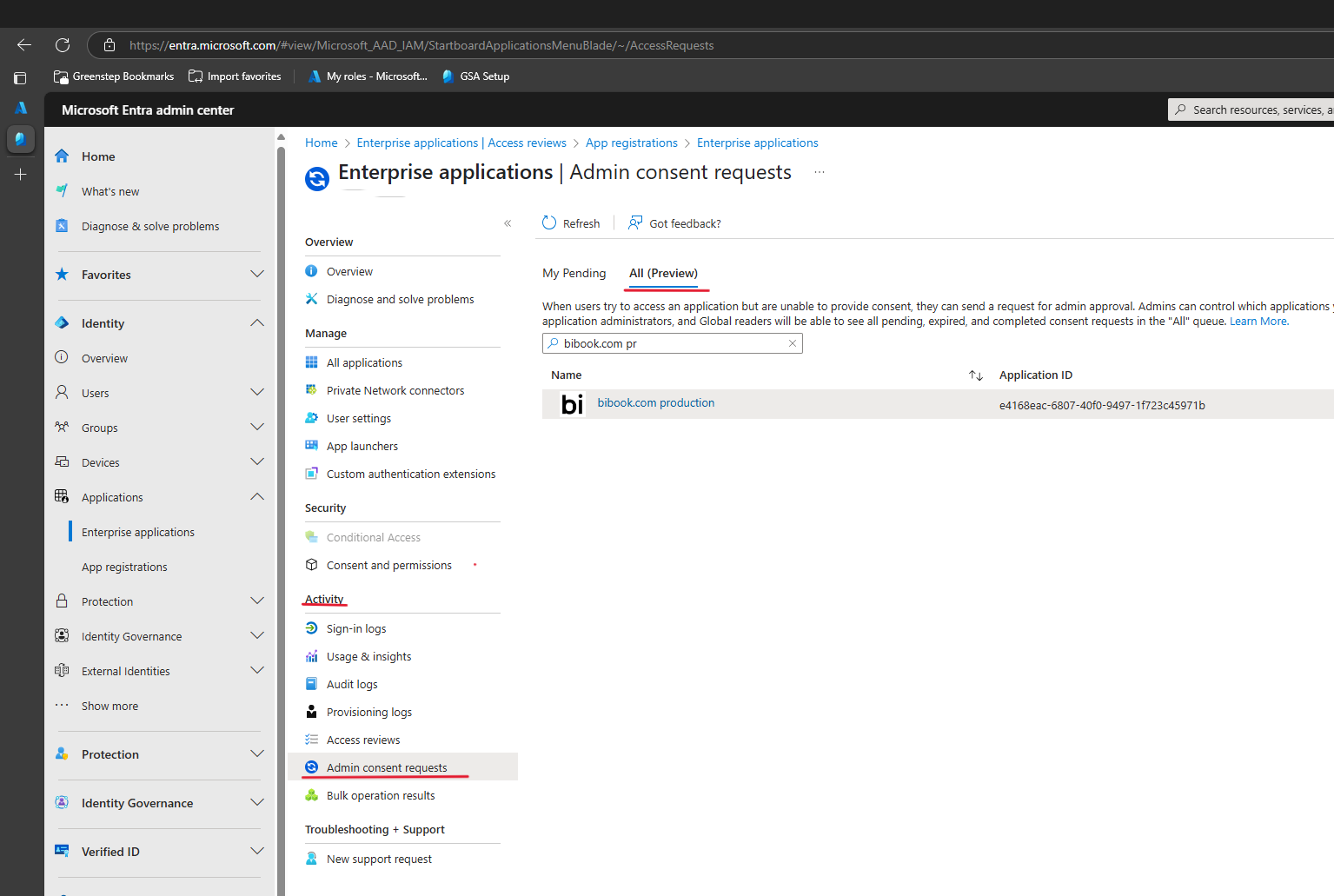
You can find and manage the BI Book approval request in the Microsoft Entra admin center, under the admin consent requests section.
Related content
Was this helpful?
Still need help? Ask the team