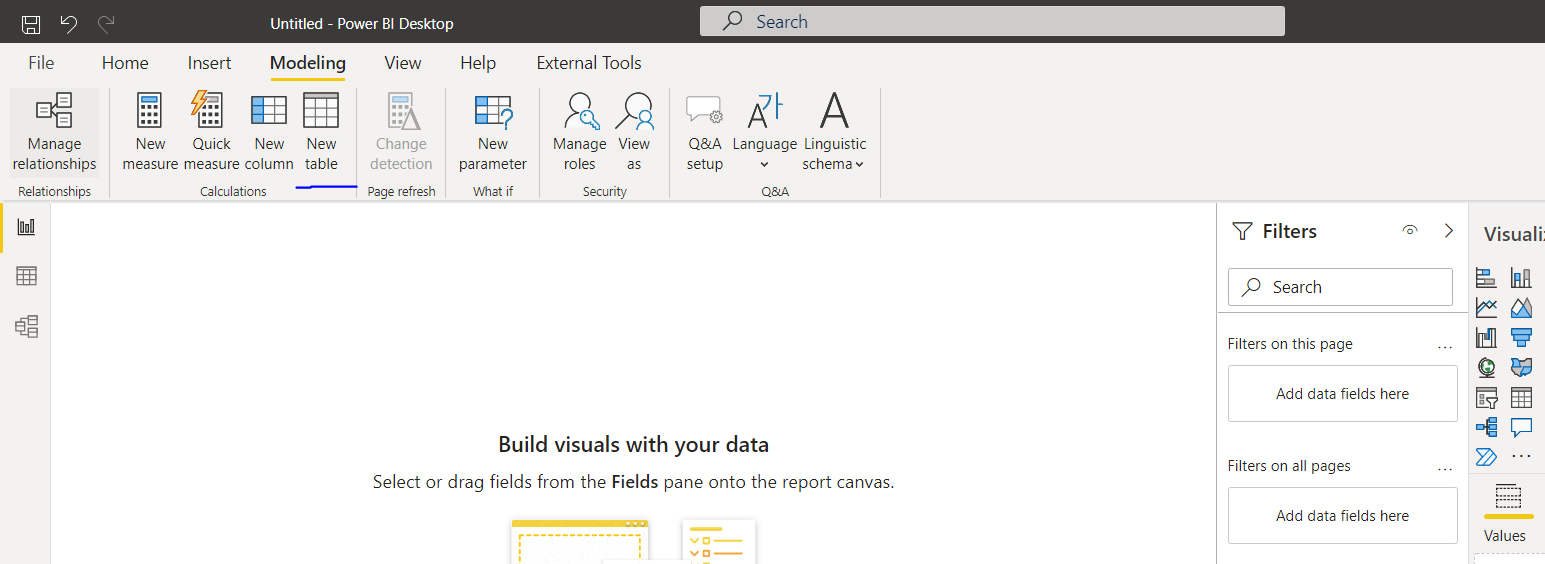
Adding a new Power BI report

Last updated About 1 month ago

The report should be first added to the designated Power BI Service workspace

as adding Power BI report to BI Book requires correct access and Power BI embedded capacity. Using the tenant URL here: Power BI Sign in You can login to Power BI Service environment (workspace) which fills these conditions.

After login you can see this kind of view:
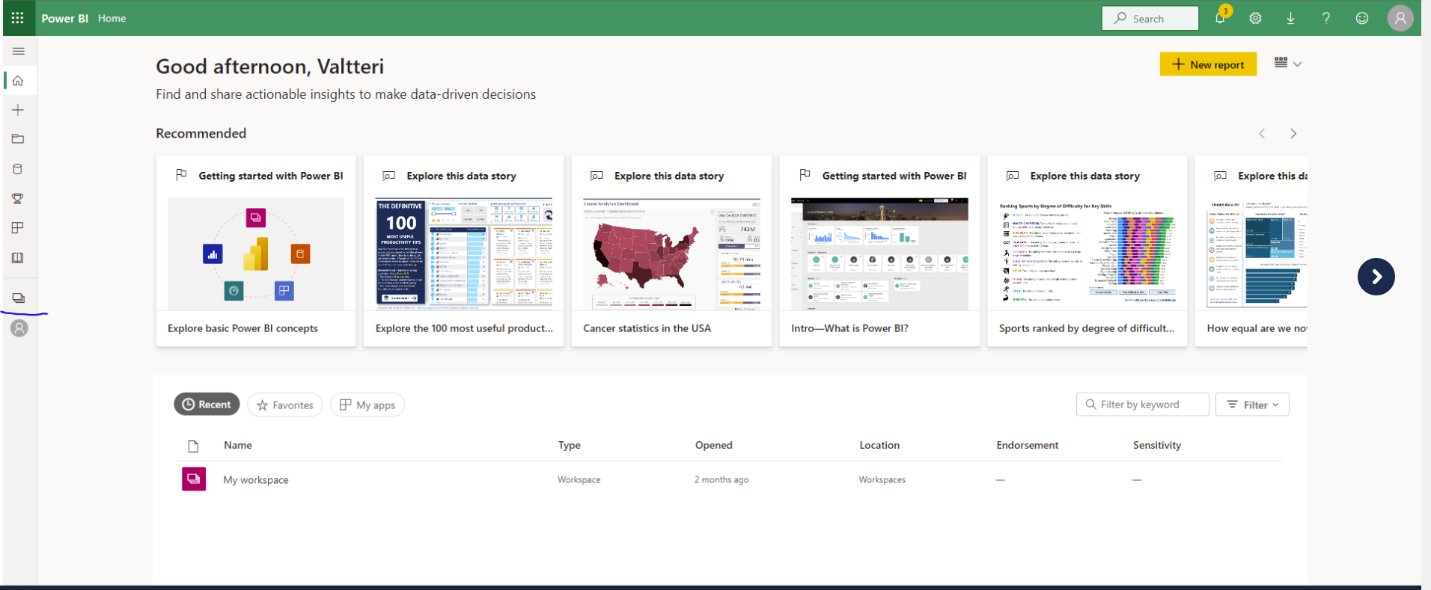
/rails/active_storage/blobs/redirect/eyJfcmFpbHMiOnsibWVzc2FnZSI6IkJBaHBBZzhCIiwiZXhwIjpudWxsLCJwdXIiOiJibG9iX2lkIn19--b5a3b604eec090eacb235b1150bebb6e1ed232f4/power%20bi%201.png

By clicking the left-hand side you can see workspace named “EXT - Your Company”
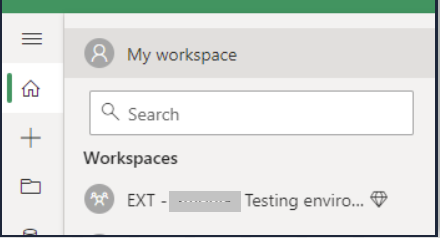
/rails/active_storage/blobs/redirect/eyJfcmFpbHMiOnsibWVzc2FnZSI6IkJBaHBBaEFCIiwiZXhwIjpudWxsLCJwdXIiOiJibG9iX2lkIn19--c07c207ed9c1296ecb46e56baac5eb038ee8efd7/power%20bi%202.png

Here you can add a powerbi report by clicking “new” or “add content”:
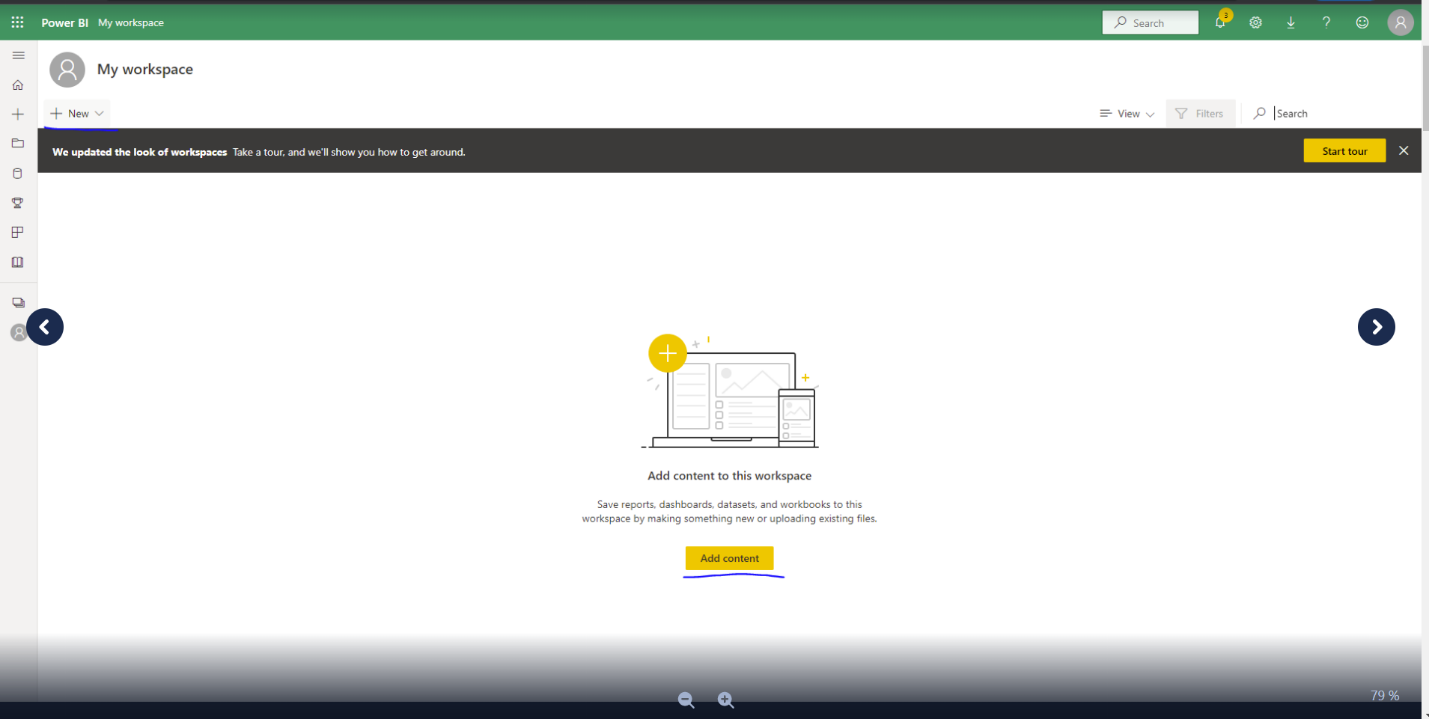
/rails/active_storage/blobs/redirect/eyJfcmFpbHMiOnsibWVzc2FnZSI6IkJBaHBBaEVCIiwiZXhwIjpudWxsLCJwdXIiOiJibG9iX2lkIn19--f2b3cc5ae42098d658092513dd9fd2d2c33e7579/power%20bi%203.png

You can also add a report from PowerBI desktop (download: Download Microsoft Power BI Desktop from Official Microsoft Download Center) Create a simple report. You need to add some tables to the report and then publish it. For getting the data you can use “get data”:
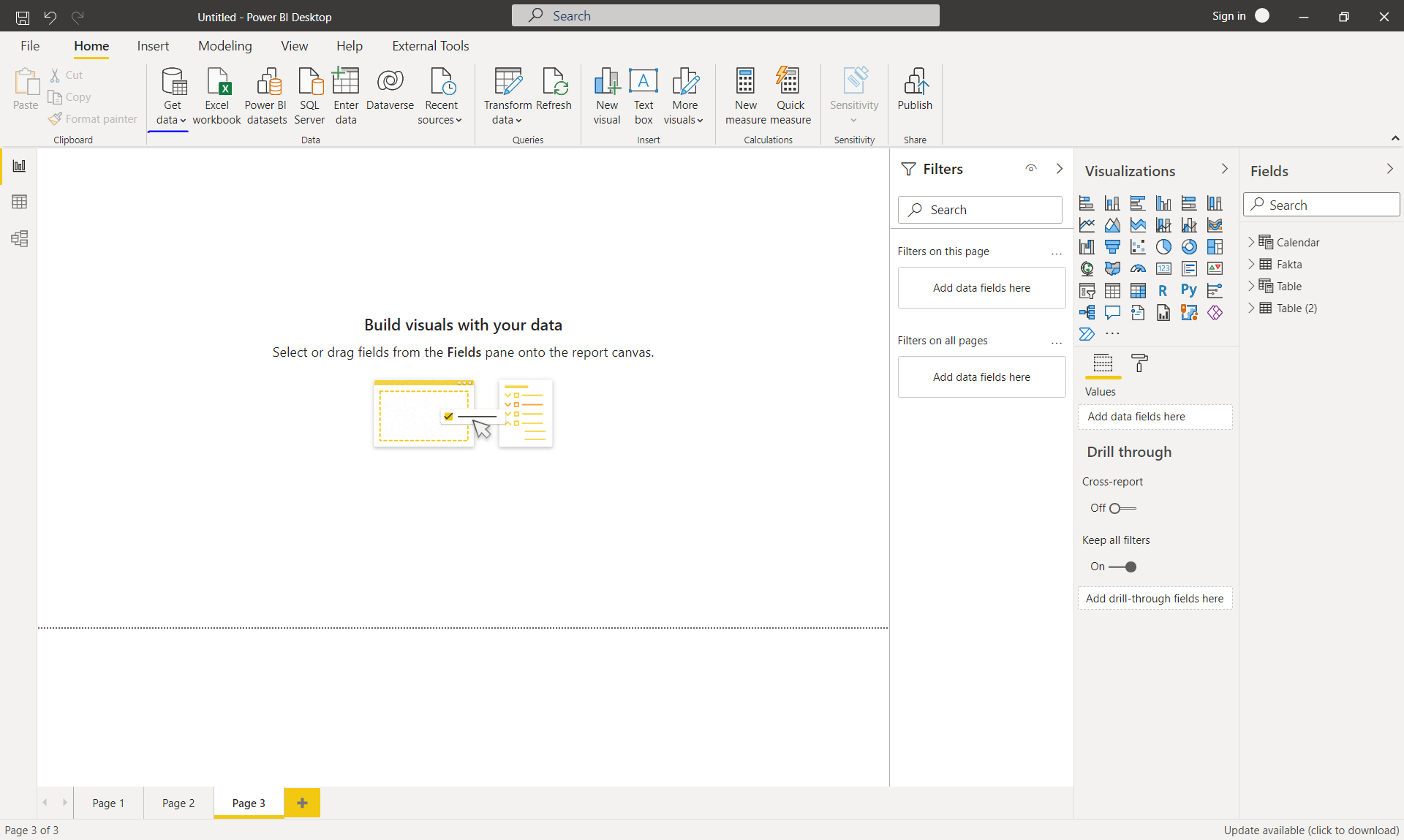
/rails/active_storage/blobs/redirect/eyJfcmFpbHMiOnsibWVzc2FnZSI6IkJBaHBBaElCIiwiZXhwIjpudWxsLCJwdXIiOiJibG9iX2lkIn19--c18c4bad437d3f773cb8cdeb45b87ee9b9023c84/power%20bi%204.png

Or create calculated tables:

/rails/active_storage/blobs/redirect/eyJfcmFpbHMiOnsibWVzc2FnZSI6IkJBaHBBaE1CIiwiZXhwIjpudWxsLCJwdXIiOiJibG9iX2lkIn19--87c607f9ce926b6a0fbd065ce41ac07cae805eba/power%20bi%205.png

Example table 1: Example table = {(“This is a row”, “Still the first row”), (“This is a second row”,“data on second row”)}
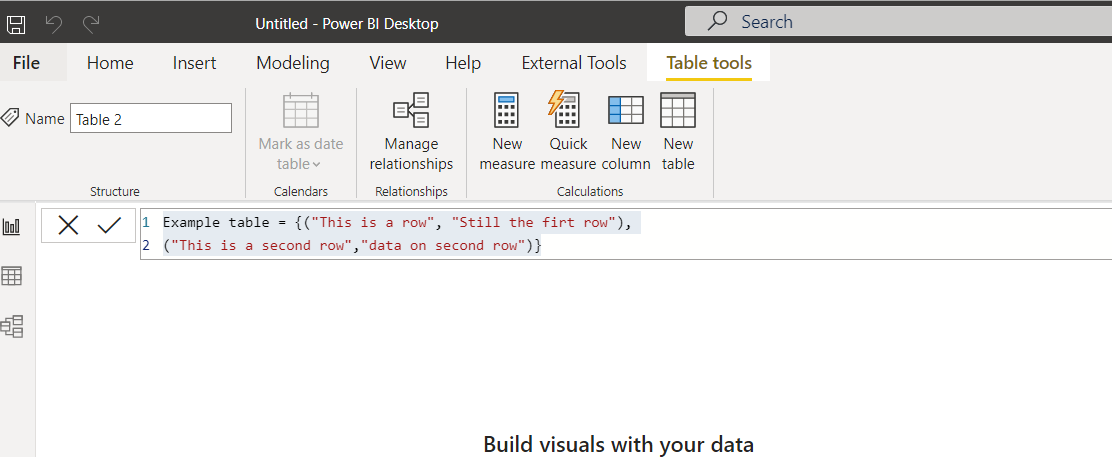
/rails/active_storage/blobs/redirect/eyJfcmFpbHMiOnsibWVzc2FnZSI6IkJBaHBBaFFCIiwiZXhwIjpudWxsLCJwdXIiOiJibG9iX2lkIn19--f92272649df01ed05077a3a65e755af3b52ad651/power%20bi%206.png

Example table 2: Calendar = CALENDARAUTO()
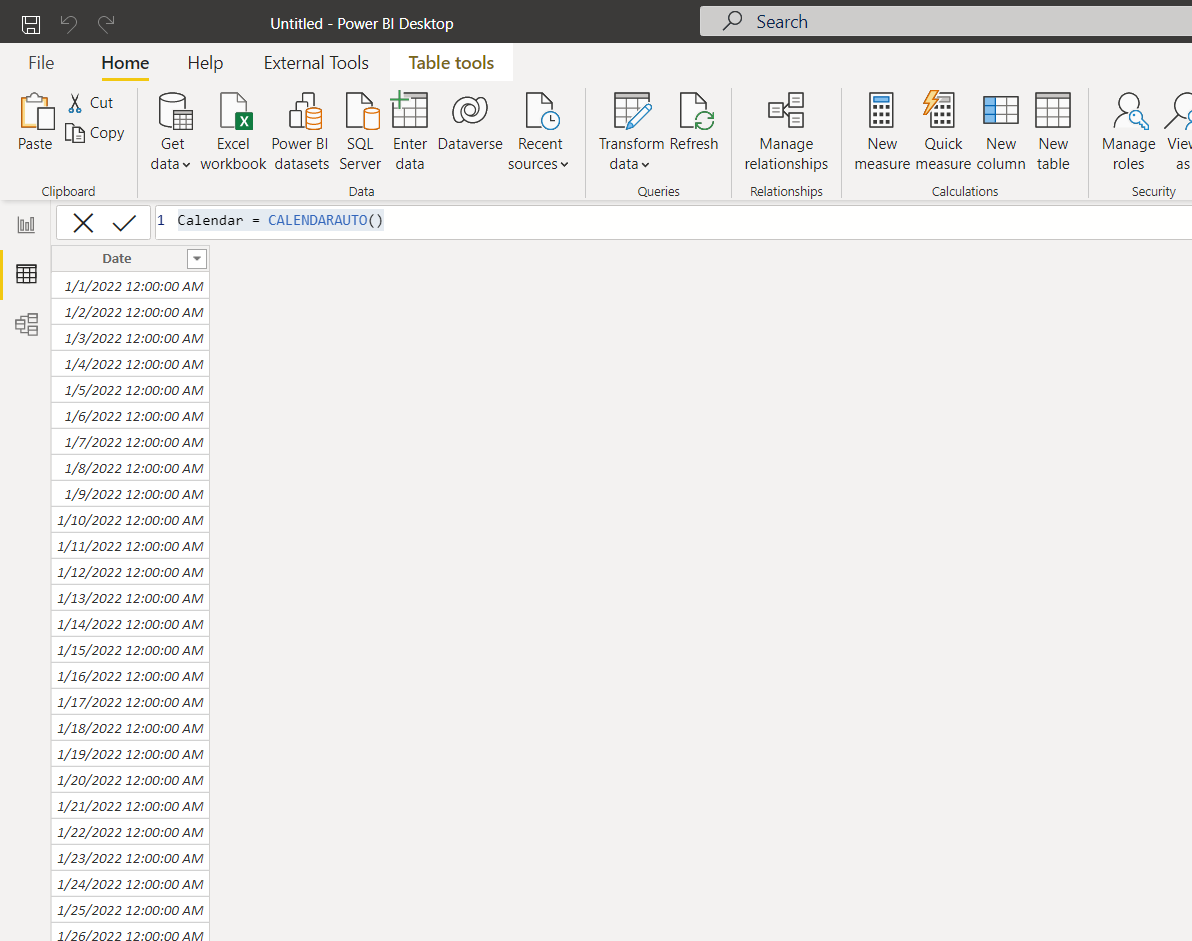
/rails/active_storage/blobs/redirect/eyJfcmFpbHMiOnsibWVzc2FnZSI6IkJBaHBBaFVCIiwiZXhwIjpudWxsLCJwdXIiOiJibG9iX2lkIn19--ef3f5a762392b5ad28e3e8599e28b768361088a1/power%20bi%207.png

After adding data you can create visuals from here:
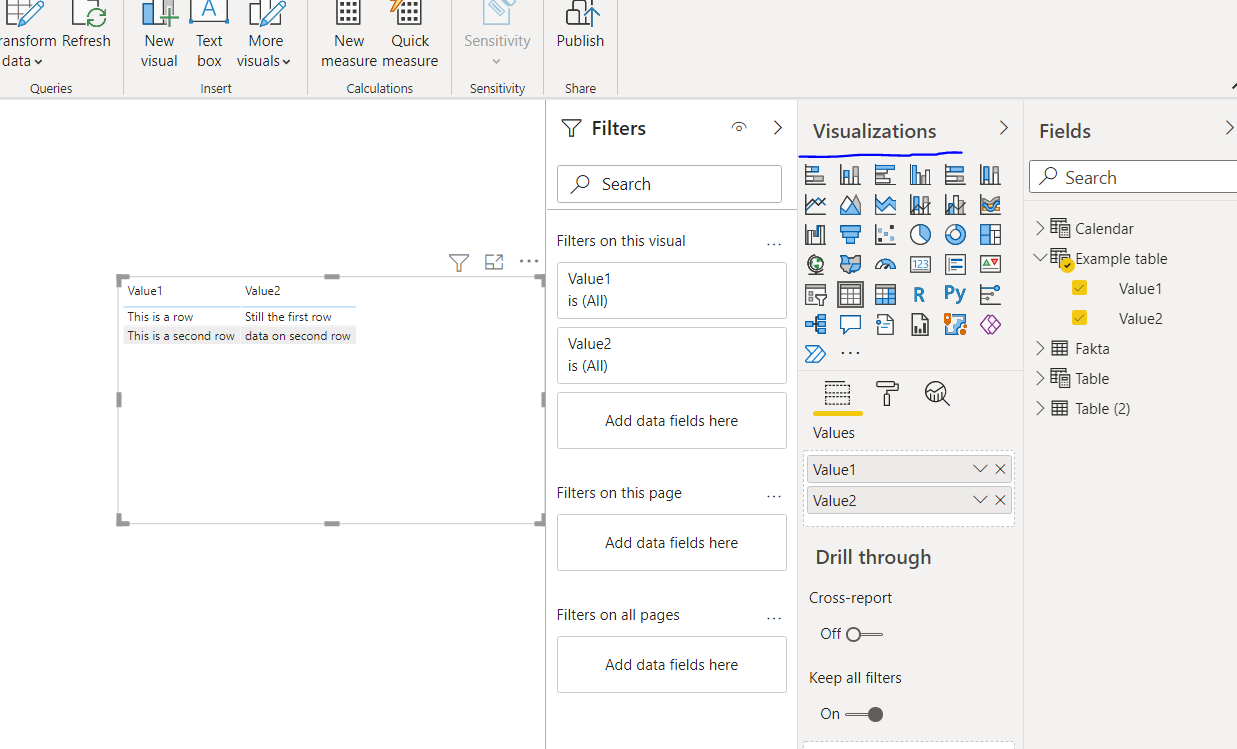
/rails/active_storage/blobs/redirect/eyJfcmFpbHMiOnsibWVzc2FnZSI6IkJBaHBBaFlCIiwiZXhwIjpudWxsLCJwdXIiOiJibG9iX2lkIn19--abc714bf033746a348f4fd72127fd964b85a351e/power%20bi%208.png

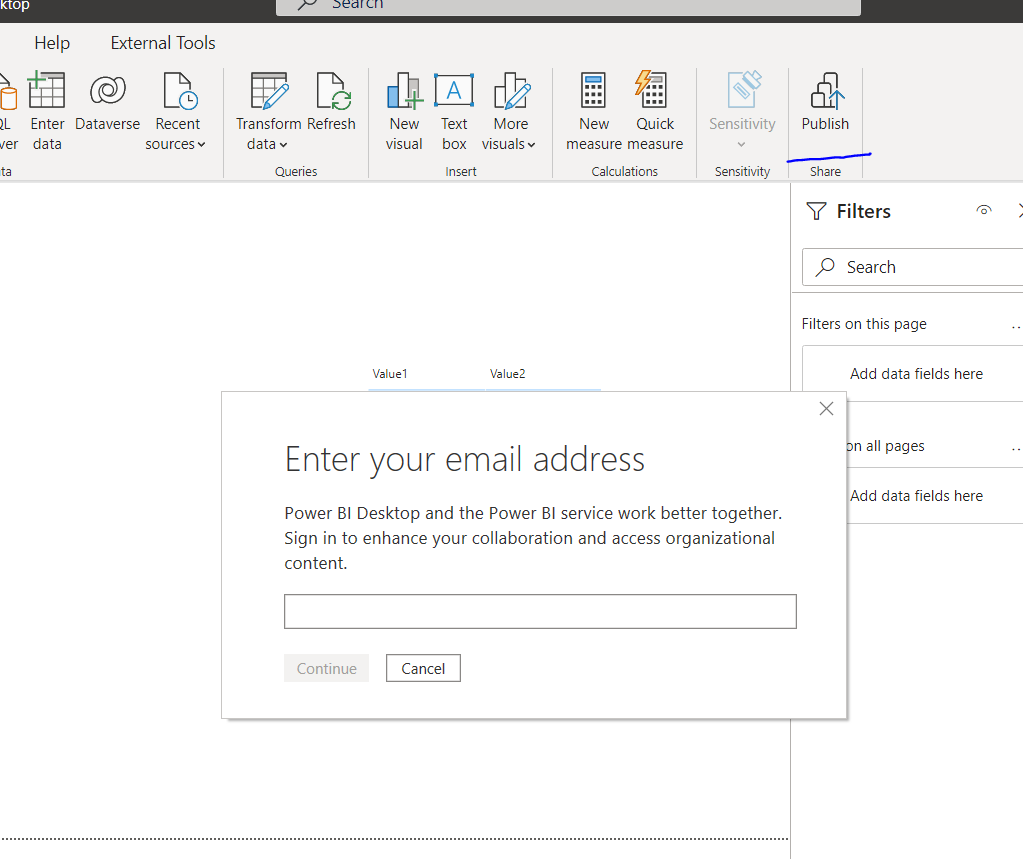
Add a visual and drag your values to it from “Fields” Now save your report and publish it to powerbi service:
/rails/active_storage/blobs/redirect/eyJfcmFpbHMiOnsibWVzc2FnZSI6IkJBaHBBaGNCIiwiZXhwIjpudWxsLCJwdXIiOiJibG9iX2lkIn19--c122b7e8da38e7ecd054cc984015e004b8449002/power%20bi%209.png

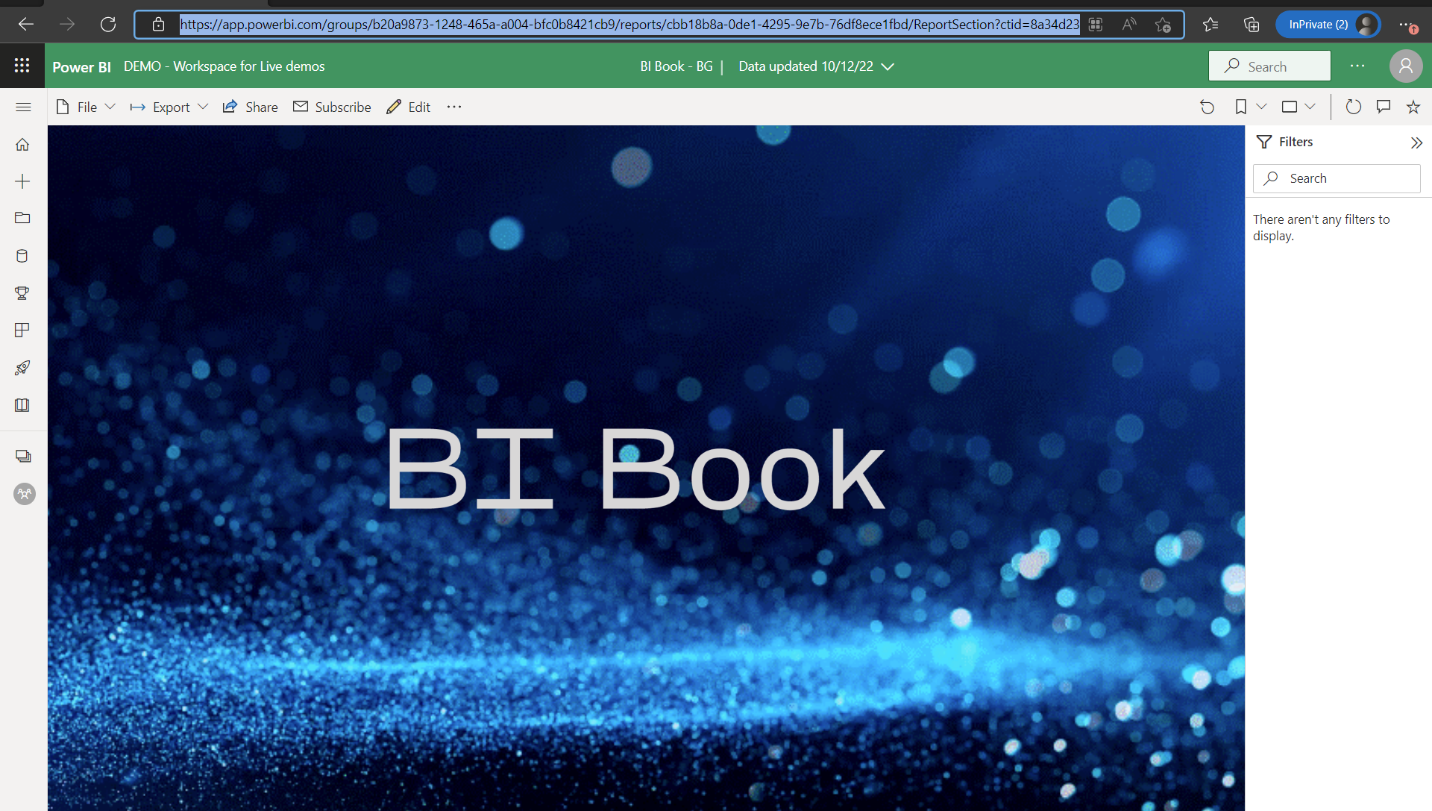
After adding a report you can copy+paste the url e.g.
/rails/active_storage/blobs/redirect/eyJfcmFpbHMiOnsibWVzc2FnZSI6IkJBaHBBaGdCIiwiZXhwIjpudWxsLCJwdXIiOiJibG9iX2lkIn19--e3c042cdda8059cbd38993af1fa6115924399ccc/power%20bi%2010.png

This url can be used to add a report to BI Book either via API or UI It should be formatted like this: https://app.powerbi.com/groups/b20a6666-4444-465a-a004-bfc0b8421cb9/reports/cbb18b8a-0de1-4295-9e7b-76df8ece1fbd/ReportSection?ctid=8a34d222-11df-111-bceb-c61d6e15ec5a

💡To learn how to then add report to BI Book please check this article.