Adding a new BI Book report
Last updated 19 days ago
Here you will learn how to add a new analytics report to BI Book.
Content
Prerequisites
BI Book Report Basics
BI Book Report Types
How to add a new report
Standard report
Link to page/Link to pages report
Merged report
Prerequisites
You should be logged in to BI Book
You should have sufficient permissions in BI Book for adding a report
Check out this article to learn about BI Book Access Management
⚠️Your ability to add reports may be restricted to specific folders within the BI Book.
Having permission to add reports to one folder does not automatically grant rights to all folders. For example, you might be authorized to add reports to the "Financial" folder, but not to the "HR Reporting" folder.
In the "HR Reporting" folder, you might only have read-only access, meaning you can view reports but cannot add or modify them.
BI Book Report Basics
Before you start, here are the basics:
The Analytics part of BI Book is built on Power BI premium capacity, meaning we host the reports in a dedicated Power BI Service workspace, and embed them via premium capacity. Therefore all reports in BI Book must be hosted inside the BI Book Power BI Service, if you have not enabled your own service.
BI Book Report Types
In BI Book we have 4 report types:
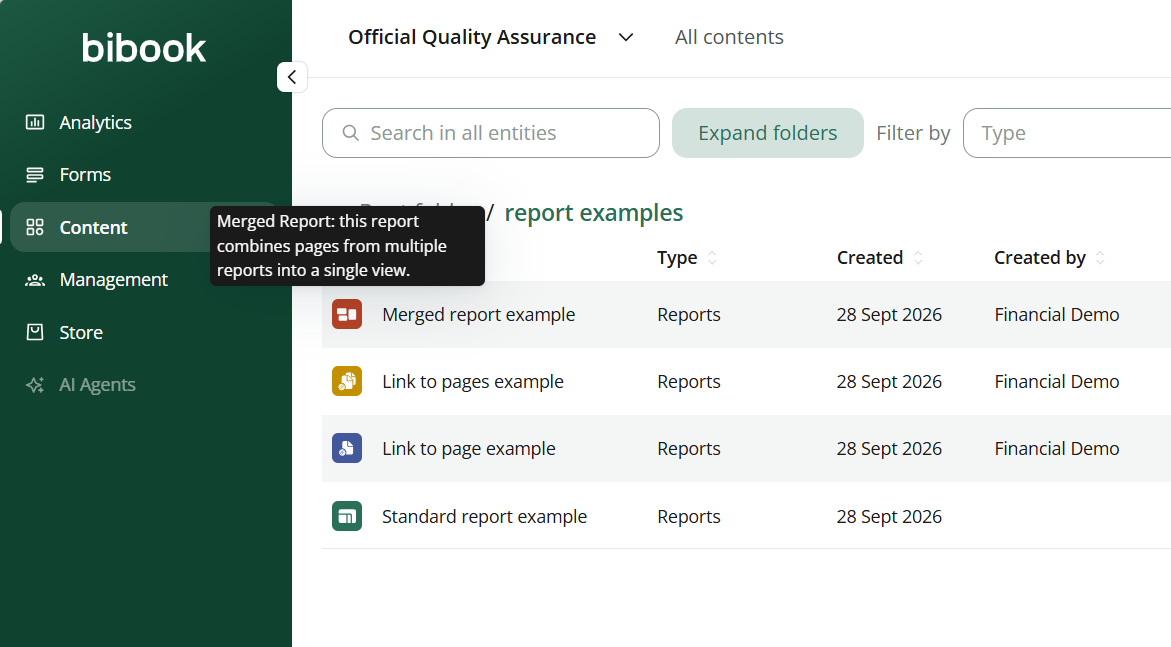
Standard report: this report uses an embedded Power BI report and acts as a source for other report types.
⚠️You should have access to Power BI Service tenant hosting reports you would like to add to BI Book (only for Standard reports). The default is BI Books own tenant. To get access you must reach out to support@bibook.com for security reasons.
Link to page report: this report references a standard report while filtering out all other pages displaying only a single page for focused analysis and enhanced access management.
Link to pages report: similar to the "Link to Page" report, this report type supports multiple pages.
Merged report: this report combines multiple standard reports into a single view.
💡On Content page each of these report types have its own report icon - you can see the description of a report type by hovering the icon:
How to add a new report
Navigate to Content > open a folder where you have rights for adding a report* > click "Create" button
*See Prerequisites section to find more guidelines on the access permissions required for adding a report in BI Book.
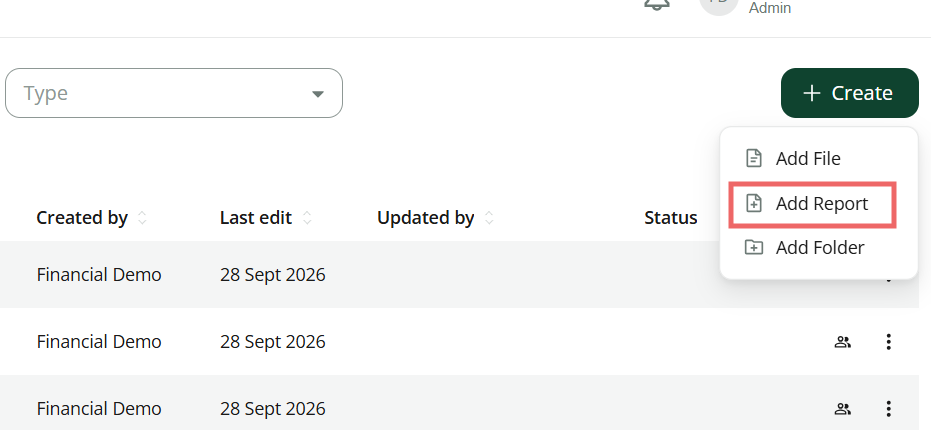
After clicking the button you will see "Add report" window with a preselected report type "Standard".
Depending on the selection in this dropdown, the required fields will differ. Check the subsections below to learn how to add report of each type to BI Book.
How to add standard report
If report type is "Standard:
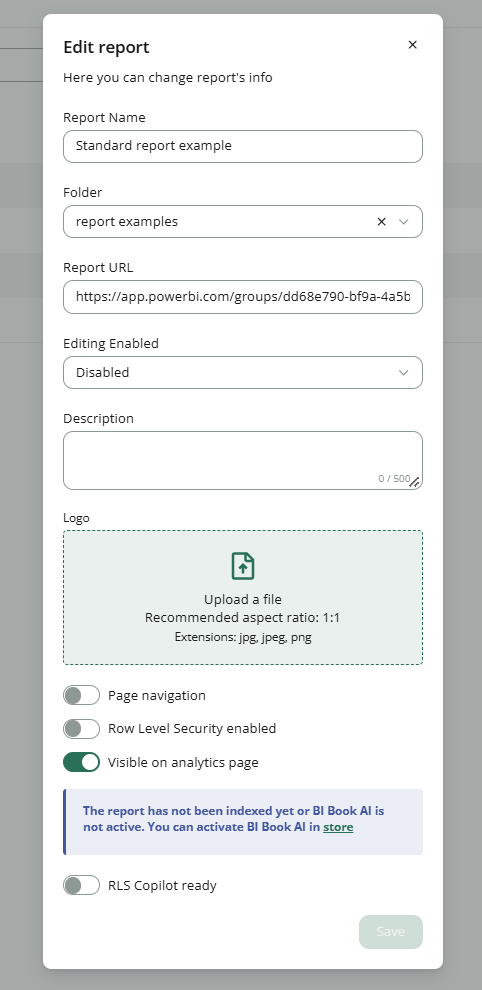
Step 1. fill in "Report Name" field. The name of the report can differ from the source Power BI Service report.
Step 2. Paste the Report URL from your BI Book integrated Power BI Service.
Step 3. You can choose a BI Book folder where the report should be stored. By default a folder from where you pressed "Add report" button is chosen (if empty - it means that the report will be added to the root folder).
Step 4. Choose a value from "Editing Enabled" dropdown:
By default editing is disabled
When editing on the report is disabled, even admins cannot edit report in BI Book. In such cases editing report is possible only via Power BI Service.
When enabled, it means that the report can be edited straight from BI Book and the changes will be saved in Power BI Service as well.
⚠️Only users with report edit rights and access to the report can make changes to the report when editing is enabled on the report.
You can't change the description or logo of a standard report while adding it. To change them, add the report first, then open its report settings and edit them there. This limitation does not apply to other report types.
Step 5. Configure "Row Level Security enabled" toggle:
By default it is disabled
If you want to enable Row Level Security on your BI Book report you must first configure it in your underlying Power BI report - please see this article to get started.
If RLS has been configured in Power BI report and you now would like to add RLS to BI Book report - please check this article.
RLS Copilot ready toggle. This setting is managed by your assigned analyst. It marks reports that use row-level security (RLS) as ready for BI Book AI. If a report uses RLS and this toggle is off, BI Book AI can't use that report yet. Please don't change this setting yourself. If you'd like a report enabled for BI Book AI, contact your assigned analyst. analytics page" toggle:
By default all reports that are added to BI Book are visible both on Content page and Analytics page. If you would like to hide the report on the Analytics page, then you can disable this toggle. NOTE: the report will be still visible on the Content page if you disable the toggle.
Step 7. Press "Add" button*.
*You might need to refresh the browser to see the report on the Content page after you've clicked "Add" button.
Add a Link to page/Link to Pages report:
Step 1. Select "Link to page" or "Link to pages" in a "Report Type" dropdown:
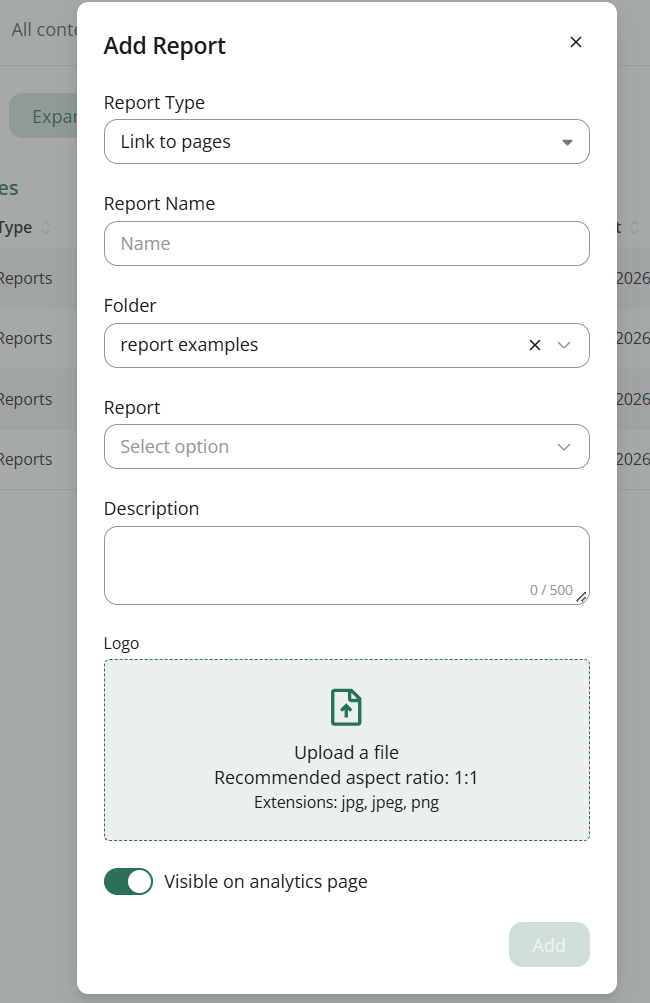
Step 2. Fill in "Report name" and select a folder to where you would like to add the link to page/link to pages report.
Step 3. Choose a standard report from "Report" dropdown based on which you would like to create a link to page/link to pages report.
Step 4. Once you've chosen a report from "Report" dropdown you will see another dropdown "Page" or "Pages" (depending on whether it is Link to Page report or Link to Pages report). Choose the page(s) you would like to be included to your report:
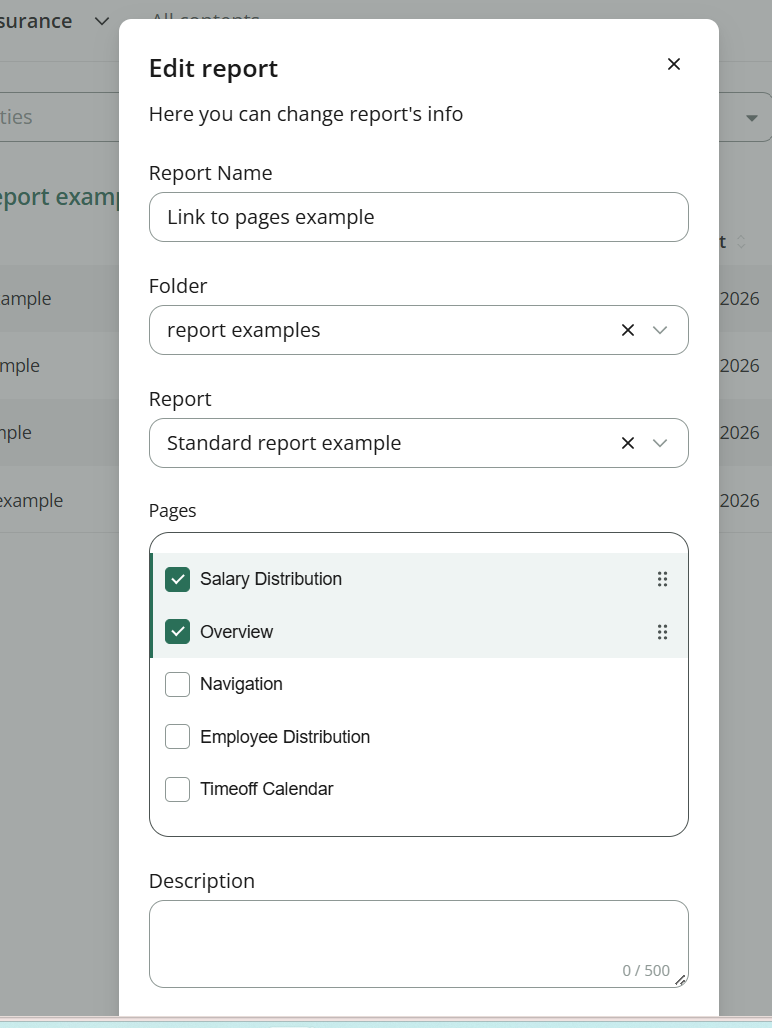
Step 5. If you would like to hide your Link to Page(s) report from the Analytics page then disable the toggle "Visible on analytics page". Otherwise keep it enabled.
Step 6. Press "Add" button.
How to add a merged report
Step 1. Select "Merged" in a "Report Type" dropdown.
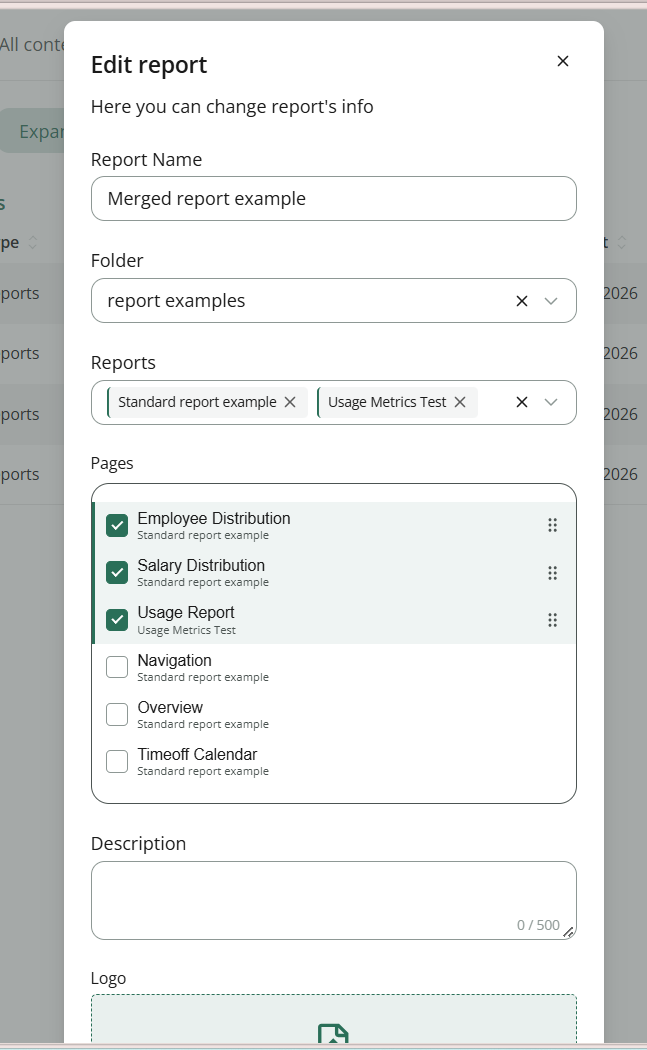
Step 2. The remaining steps are similar to the process of adding link to page(s) reports (refer to the previous subsection). However, with the "Merged" report type:
In the "Reports" dropdown, select multiple reports.
For each selected report, choose the specific pages in the "Pages" dropdown.
FAQ and Troubleshooting:
Adding "Standard" or "Custom" Power BI Report:
If the report is in your own Power BI tenant the report will not be added.
The reason for this is Power BI Premium is tenant specific, meaning we need to provide you with a Power BI Workspace in our tenant in order to add a new report. Please contact support at support@bibook.com for your own Workspace in our tenant to add custom content or try out one of our pre-built report packages.
Was this helpful?
Still need help? Ask the team