Refreshing a report
Last updated 8 months ago
Things to consider before refreshing a report
The underlying datasets must first be refreshed. Refreshing a report but not the data data will not give you a new report. This means you need first to refresh the database and then report to get new data from a BI Book linked source. To refresh a database please check article regarding this.
Refreshing report in BI Book
Go to "content" section in BI Book.
In content section you can find all your reports individually or within folders if you have created those.
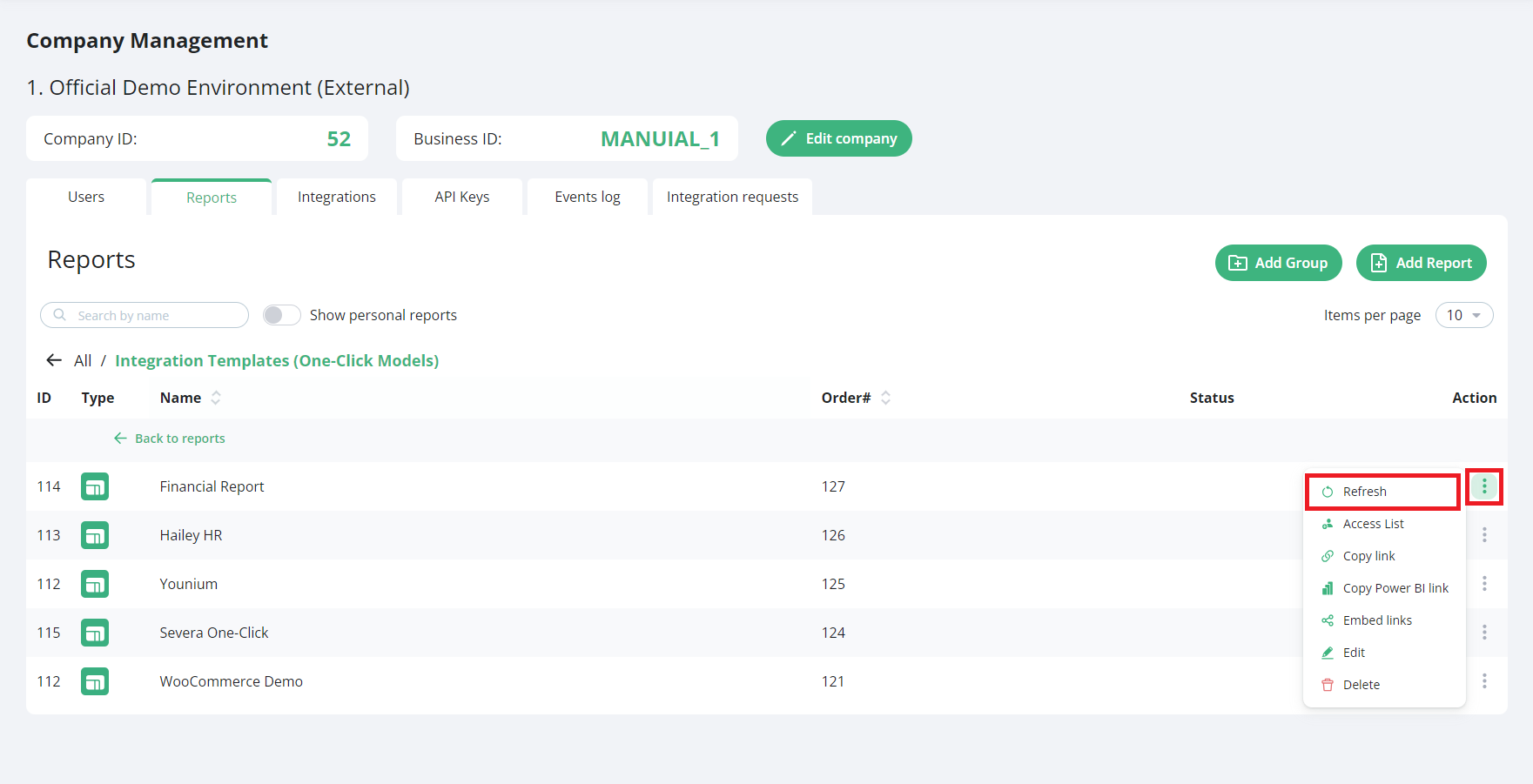
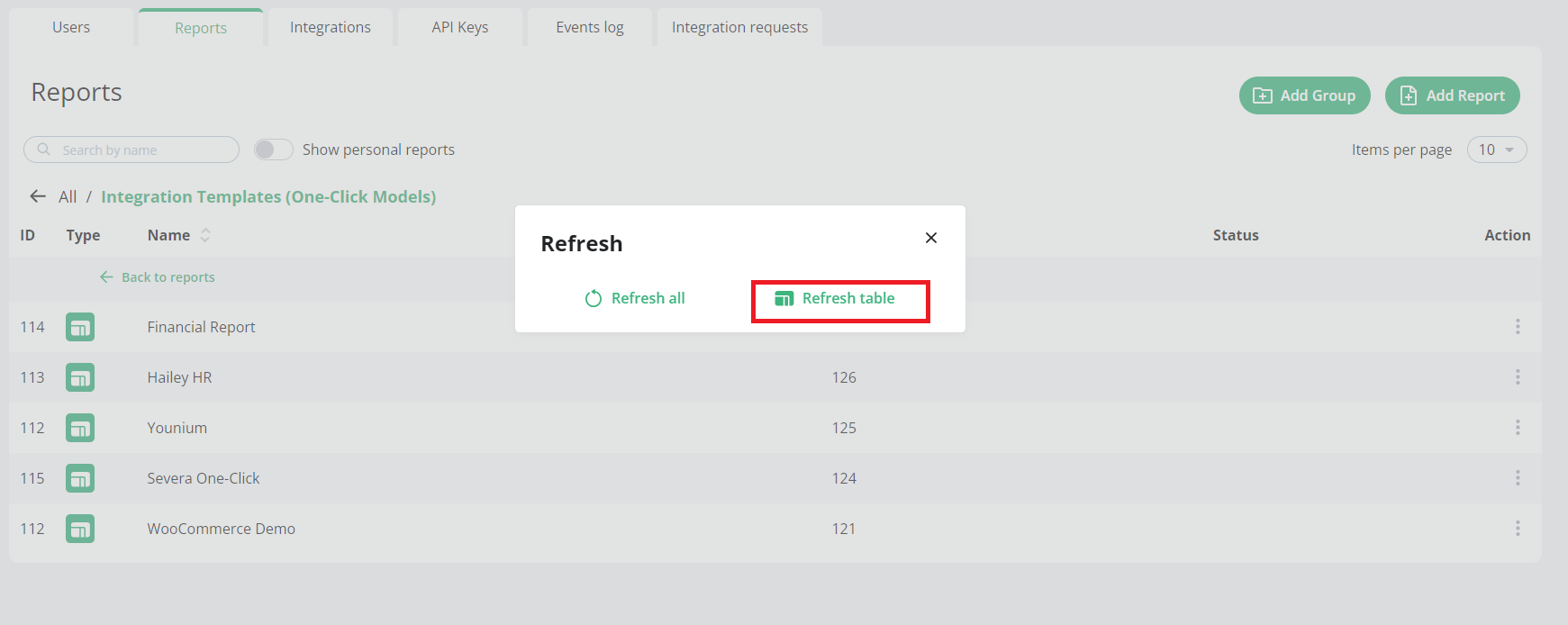
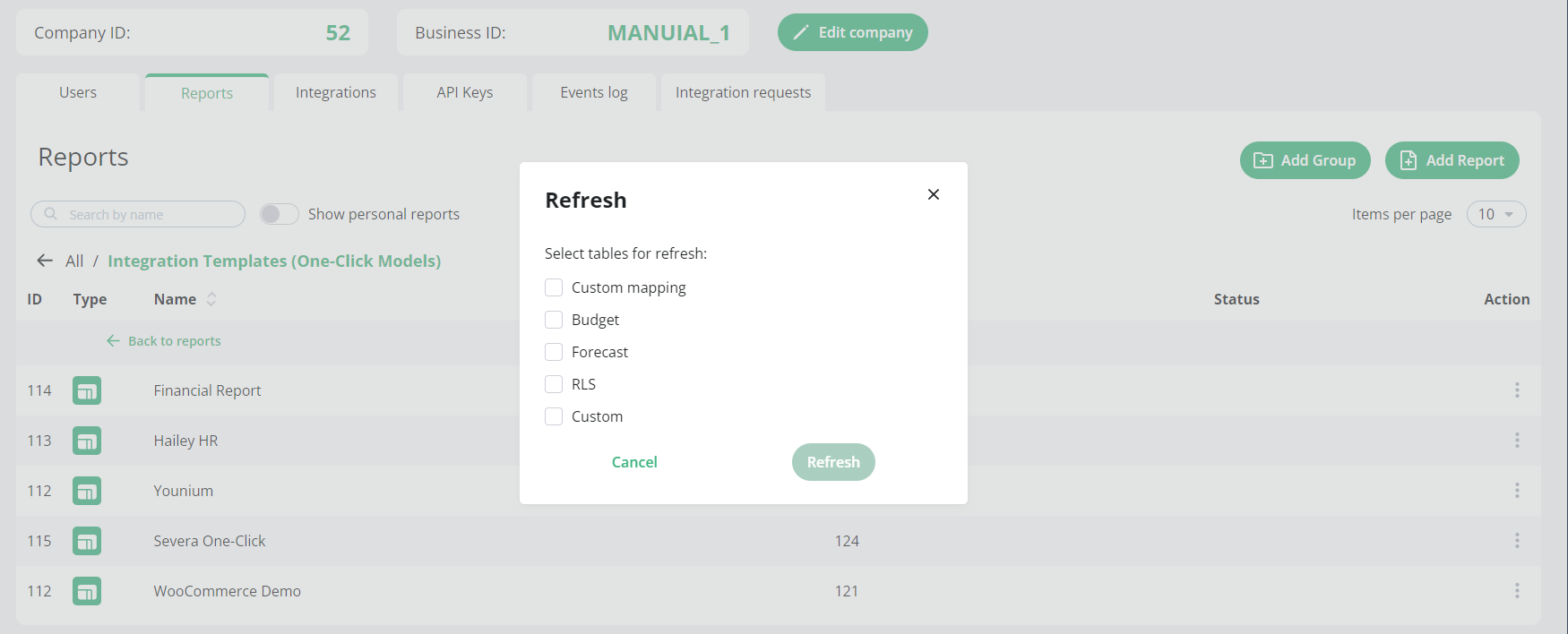
Find the correct report you want to refresh and press the "3 dots" setting section on the right side of the report name. Then click refresh and you will have option to "refresh all" or "refresh table". Refresh all refresh all the tables and by refresh table you can choose if you want to only example refresh budget or forecast where you have made changes. See the pictures below!
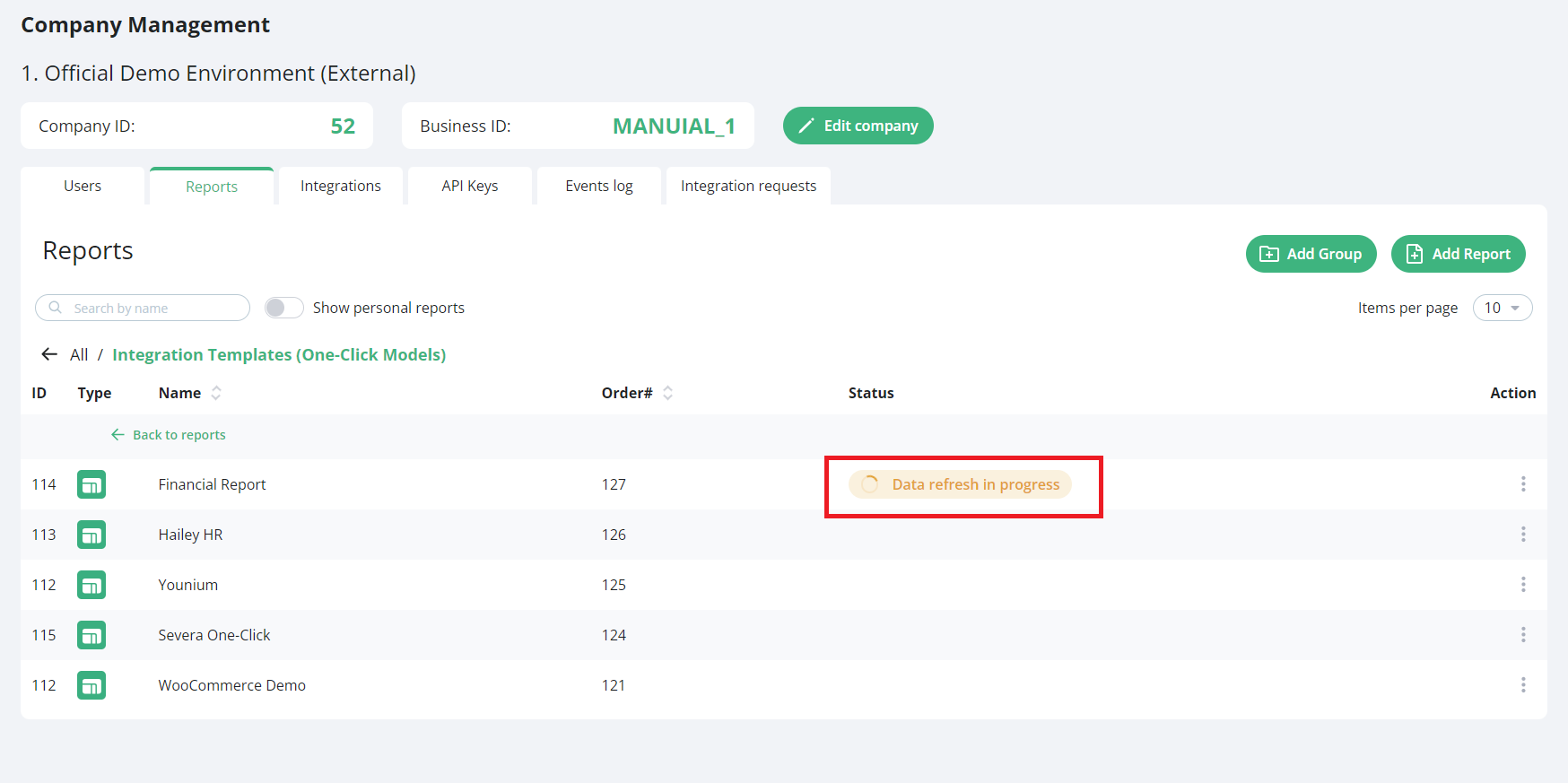
You can see status of the refresh on the right side of the report name on the reports tab. Statuses are; Data refresh in progress (Yellow/orange), data refresh completed (Green), Data refresh failed (red). If data refresh failed please contact us by BI Book chat, email ( support@bibook.com) or your resourced analyst.
REMEMBER to refresh browser to see is the status changed from progress to ready
Was this helpful?
Still need help? Ask the team