How to add RLS to your report in BI Book
This article describes how you can add row level security (RLS) to your BI Book report. It also provides instructions on how you can validate that the rules have been correctly applied.
Last updated 8 months ago
Prerequisites
You should have sufficient access permissions to add report / edit report settings.
RLS rules are set up in your Power BI report. Learn how to configure them in this article.
For validation part: you have Admin role in your BI Book Company portal.
How to add RLS rules
You can add RLS rules to a standard BI Book report either when creating a new report or by editing the settings of an existing one. For this example, we will focus on editing the report settings.
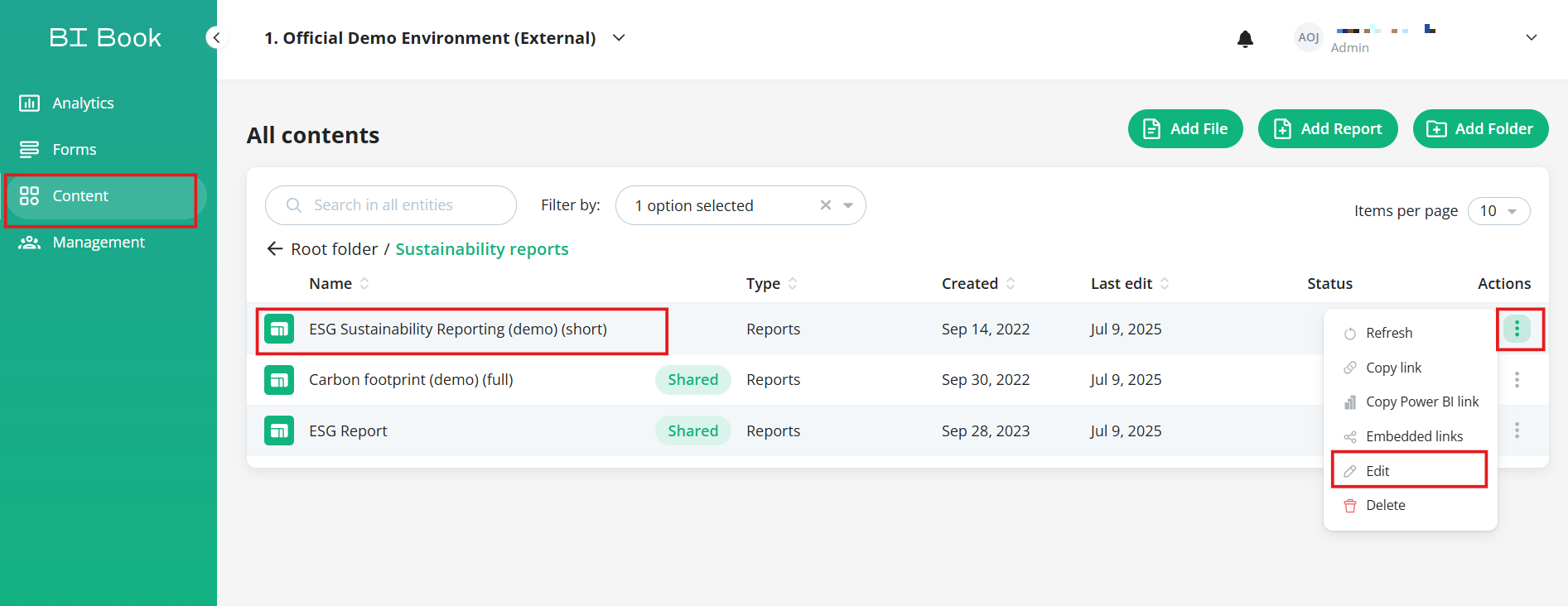
Step 1. Navigate to Content page and locate the report to which you want to add RLS rules.
Step 2. Click on "..." under "Actions and select "Edit" - "Edit report" window will open.
Step 3. In edit report window enable the toggle switch "Row Level Security enabled".
Step 4. Once the RLS toggle is enabled, you will see another field - "Row Level Security rule name". Type in the rule name.*
*If you need to enable multiple rules, separate rule names by coma, for example:
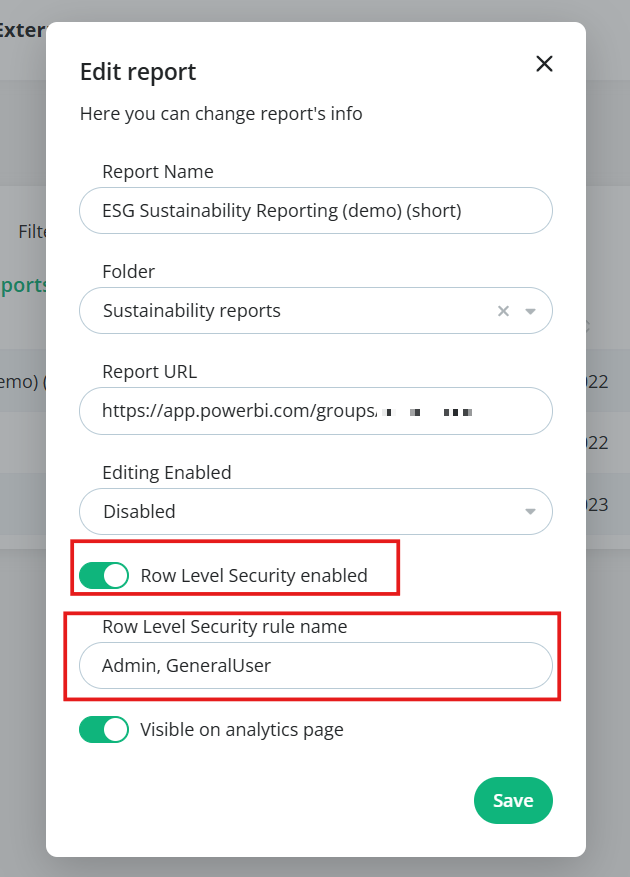
Step 5. Press "Save" button.
How to validate the RLS rules
As mentioned in "Prerequisites" section, you should be an Admin for being able to validate RLS rules using the "View as" functionality in BI Book.
Step 1. Navigate to "Management" page > tab "Users"
Step 2. Locate the user whose view of the report you'd like to verify.
Step 3. Click on "..." and choose "View as".
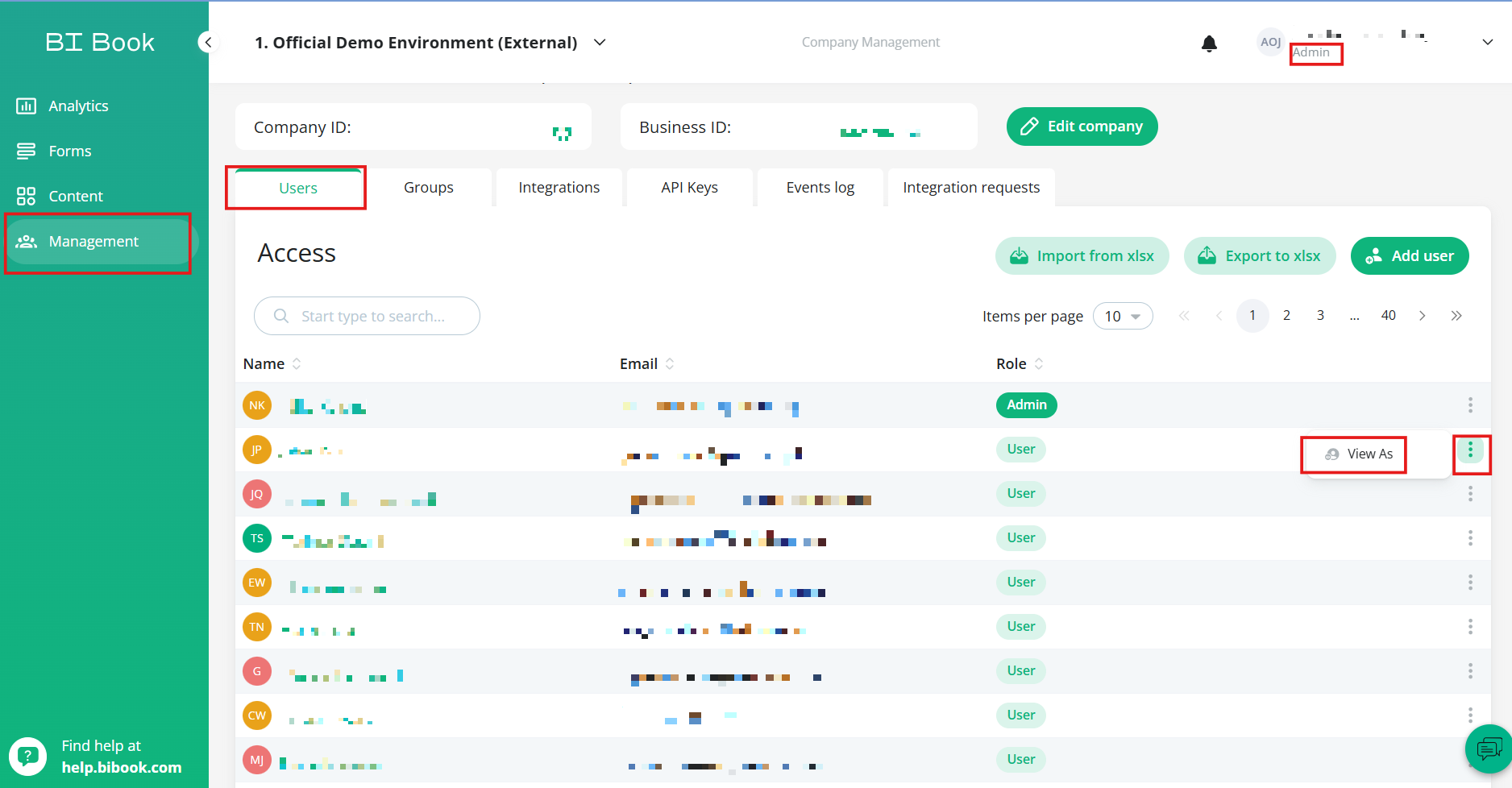
Step 4. In View as mode navigate to the report in question (via Content/Analytics page) > open the report.
Step 5. Verify that the user only sees the information permitted by the defined RLS rules.
💡If you need assistance with setting up RLS rules on your reports, please do not hesitate to contact us at support@bibook.com.
Was this helpful?
Still need help? Ask the team