How to change language in BI Book report
Last updated 8 months ago
BI Book supports reports in multiple languages (Finnish, Swedish, English). This feature is especially useful when you company operates in multiple countries and you would like to display information to stakeholders in their local language.
This article describes how the report translations work in BI Book and how to switch between languages.
Prerequisites
Language selector in reports should be enabled in company settings (see subsection "Company" in this article)
The report should be developed in a certain way to support multiple languages.
Please contact us at support@bibook.com if you would like to add translations to your BI Book report.
How to use
Step 1. Open a report in BI Book.
Step 2. Select a language from the language selector above the report
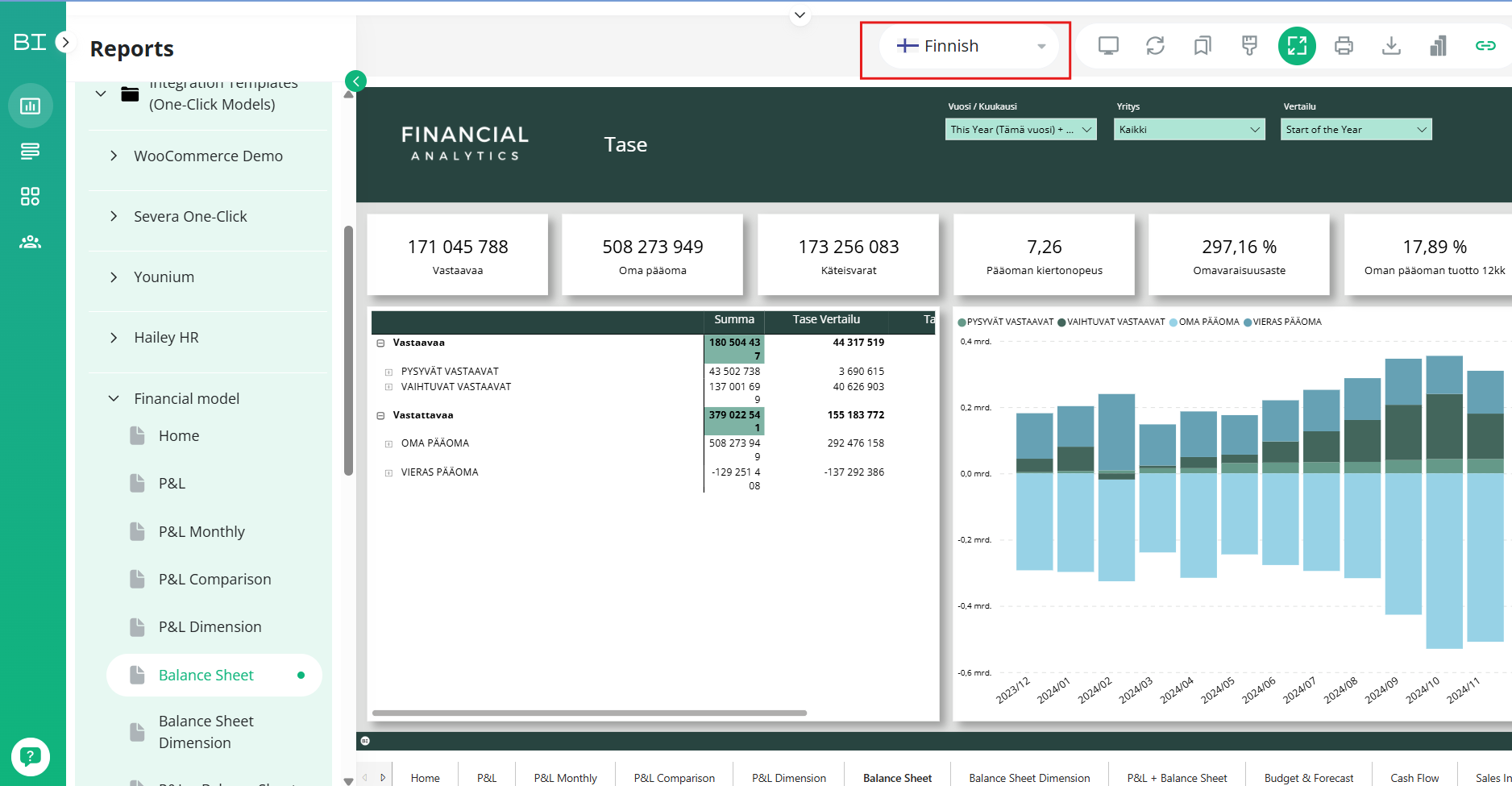
💡When you change a language in one report, it will be changed in all reports you have access to within the same company environment. This change is visible only to you.
☝️If you changed the language with the language selector, but report display language remained the same, it means that report is missing translations. Please check Prerequisites section above.
Was this helpful?
Still need help? Ask the team