Embedding BI Book in Sharepoint
Last updated 8 months ago
Prerequisites
BI Book Embedded link created see how
You have to allow bibook.com domain to be embedded in Sharepoint by following these Microsoft instructions: Allow or restrict the ability to embed content on SharePoint pages - Microsoft Support
Steps:
Navigate to your SharePoint page where you want to embed BI Book and add a new "Embed" element
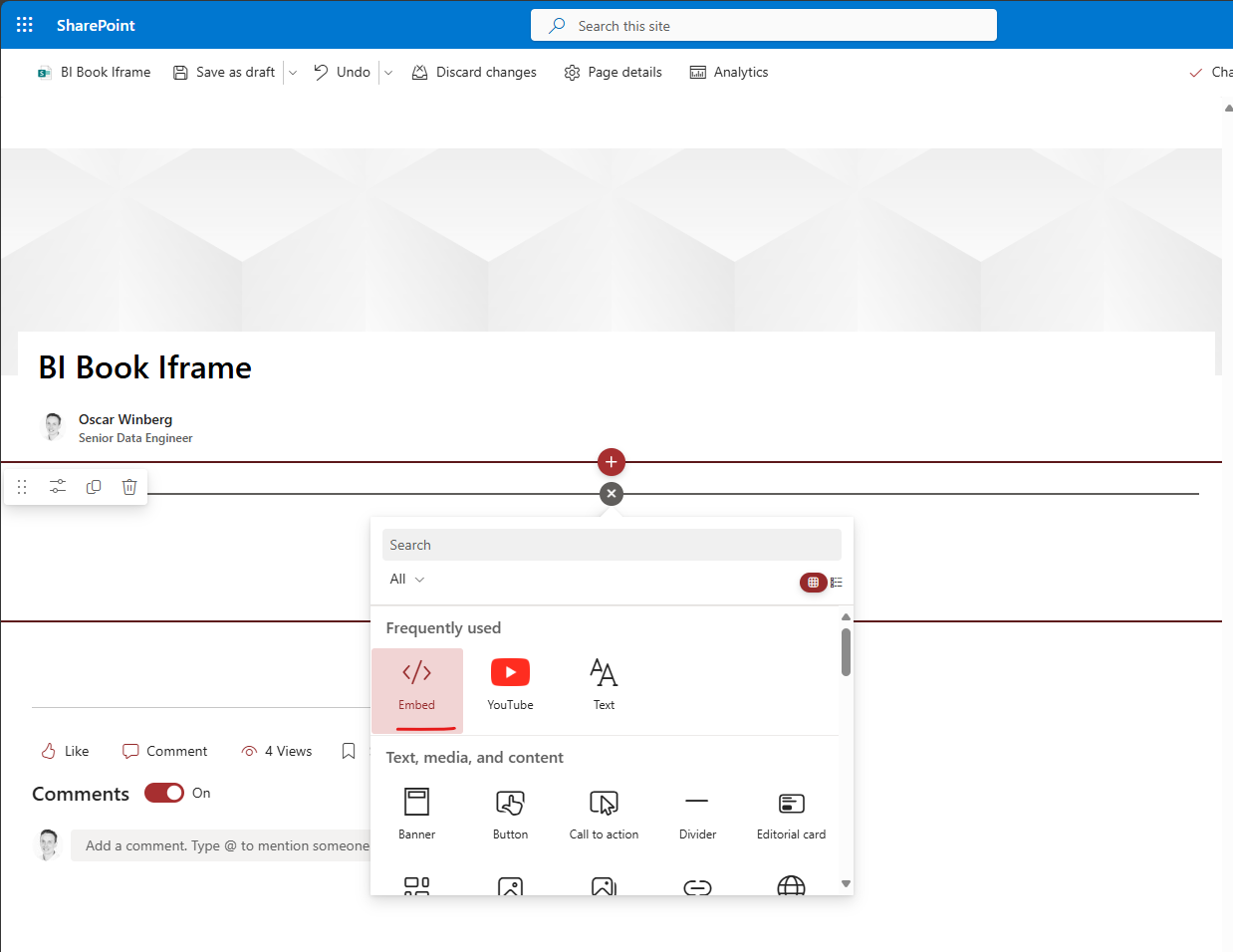
Paste the iframe tag from BI Book embed link ("Embedded link code") into the SharePoint "Website address or embed code" block of the "Embed" element.
Note! In the iFrame code block you can adjust the width and height according to your need, e.g. 100% on both looks quite good!
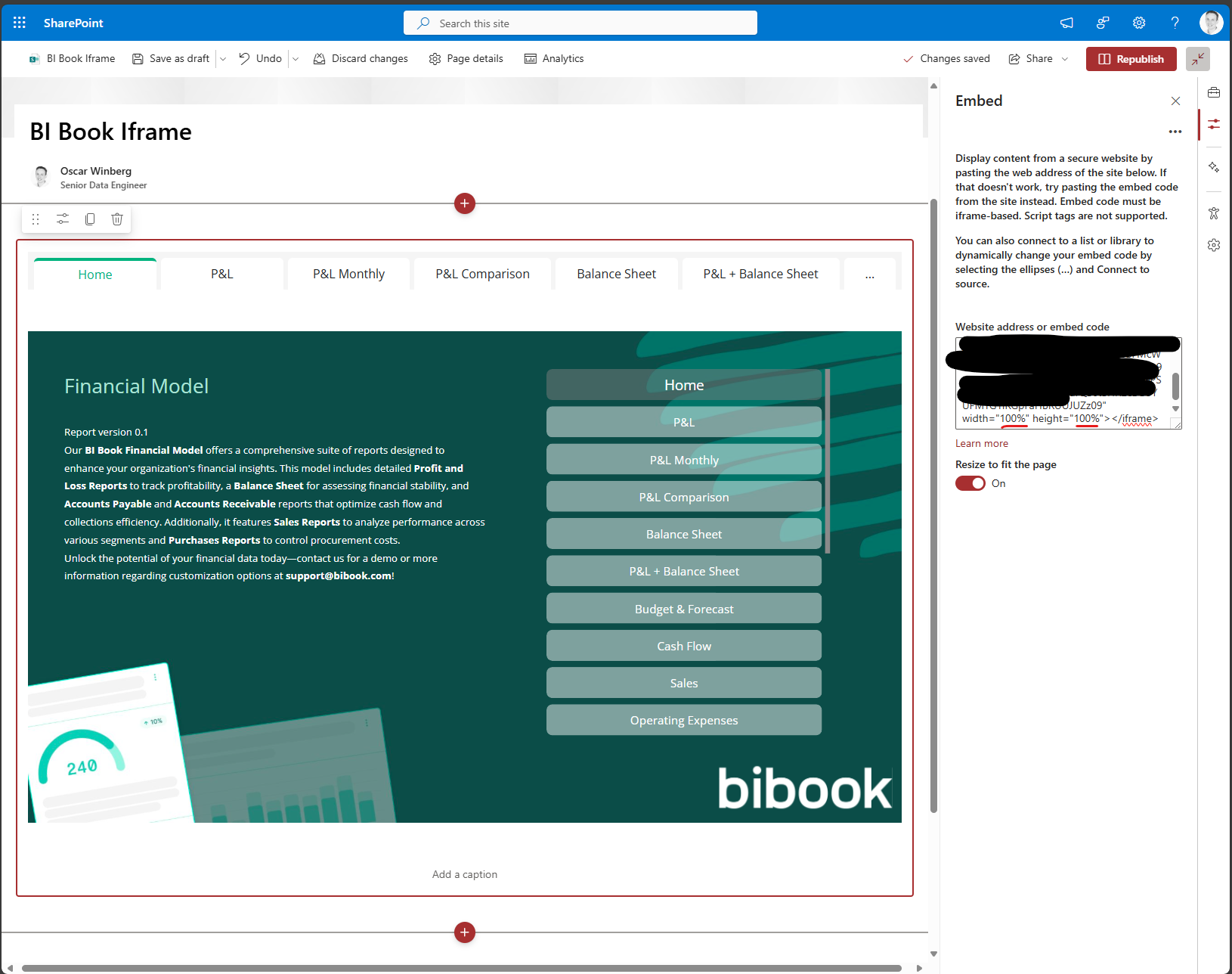
Now the BI Book report will render in your SharePoint embed element!
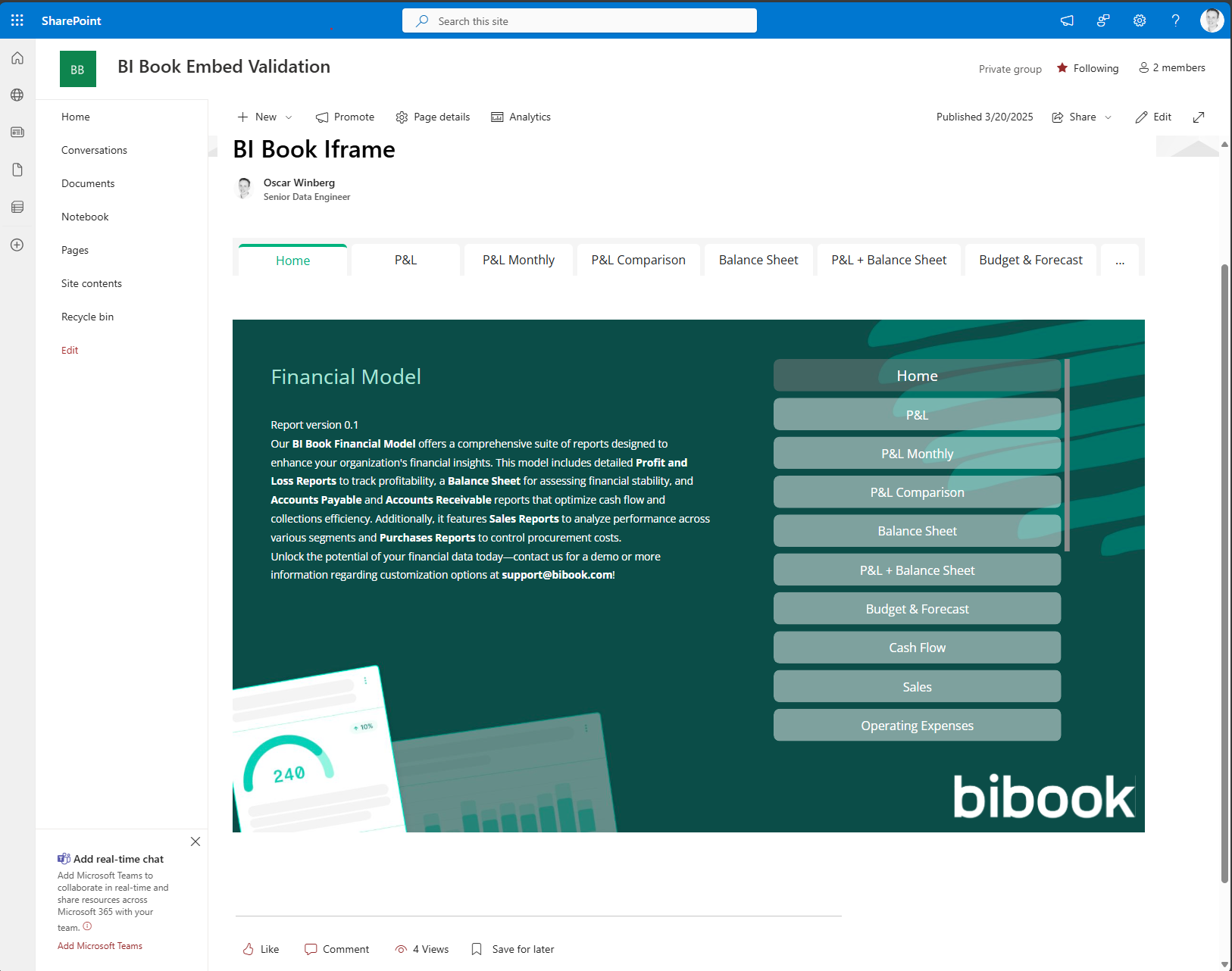
Note: If you want to achieve "auto-login" experience for the user with private embed links you have to setup sso. Because SharePoint doesn't support embed "script" tag, the user has to allow popups from the SharePoint page. Once this is done, the "auto-login" feature will work, and the report will render automatically for the user in the SharePoint page even though the BI Book session has expired, or user has logged out. If user declines the popup in the browser, they just have to press the sign in button, then the report will render normally. This is not mandatory, but for the full auto-login experience, user has to approve popup from the SharePoint page one time and after this the report will always render automatically.
Was this helpful?
Still need help? Ask the team