Adding a user
Last updated 8 months ago
Adding a new user
Step 1. Log in to BI Book as a user with admin rights.
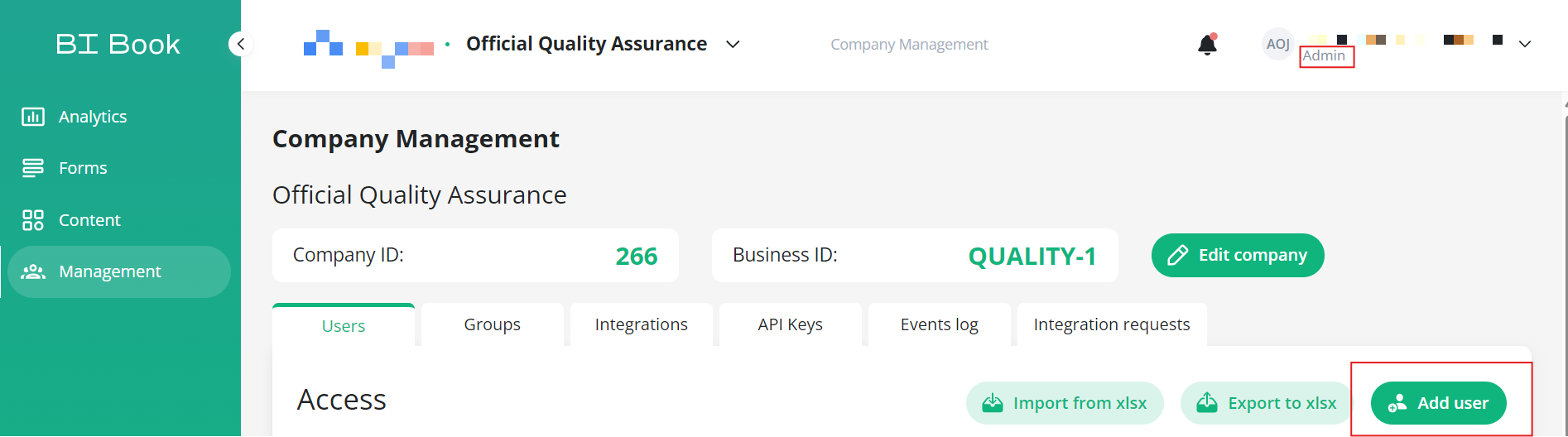
Step 2. Navigate to Company Management → Users tab
Step 3. Press Add user button
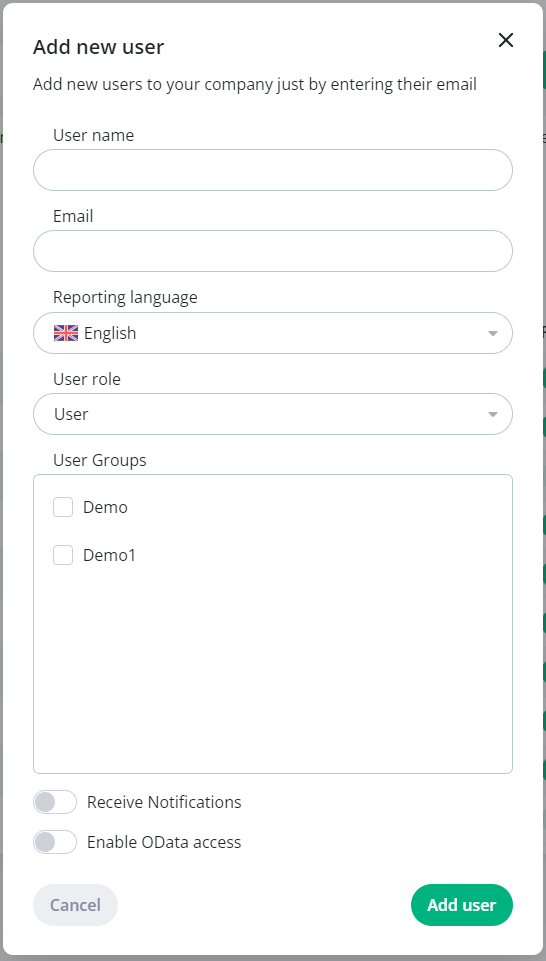
Step 4. Fill in the fields
User Name: A text field which will be the users display name
Email: The email address the user will authenticate with
Reporting language (if enabled): default reporting language for this user
User Role: Either "User" or "Admin" (please see help.bibook.com/en/articles/bi-book-access-management for more information)
User groups: please select the user groups to which the new user should belong. The permissions for the BI Book content objects (including reports, files, forms, and folders) will be granted based on the selected user groups. Note: a user can belong to multiple user group. Read more in help.bibook.com/en/articles/creating-and-managing-user-groups
If the user is not added to any of the available user groups, they will not have visibility of any BI Book content, unless the user has Admin privileges. In cases where the user is not part of any user group, direct access to BI Book content objects must be granted after they have been added. For more detailed information on access management within BI Book, please visit: help.bibook.com/en/articles/bi-book-access-management
"Enable OData access" toggle (default is disabled): when enabled the user can connect to BI Book API via OData connection using organizational account. Read more help.bibook.com/en/articles/bi-book-api-connection-methods
Step 5. Press "Add user"
The user will receive an email welcoming them and will be able to log in right away
Was this helpful?
Still need help? Ask the team