BI Book Access Management
BI Book user roles, permission management, access management
Last updated 8 months ago
General
As part of the Release 2025 - 4.0, BI Book has introduced a group-based permission model to:
Ensure consistency in permissions
Enhance security and access management
Save time in administrative tasks
🎯This article provides Admins with an overview of:
User Roles Use Cases: Understanding the different roles within BI Book.
Permissions for BI Book Content Objects: How permissions function for various content types, including reports, files, forms, and folders.
Access Modes: An explanation of the different access modes available (e.g., direct access, root access, user group access) and their interrelationships.
User roles
There are two distinct types of user roles in a BI Book company: Admin and User.
Admin: Company administrators have full access to everything, including all BI Book content and permission to manage users and their access to BI Book content. Admin role has replaced both Admins and Superadmins in BI Book (Release 2025 - 4.0).
User: This is a normal BI Book user whose permissions to BI Book content are managed by the company administrators (i.e. Admins) through individual permissions or user groups.
User role has replaced both Readers and Editors in BI Book (Release 2025 - 4.0).
Before assigning a role to a user, please review the list of functionalities that are exclusive to Admins below. Any functionality not listed can be accessed by configuring direct access or/and user group access.
Functionalities that are exclusive to Admins
Refreshing reports
Creating embed links
Everything under Company Management page, including but not limited to users management, user groups management, activating/deactivating integrations, monitoring event log, using and managing API keys, etc.
Granting access to the BI Book content objects
Permissions for BI Book Content Objects
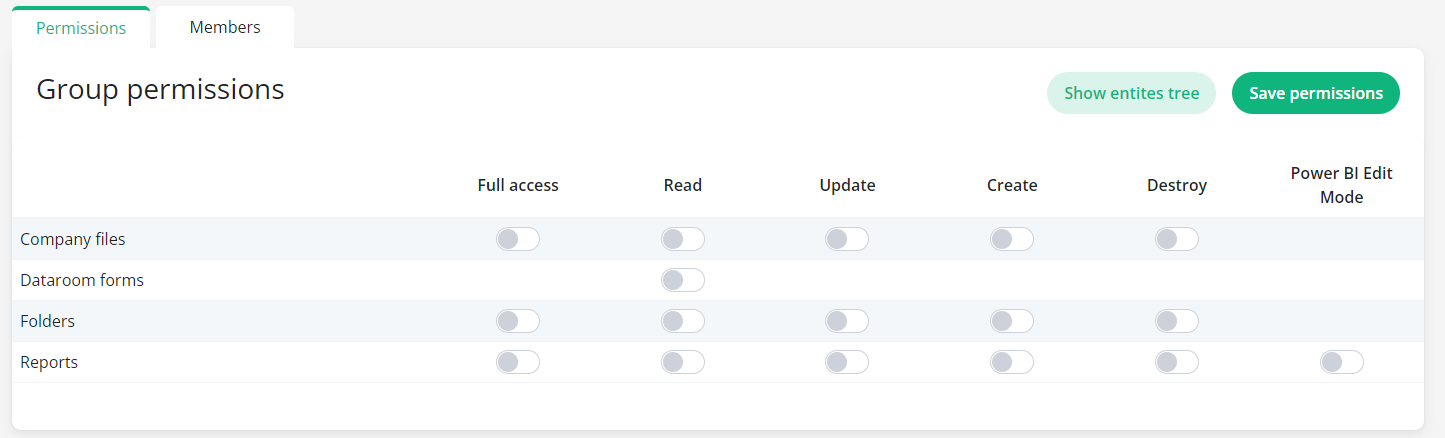
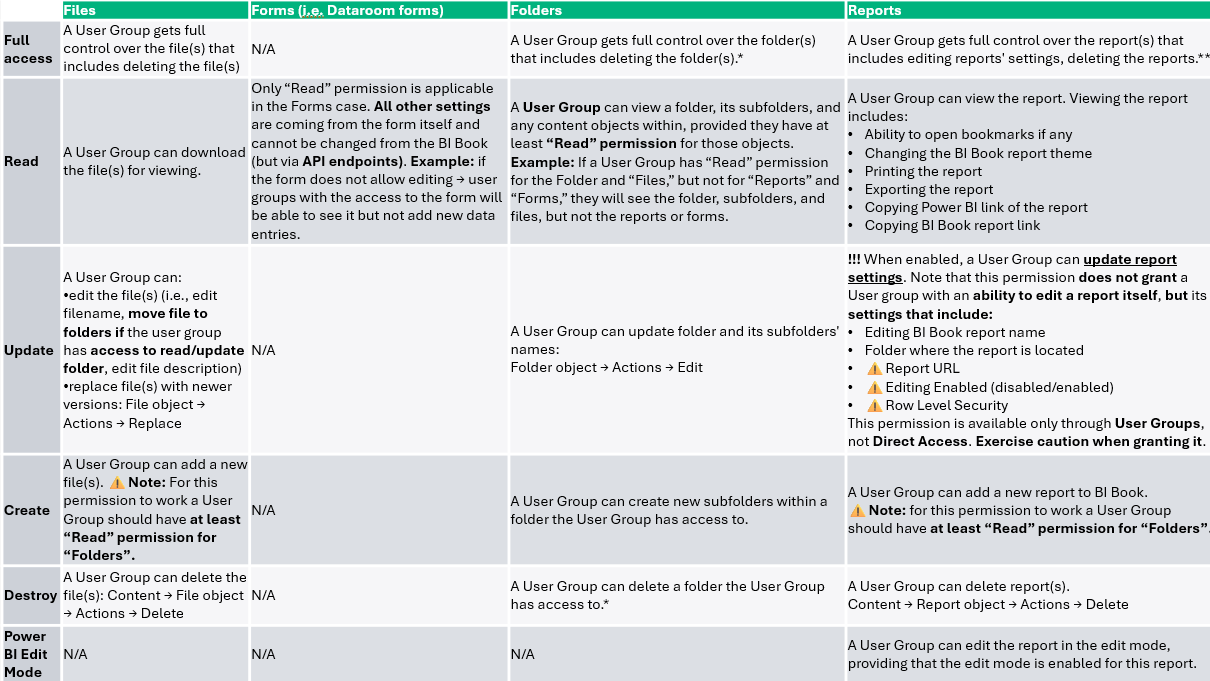
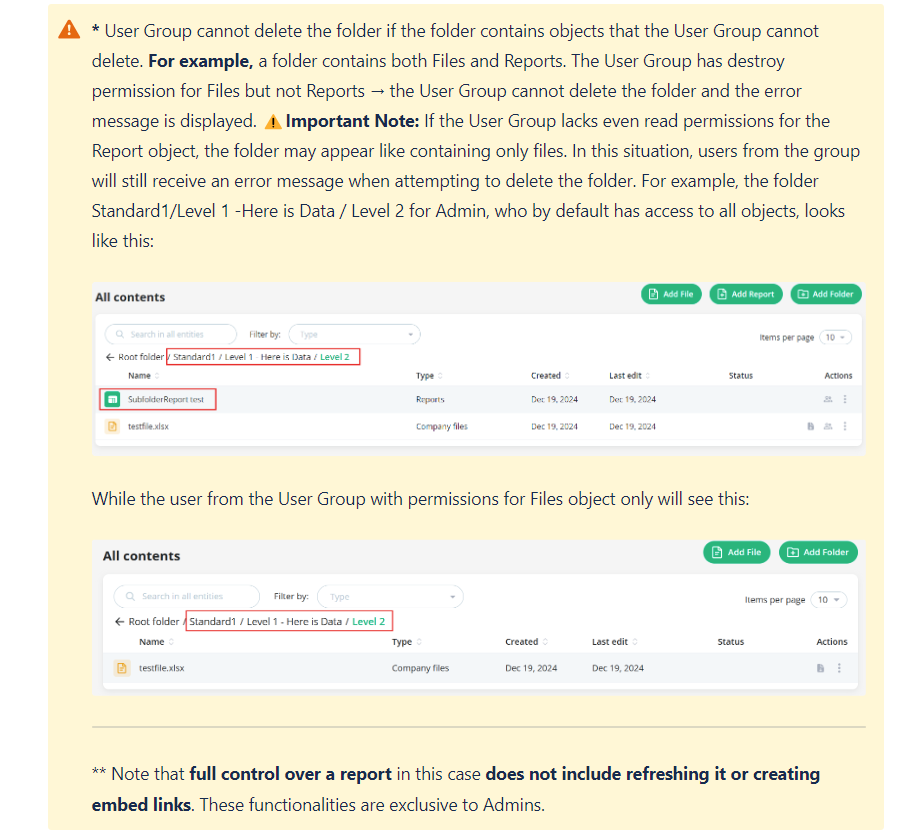
For each User Group you can specify the access rights on the level of Content object. To get started you will first need to define the permissions for a specific group. This subsection outlines the permissions available for user groups.
⚠️Note: The same permissions logic applies to both direct access mode and sharing the root folder, which are discussed later in the article.
Management → Groups → click on a group name or “Edit” icon → Permissions:
Access Modes
Direct access is the access to a Content object that has been given directly to an individual BI Book user. Direct access can be given in addition to or instead of the permissions obtained via User Groups.
Unlike User Groups, permissions for Content objects under Direct Access are restricted to two levels: Can View and Can Edit. These permission levels cannot be modified. If you require more flexibility in permissions, please consider configuring User Groups.
“Can view” permission level
The “Can view” permission level is configured as follows:
the user receives “Read” permission for all Content objects:
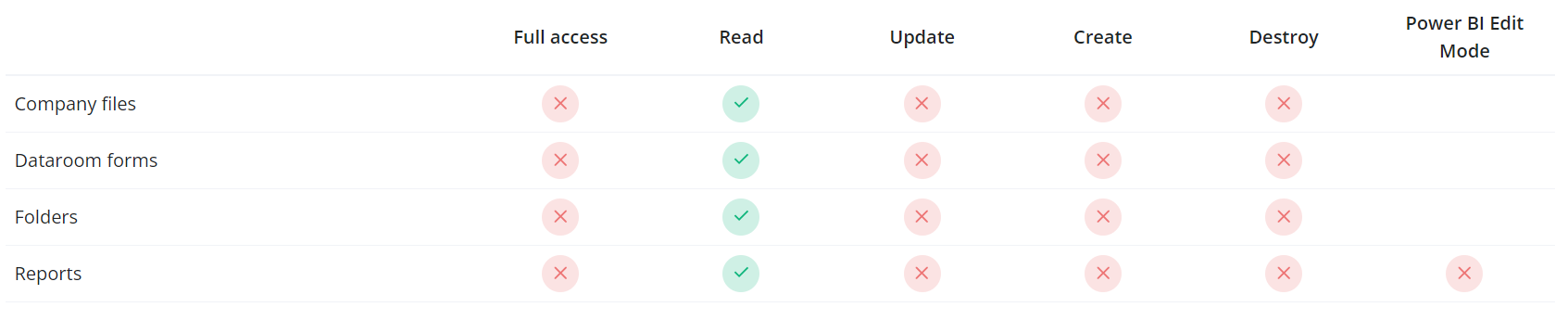
For a detailed explanation of what “Read” permission means for different Content objects, please check out Permissions for BI Book Content Objects section above.
“Can edit” permission level
The “Can edit” permission level is configured as follows:
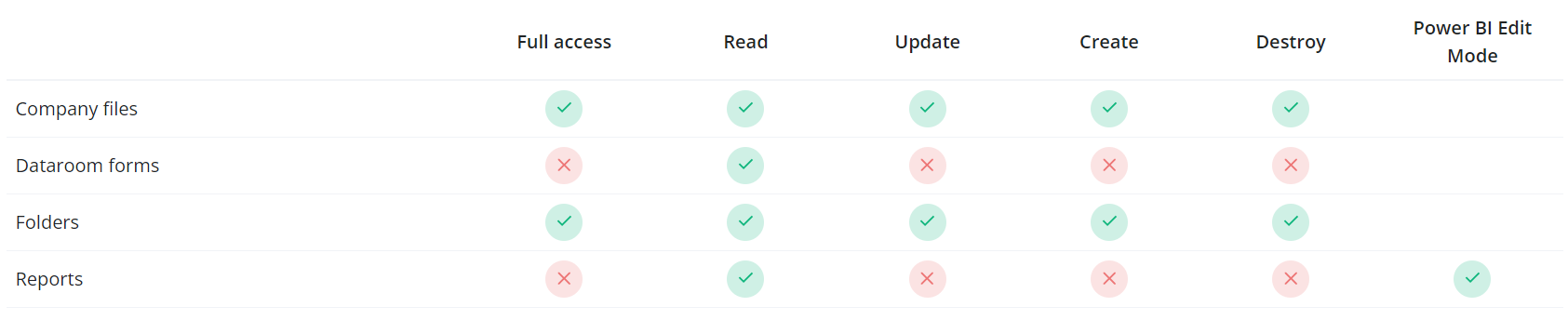
For a detailed explanation what these permissions entail for different Content objects, please check out Permissions for BI Book Content Objects section above.
Root Access
You can share all content with a user without needing to assign them an Admin role by simply sharing the root access.
You can share root access in two ways: through Direct Access by assigning either “Can View” or “Can Edit” permission levels, or by configuring User Group Permissions.
To learn how to share the root folder, please refer to this article: help.bibook.com/en/articles/how-to-share-root-folder-with-user-s
Recommended articles
Creating and Managing User groups help.bibook.com/en/articles/creating-and-managing-user-groups
Granting access to the Content objects help.bibook.com/en/articles/granting-access-to-the-content-objects
Was this helpful?
Still need help? Ask the team