Release 2026 - 13.3
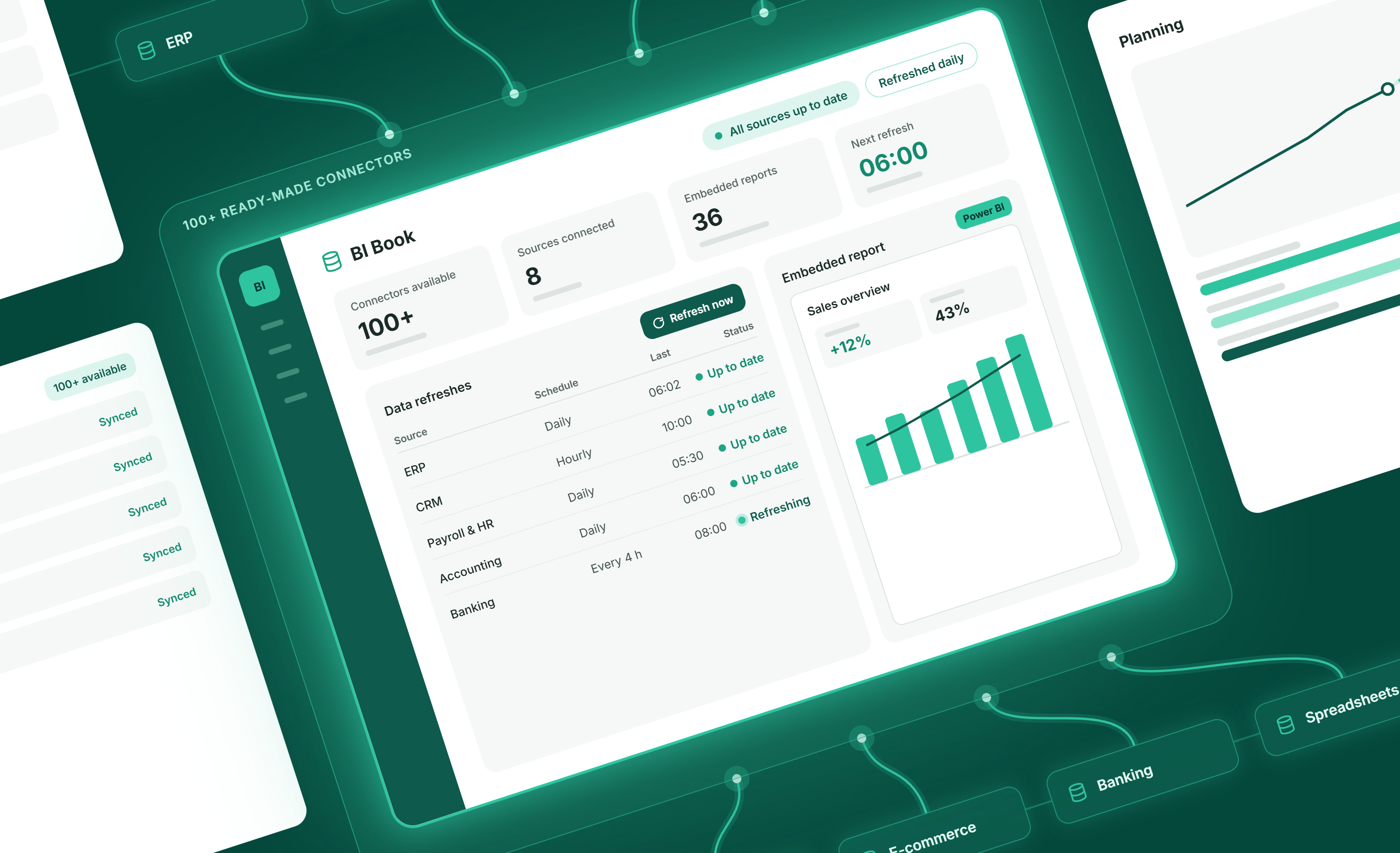
The latest BI Book release is here. We’ve significantly improved users’ import and export functionality, added possibility to manage bookmarks in BI Book embedded, and introduced a round of UX improvements.
✨Users’ import and export functionality improvements
Importing and exporting users no longer makes you wait. Start the operation and keep working in BI Book while it runs in the background. This makes a big difference with large user lists, which used to keep the screen busy until the whole job finished.
What’s new for you:
Keep working: start an import or export, then move on to other tasks right away.
Clear status updates: you can see when an operation is in progress and when it’s done.
Smoother with large datasets: big imports and exports no longer slow you down.
If you are not familiar with the feature, please have a look at Import Users from Excel - BI Book
✨Managing bookmarks in BI Book embed links
You can now save and manage Power BI bookmarks directly in reports shared through BI Book private embed links. Viewers can return to their favorite filters and views in one click, without leaving the page where the report is embedded.
Two new settings on private embed links let you choose how bookmarks work:
Show bookmarks menu: turn this on to show BI Book’s built-in bookmarks menu in the embedded report. Viewers can create, open, rename and delete bookmarks right away, with no development work needed.
Allow bookmark management through JS: turn this on to manage bookmarks from your own application using the BI Book JavaScript library. You can create, get, list, update and delete a report’s bookmarks, so you can build a bookmark experience that fits your own UI.
You can use either setting on its own or both together.
Please note: bookmark management is available for private embed links only. It isn’t supported on public links.
💡Check the help articles on how to get started:
✨Show or hide the login banner per company
You can now control the visibility of the login banner in your company (i.e. your company subdomain).
How it works:
Set through the API: use the new banner visibility setting for a company. There’s no setting in the BI Book UI for this yet.
Please contact us at support@bibook.com if you would like to disable the login banner on your subdomain
Please note: hiding the banner only applies to the company’s subdomain. If you log in through the main BI Book domain, the login banner is still shown.
✨Other improvements
Fortnox connector now supports warehouse data. You can bring it into BI Book alongside your other Fortnox data for reporting.
Fixed: one-time password login on private embed links
Fixed: editing reports with a logo. You can now edit reports that have a logo. Previously, changing a report’s name, description or settings failed with an error if the report had a logo, even when you hadn’t touched the logo. Your changes now save as expected, and the logo stays as it is.
Other fixes and technical improvements.
We hope you enjoy this new release!
Sincerely yours,
Team BI Book