Getting started with the Table Writeback Visual
In this article, you’ll learn what the Table Writeback visual is and how to activate it in your report.
Last updated 2 months ago
The Table Writeback visual allows you to easily create and edit database tables and their records directly from your BI Book / Power BI report. Its main purpose is to enable direct data entry without the need to switch between applications.
Key advantages include:
✅ Real-time data updates
Multiple users can update data simultaneously without leaving the report, with all changes written directly to the database.
✅ Actionable reporting
All changes are reflected immediately in report visuals and calculations, making it easy to experiment with what-if scenarios.
✅ Improved data accuracy and security
By writing data securely back to the database, the visual reduces errors from manual data handling and ensures a controlled, auditable data entry process.
Activating Table Writeback in BI Book
ℹ️ You need Admin rights in BI Book to follow this guide. However, regular users can still request activation of the visual.
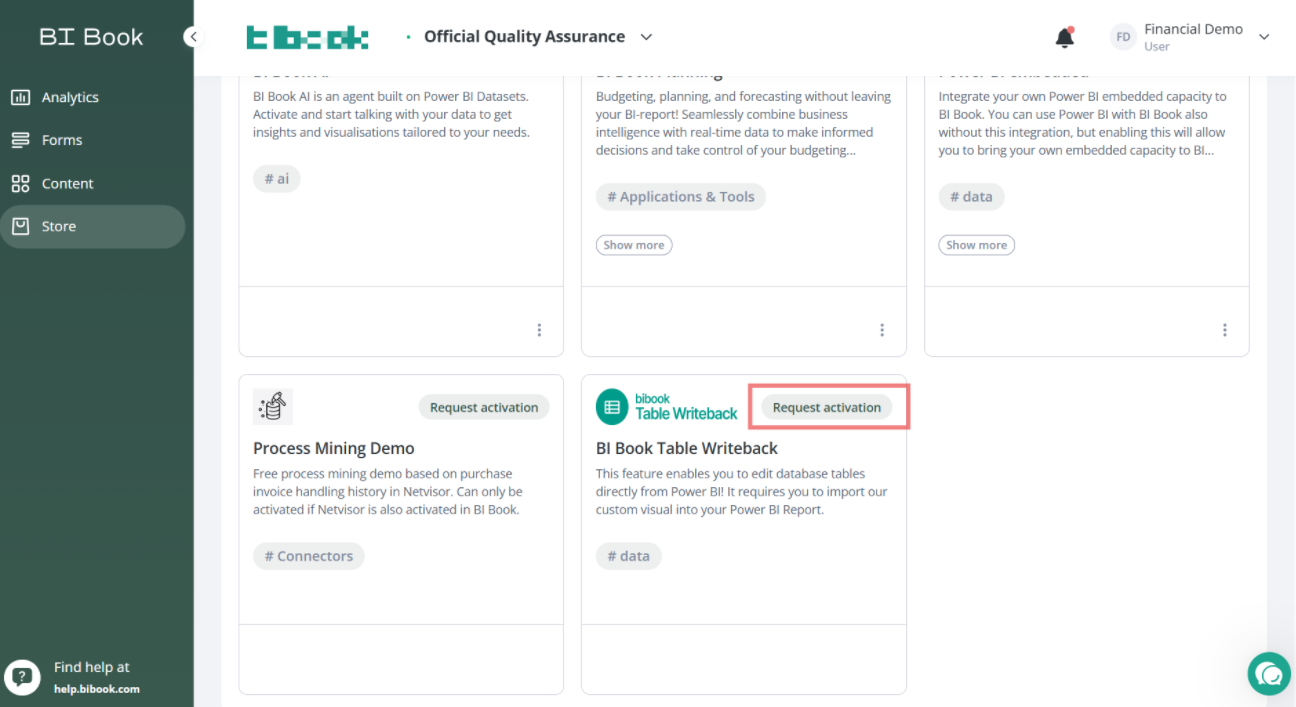
Request activation (for Users)
If you do not have Admin rights, you can request activation from the BI Book Store, and your Admin will be notified:
Activation (for Admins)
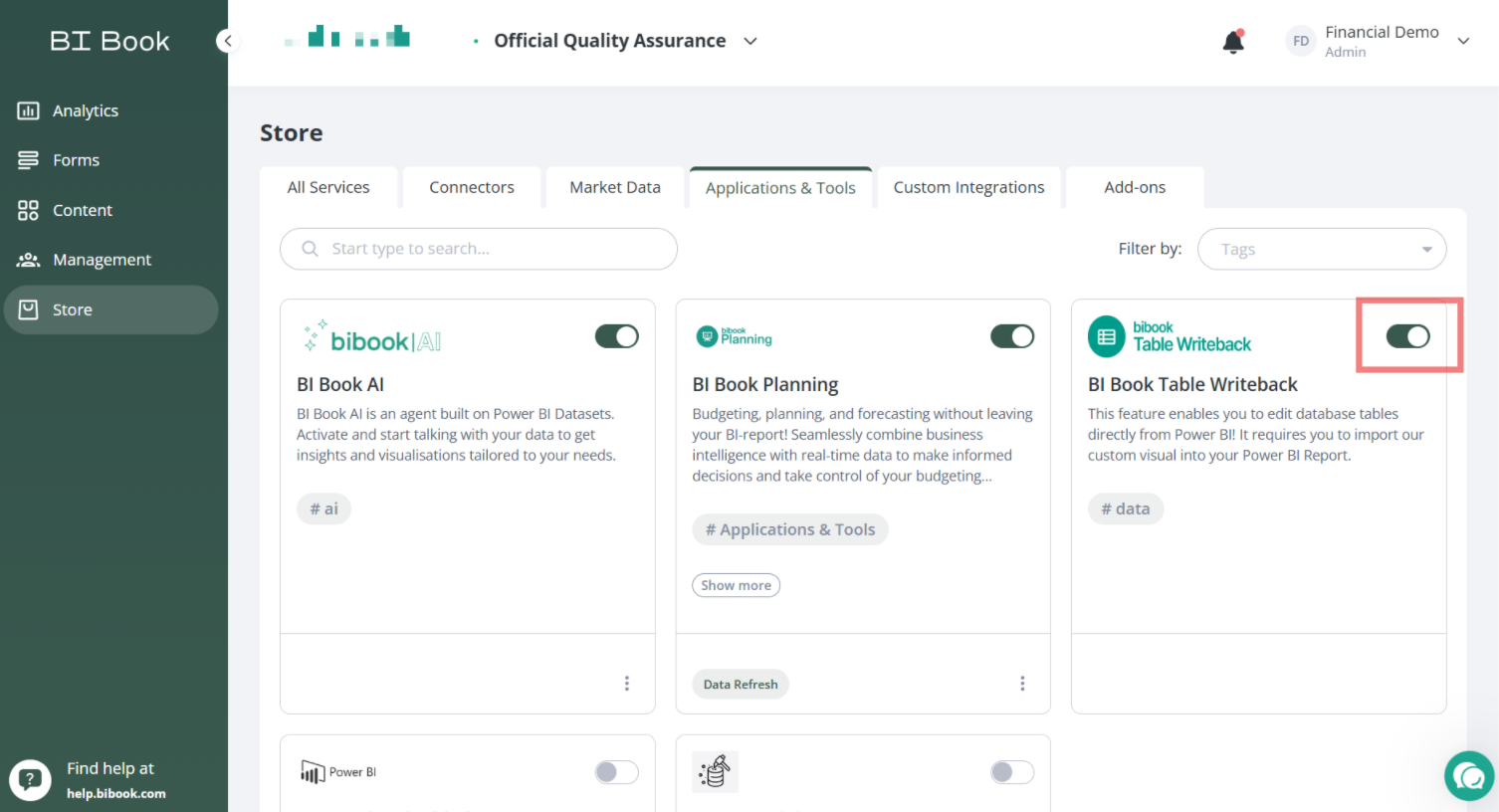
As a first step, you need to activate the Table Writeback visual in your BI Book environment to obtain credentials for the writeback functionality.
You can do this by navigating to:
BI Book Store → Applications & Tools → BI Book Table Writeback
Then simply switch on the activation toggle on the Table Writeback card.
If you do not have Admin rights, you can request activation from the BI Book Store, and your Admin will be notified:
Adding the visual to your report
Once you have activated the Table Writeback in BI Book, you can move on to adding the custom visual to the report.
This can be done in 2 ways*:
By importing the most recent visual package manually
By importing the visual to the report from the Microsoft AppSource
*The Table Writeback visual becomes available in Microsoft AppSource in Sep 2026; prior to that date, it can only be added via manual package import.
(1) Importing the visual with the package
To get the visual package (.pbiviz file), reach out to your BI Book contact person or send an email to support@bibook.com.
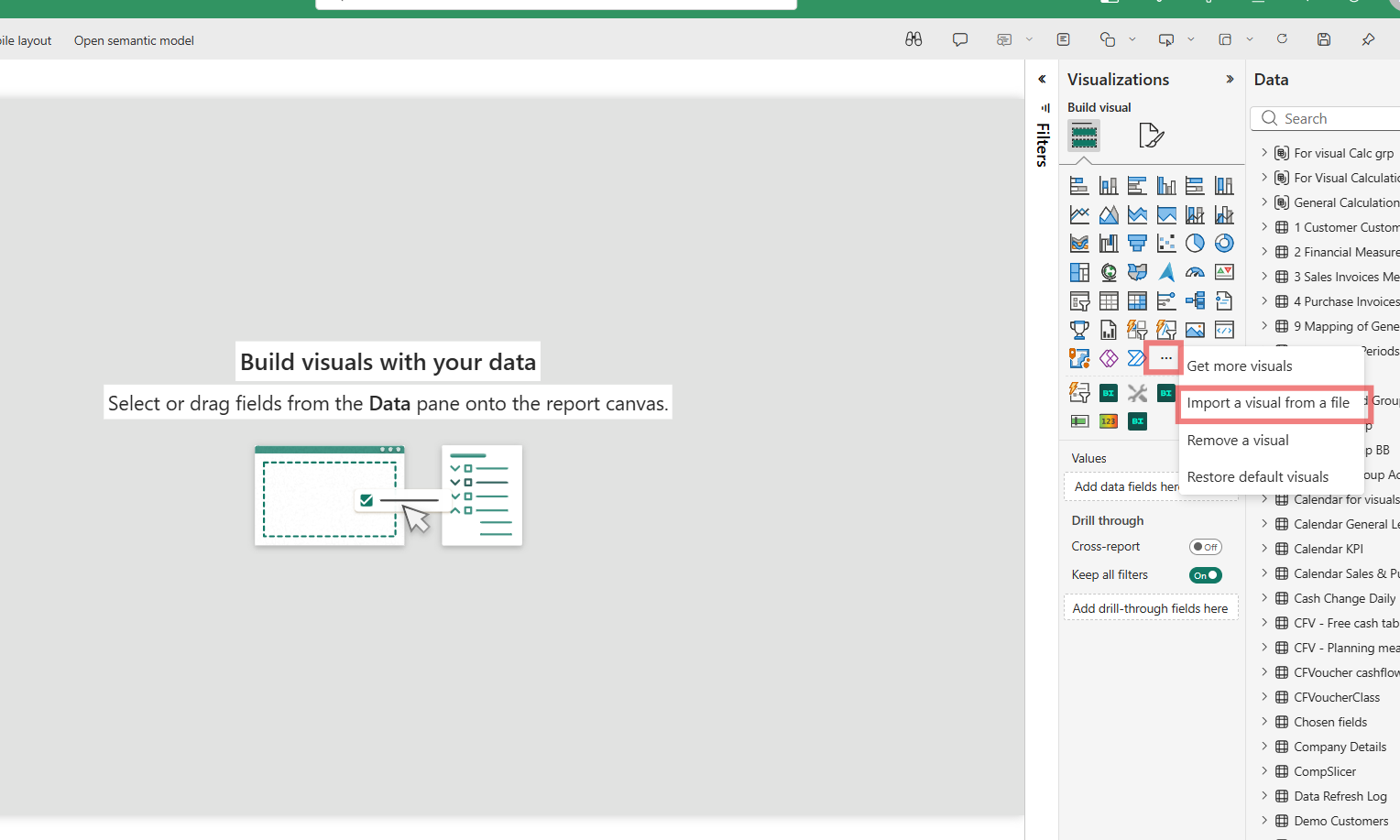
After downloading the package, go to your Power BI report, enter Edit mode, then in the Visualizations pane click “…” and choose Import a visual from a file:
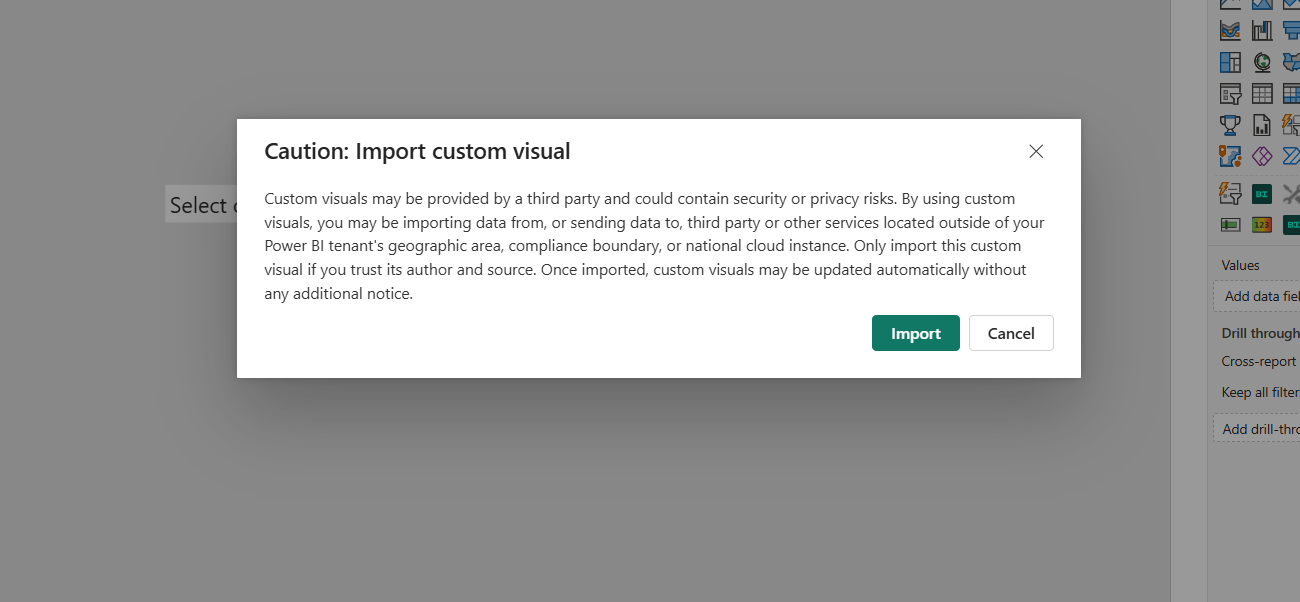
You will see a warning message, which is standard for custom visuals. Click Import to continue:
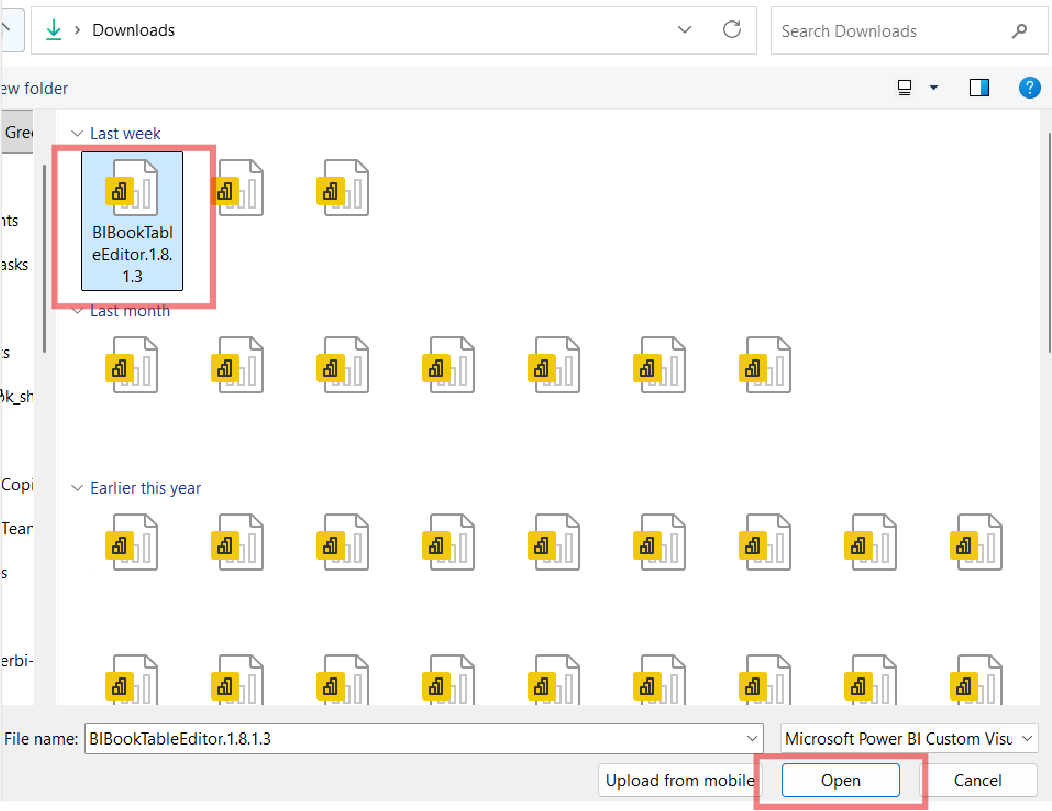
Locate the visual package file you downloaded to your local directory and, once selected, click Open:
The Table Writeback visual has been added to your report and you are now ready to start configuring the visual:
ℹ️ Please note that visuals imported from a package do not update automatically when a new version is released; new packages must be imported manually. We recommend using the version available in Microsoft AppSource whenever possible. However, the benefit of using the visual package is that you can access the latest updates earlier, without waiting for the AppSource listing to be updated.
(2) Importing the visual via Microsoft AppSource
To be continued…
Configuring the visual
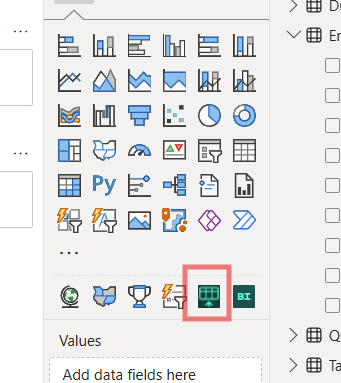
Click the custom visual icon in the Visualizations pane to add the visual to your report page.
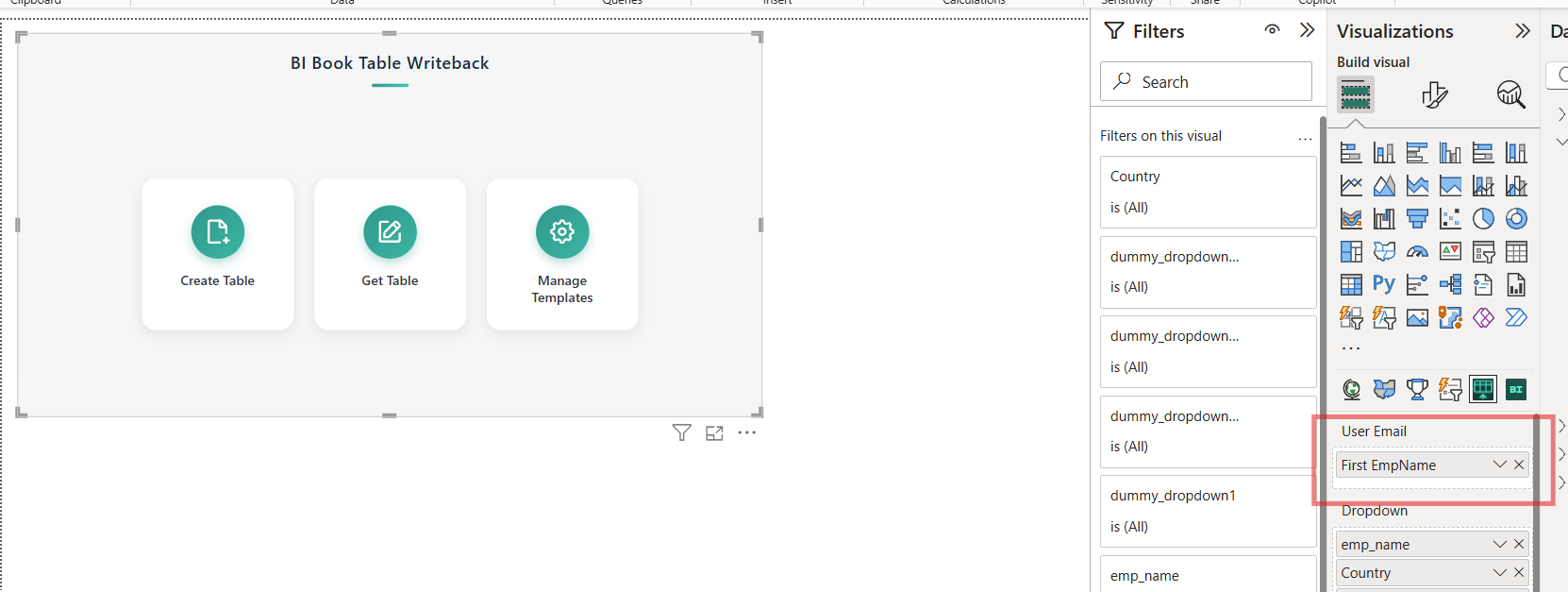
Then add a simple dummy measure to the User Email field in the visual’s settings:
Navigate to “Format visual” → Visual → API settings and input the details:
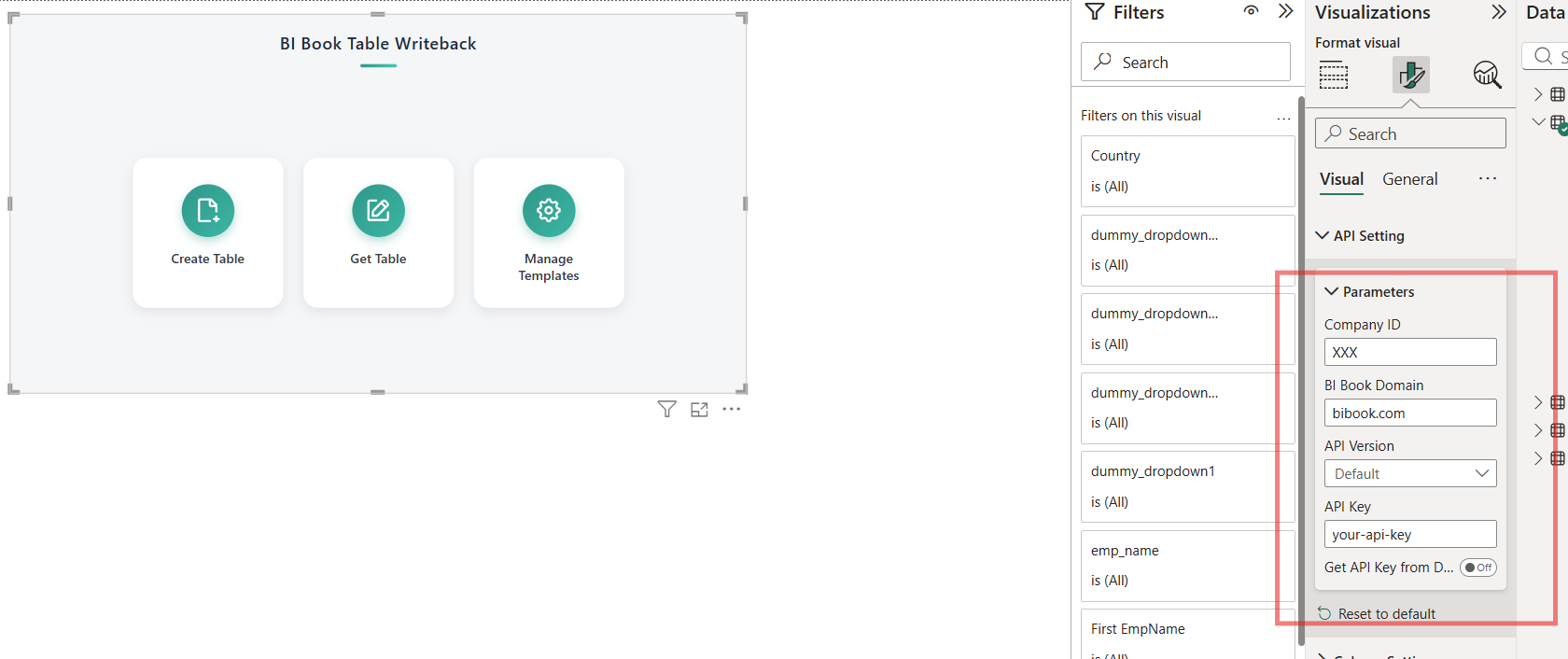
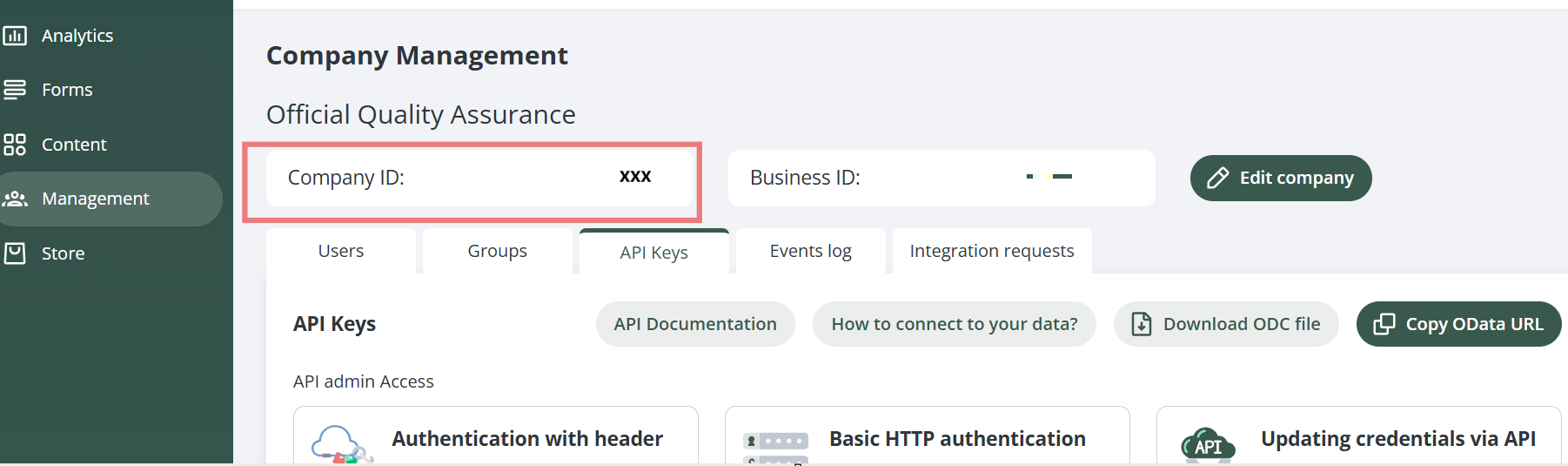
You can get your Company ID and the API Key from your BI Book environment:
In the BI Book Company Portal, go to Management → API Keys, copy the Company ID, and paste it into the Company ID field in your writeback visual settings in the report:
Scroll down to Integration Keys, click Copy token, and paste it into the corresponding field in the visual’s settings:
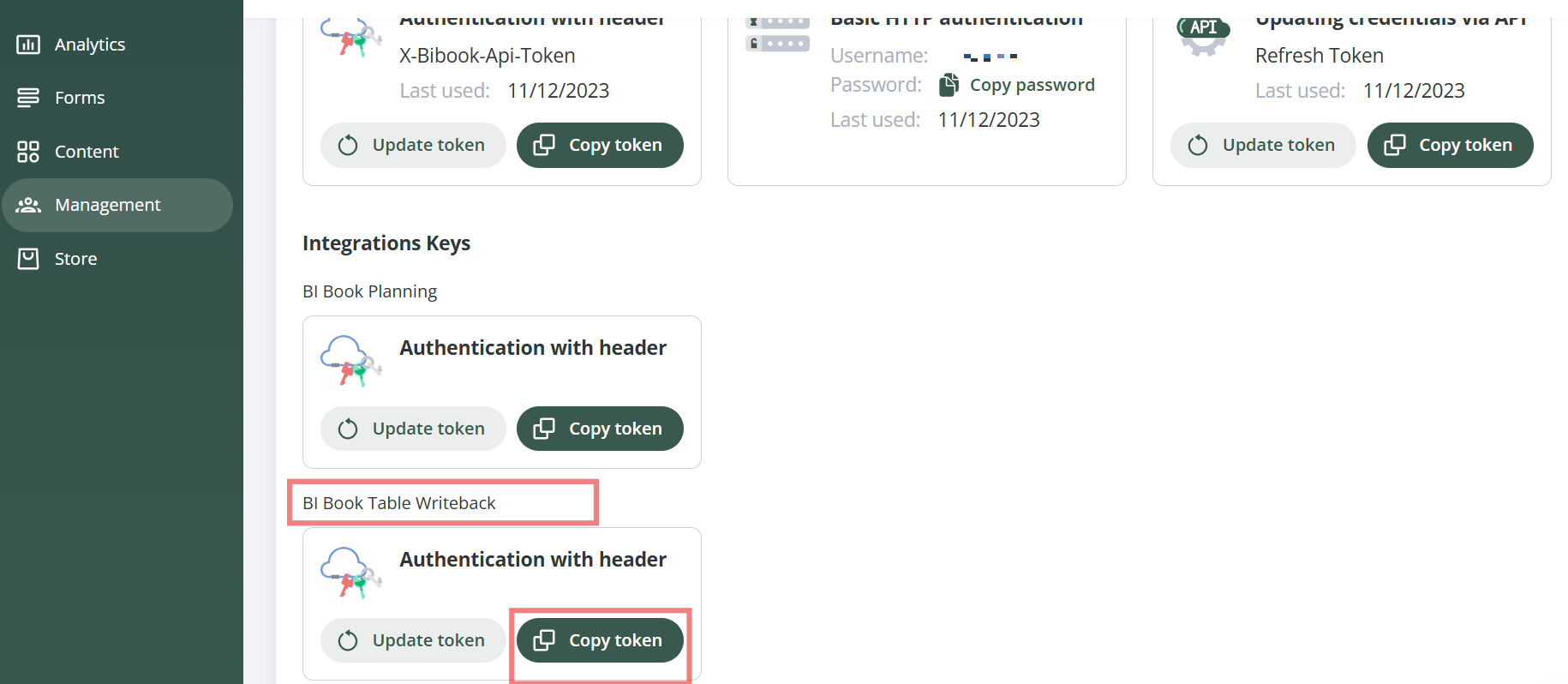
Make sure that
bibook.comis specified under BI Book Domain setting
Adding your first table and using it in your reporting
To create a new table please follow this instructions Add a new table - BI Book.
Once the table is created and you have added some data to it, you can start using this data in your reports. To do so, connect to the newly created table using DirectQuery.
If you haven’t done it before, please check out the Microsoft’s tutorial
You can get the SQL credentials by reaching to your BI Book Contact person or at support@bibook.com
After you connect to the created table, you can start using its fields in measures and visuals, and all changes will be reflected in real time.
Related content
Was this helpful?
Still need help? Ask the team